ui5-touch-controls
A UI5 control library that rebuilds common sap.m controls with one size property from S to 6XL, and adds on-screen keyboards, a barcode input and a signature pad.
sap.m controls are sized for mouse and keyboard, and on a tablet, a shop-floor terminal or with gloves even cozy density is too small. The library rebuilds controls such as Button, Select, DatePicker, Input and OverflowToolbar on their original structure, keeping the common properties, aggregations and events, so a view changes by namespace and a size that can be bound to a model for the whole app. It adds what sap.m lacks for touch: tc:Keyboard, tc:NumberPad and tc:CustomKeyboard rendered from its own buttons, tc:BarcodeInput, which tells a wedge scanner from a person typing by the gaps between keystrokes, and tc:SignaturePad, which returns a PNG data URL. It ships theme libraries for Horizon and Fiori 3 and their variants, and runs on UI5 1.116 or later. Aggregations typed to sap.m.Button do not accept its buttons.
Facts
Where it sits
Who is behind it

In the atlas: maintains 8, contributes to 10, wrote 1@mariokernichmaintainer
What it declares
Every artifact
- Type
- Package
- Origin
- Independently maintained
As a package
- Where it runs
- does not say
- Distributed through
- npm
Connections
Operating an app by finger, stylus or gloved hand
Download
Install
npm add ui5-touch-controlsDerived from the package name. No recipe recorded; the README has the configuration.
README
quoted from mariokernich/ui5-touch-controls under Apache-2.0, read


UI tests








Standard UI5 controls, rebuilt for touch — plus the ones sap.m is missing.
sap.m controls are made for mouse and keyboard. On a tablet, a shop floor terminal or a device operated with gloves they are simply too small — and the cozy content density only gets you one step further.
The library does two things about that:
-
It rebuilds the most important
sap.mcontrols on their original structure and opens them up for sizing through one centralsizeproperty (S–6XL) that works the same way on every control. You do not have to rebuild your app: the controls keep the familiar properties, aggregations and events of their originals for the common cases, so you can use them as a drop-in replacement — add the namespace, puttc:in front of the control, set a size. Everything else stays the way it is. -
It adds controls that
sap.mdoes not have at all, for situations that only come up on touch devices. The prime example istc:Keyboard— a terminal without a hardware keyboard needs an on-screen keyboard, and OpenUI5 does not ship one.
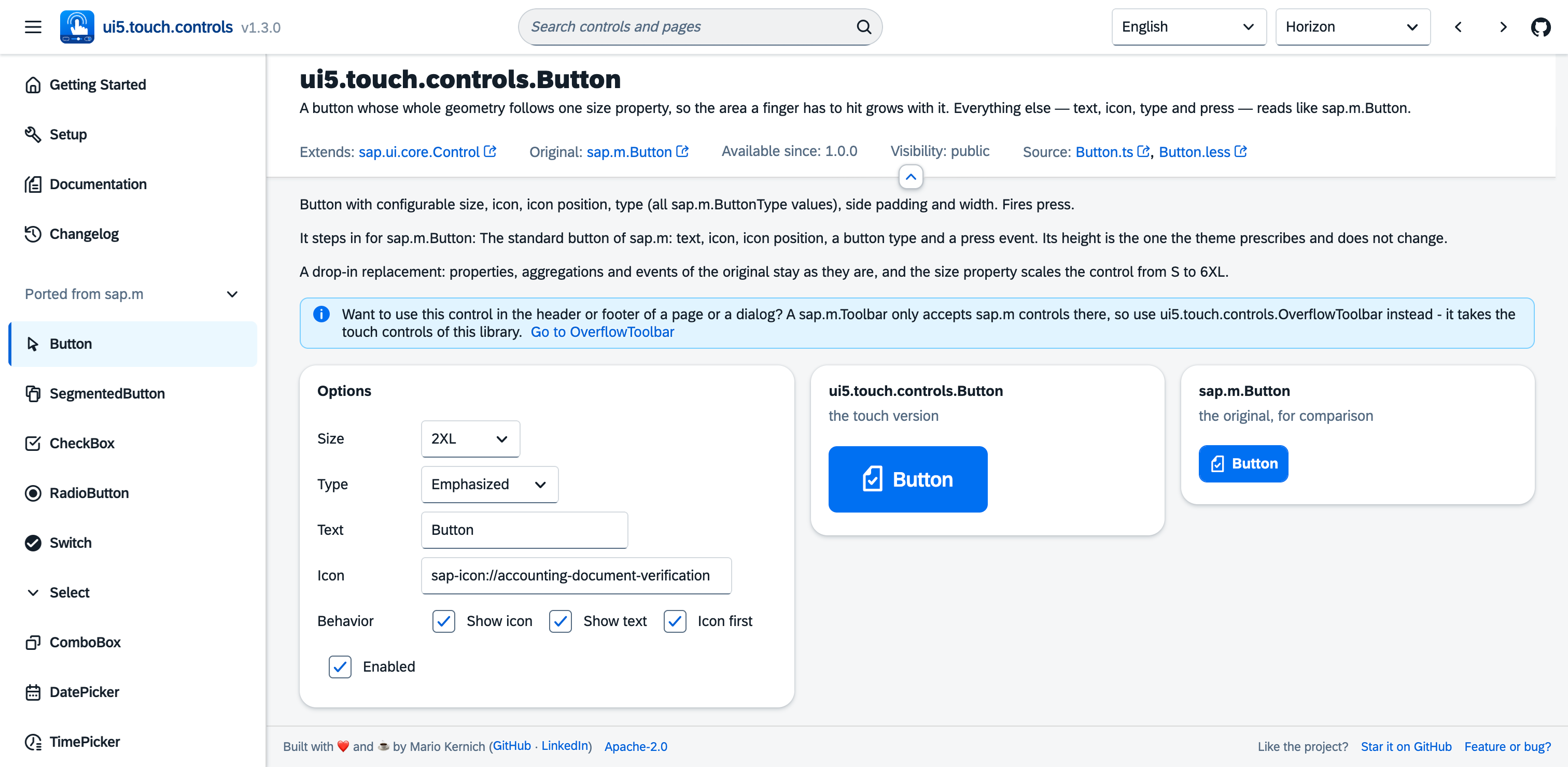
Link of full documentation: https://mariokernich.github.io/ui5-touch-controls/test-resources/ui5/touch/controls/index.html
Drop-in replacement — before and after
A sap.m.Page with an OverflowToolbar as footer. This is the standard version:
<mvc:View
	xmlns:mvc="sap.ui.core.mvc"
	xmlns="sap.m">
	<Page title="Order">
		<footer>
			<OverflowToolbar>
				<Button text="Save" type="Emphasized" icon="sap-icon://save" press=".onSave" />
				<Button text="Cancel" icon="sap-icon://decline" press=".onCancel" />
				<ToolbarSpacer />
				<Button text="Approve" type="Accept" icon="sap-icon://accept" press=".onApprove" />
				<Button text="Reject" type="Reject" icon="sap-icon://decline" press=".onReject" />
				<Button text="History" icon="sap-icon://history" press=".onHistory" />
			</OverflowToolbar>
		</footer>
	</Page>
</mvc:View>
And the touch version — the namespace tc, a tc: in front of the controls and a size:
<mvc:View
	xmlns:mvc="sap.ui.core.mvc"
	xmlns="sap.m"
	xmlns:tc="ui5.touch.controls">
	<Page title="Order">
		<footer>
			<tc:OverflowToolbar size="XL">
				<tc:Button text="Save" type="Emphasized" icon="sap-icon://save" size="XL" press=".onSave" />
				<tc:Button text="Cancel" icon="sap-icon://decline" size="XL" press=".onCancel" />
				<ToolbarSpacer />
				<tc:Button text="Approve" type="Accept" icon="sap-icon://accept" size="XL" press=".onApprove" />
				<tc:Button text="Reject" type="Reject" icon="sap-icon://decline" size="XL" press=".onReject" />
				<tc:Button text="History" icon="sap-icon://history" size="XL" press=".onHistory" />
			</tc:OverflowToolbar>
		</footer>
	</Page>
</mvc:View>
Same aggregations, same properties, same event handlers — press=".onSave" still calls the same method in your controller. sap.m controls such as ToolbarSpacer can stay exactly where they are.
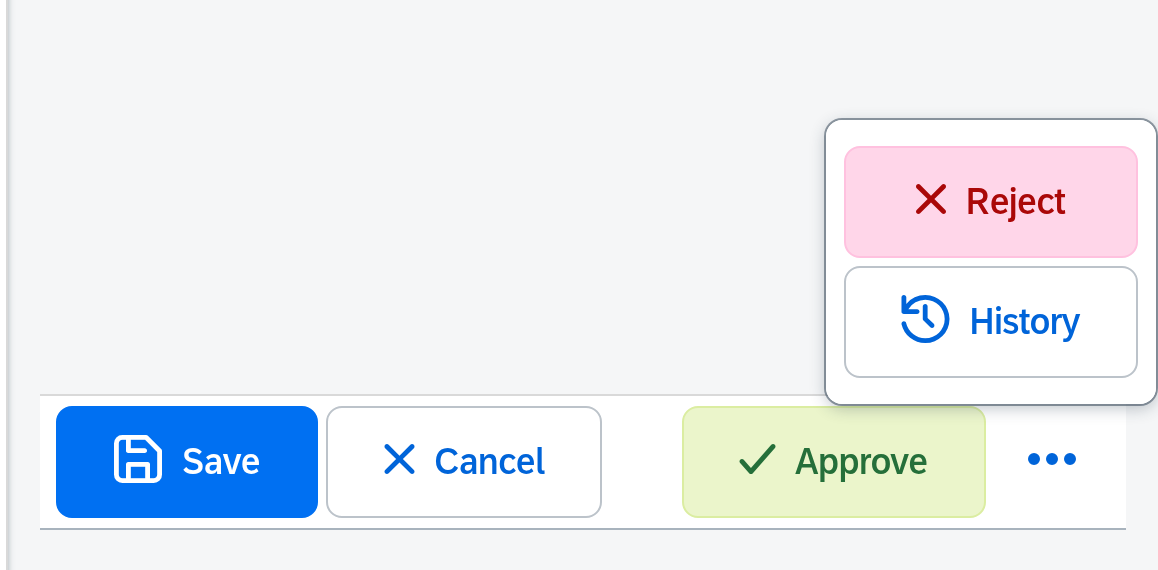
The result: buttons big enough to hit with a finger, and a toolbar that moves everything that does not fit behind a button with three dots.
Bind size to a model to switch the size of the whole app at runtime:
<tc:Button text="Save" size="{settings>/touchSize}" press=".onSave" />New controls for touch
Not everything a touch app needs exists in sap.m. Where that is the case, the library adds a control of its own — built from the same sized building blocks, themed through the same theme parameters, so it fits in with the rest.
The keyboards
On a shop floor terminal, a kiosk or a device operated with gloves there is often no hardware keyboard, and the on-screen keyboard of the operating system is either unavailable or covers half the screen. OpenUI5 has no control for this. This library brings three, rendered from its own buttons — no third-party dependency, and sized through the same size property as everything else.
Which one you reach for follows from what the field is for:
| Control | What it is |
|---|---|
tc:Keyboard | a keyboard of letters, built from a language and a handful of switches |
tc:NumberPad | a pad of digits in three columns |
tc:CustomKeyboard | the keyboard whose keys you hand over, row by row |
All three share a base class, tc:KeyboardBase. That is where the value, the sets of keys, shift and caps lock, the hardware keys, the size, the width and the docking live — so everything below about those applies to each of the three. It is also the type the keyboard aggregation of a field is typed to, so any of them fits in there.
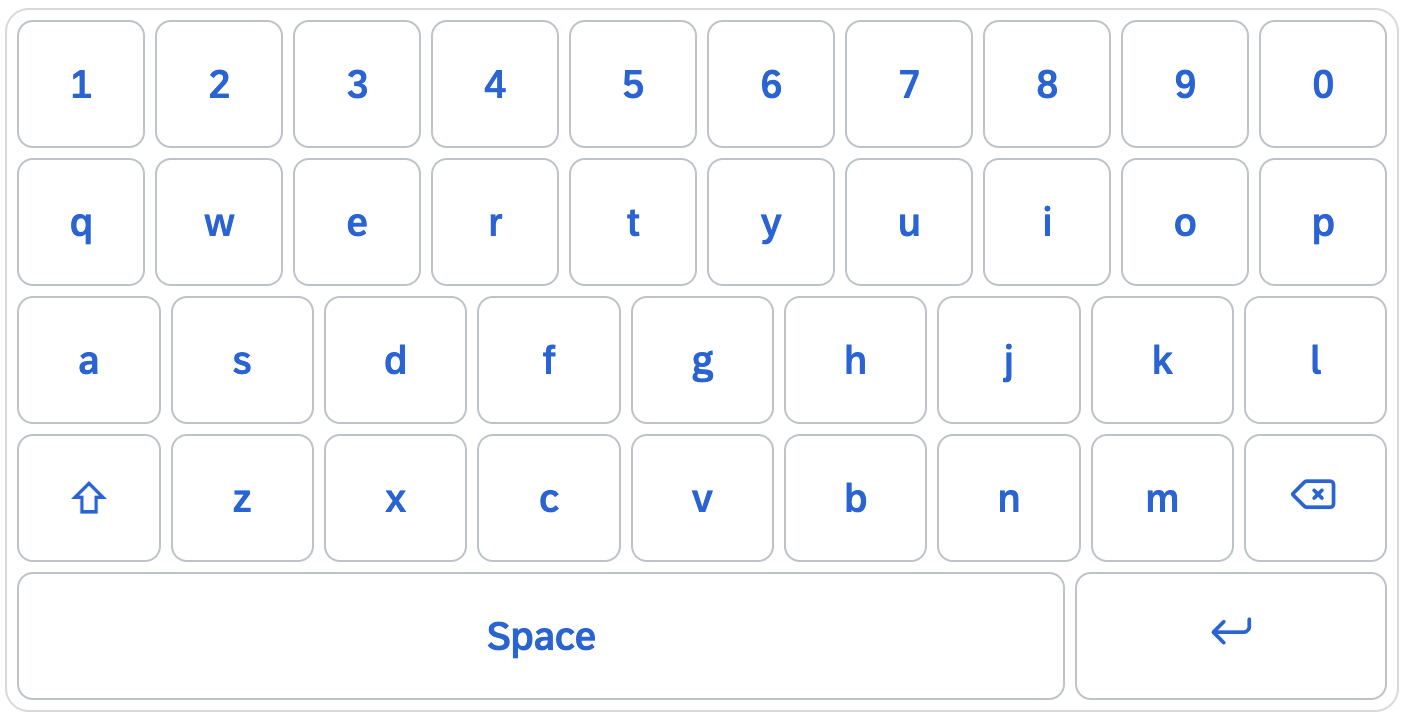
A key would like to be as wide as it is tall — a square target under a thumb, and the width the keyboard brings along when nothing constrains it. That width is also the first thing to give: a keyboard is never scrolled sideways, so where the room is tight the keys share what there is instead. The height comes from size and stays as it is, so a key is as easy to hit as it was. Setting width on the keyboard has the same effect as a narrow screen.
tc:Keyboard — letters
mode is the arrangement of a country, named after the language rather than after the three letters in its top row:
| Mode | The arrangement of |
|---|---|
English | QWERTY — the default |
German | QWERTZ: Z and Y swapped, with Ä, Ö, Ü and ß |
French | AZERTY: A and Q, Z and W swapped, M at the end of the home row |
Spanish | QWERTY with an Ñ next to the L |
Italian | QWERTY with the accented vowels on a set of their own |
Portuguese | QWERTY with Ç, likewise with its accents on a set of their own |
Swedish | Å, Ä and Ö at the end of the rows — what Finland writes on as well |
Turkish | the Q arrangement, with the Turkish rules of case |
Romanian | the standard arrangement, with the comma-below Ș and Ț |
Ukrainian | ЙЦУКЕН with І, Ї and Є |
Russian | ЙЦУКЕН with Ы, Э and Ъ |
Hindi | Devanagari in the InScript arrangement, the Indian standard |
Turkish is worth a note: there i becomes İ and I becomes ı, which the ordinary change of case gets wrong. Portuguese and Italian write their accented vowels with a dead key on a keyboard of keys; a key that is tapped once has nowhere for a dead key to wait, so those letters sit on a set of their own, reached beside the space bar the way the digits are.
<tc:Keyboard
	value="{/article}"
	size="XL"
	mode="German"
	change=".onChange"
	enter=".onEnter" />
The rest of the keyboard is switches:
| Property | What it does |
|---|---|
displayNumbers | where the digits go: Always in a row above the letters, Toggle behind a key of their own, Never not at all. ToggleOnMobile is the default — a row on a computer, a key on a phone |
showSpecialCharacters | adds a set of brackets, signs and currencies |
showEmojis | adds a set of faces behind a key of its own |
letterCase | Upper or Lower pins the keyboard to one case and leaves shift and caps lock off — for a field with a case of its own, like a material number or a licence plate. Mixed is the default |
showCapsLock | adds the caps lock beside the shift key |
showEscape | adds an {esc} key as the first key of the top row |
enterText | what the Enter key says — Search, Next. Empty leaves it the arrow it is |
extraKeys | keys of your own beside the space bar, on every set |
extraKeys is where a key goes that a field wants at hand rather than behind a switch — the at sign of an address, the dot of a domain, a unit:
<tc:Keyboard
	value="{/email}"
	size="XL"
	mode="English"
	extraKeys="@,."
	enterText="Send" />
tc:NumberPad — digits
mode picks the block: Simple is the pad of a computer with 7 8 9 on top, Phone the pad of a telephone with 1 2 3 on top and a star and a hash beside the zero, Calculator adds the four basic operations and an equals sign.
<tc:NumberPad
	value="{/quantity}"
	size="XL"
	mode="Simple"
	showDecimalSeparator="true"
	change=".onChange" />
decimalSeparator says what that key writes; left empty it follows the current language — a comma in German, a point in English. showSign adds a minus for a value that may be negative. Both are only looked at in Simple: the other two blocks have their fourth row taken already. showSpecialCharacters, showEscape and enterText work as they do on the letters.
tc:CustomKeyboard — keys of your own
For anything the other two do not cover. layout is a list of rows, keys separated by spaces:
<tc:CustomKeyboard
	value="{/article}"
	size="XL"
	layout="A B C D, E F G H, \{bksp\} \{space\} \{enter\}" />
In a view the braces of a special key are escaped with a backslash, \{bksp\}: UI5 reads a brace in an attribute as the start of a binding, and an unescaped layout would silently leave the keyboard with its default keys. In code they are written as they are.
{tab}, {shift}, {lock}, {space}, {bksp}, {esc} and {enter} are the special keys; every other key inserts its own label into the value. {shift} writes the next letter in upper case and then falls away, {lock} is the caps lock and stays on until it is pressed again — and shift while the lock is on writes lower case, the way it does on a keyboard of keys.
More than one set of keys
A keyboard of keys has more on it than fits under ten fingers at once. A keyboard on a screen does what the one of a phone does instead: it shows one set at a time and swaps it for another when a key says so. Each set is a tc:KeyboardLayout with a name and its rows, and that is all there is to it — every set stands on its own and says in full what is on it. Upper case is not a state of the keyboard but a set of its own, written out as the letters it shows:
<tc:CustomKeyboard value="{/code}" size="XL">
	<tc:layouts>
		<tc:KeyboardLayout
			name="default"
			rows="q w e r t y u i o p,
			      a s d f g h j k l,
			      \{shift\} z x c v b n m \{backspace\},
			      \{numbers\} \{space\} \{ent\}" />
		<tc:KeyboardLayout
			name="shift"
			rows="Q W E R T Y U I O P,
			      A S D F G H J K L,
			      \{shift\} Z X C V B N M \{backspace\},
			      \{numbers\} \{space\} \{ent\}" />
		<tc:KeyboardLayout
			name="numbers"
			rows="1 2 3, 4 5 6, 7 8 9, \{abc\} 0 \{backspace\}" />
	</tc:layouts>
</tc:CustomKeyboard>
A key named after a set switches to it, so the switching is part of the layout and needs no code around it. A key that names the set it is already on leads back out of it, to whatever was there before — which is what makes the {shift} inside the set of capitals come back. The keyboard starts with the set called default, or with the first one when there is none by that name, and the value carries on across a switch: what was typed on the letters is still there on the digits.
The keys the control knows keep their own sign — {shift} is the key with the arrow whether it switches a set or not, {bksp} and {enter} are their icons, {space} says Space in the language of the application. The names that are conventional for a set have a text of their own as well: {numbers} reads 123, {abc} reads ABC, {symbols} reads #+=, {accents} reads áàâ and {emojis} is a face. A key that is none of these says what it is written as.
A layout written elsewhere can usually be used as it stands: {backspace}, {ent}, {escape} and {capslock} mean the same as {bksp}, {enter}, {esc} and {lock}, and {abc} leads back to default unless a set of that name exists.
What a key says
Every key the control knows comes with a sign of its own, and one it does not know says what it is written as. Where that is not the right text, the display aggregation puts one of your own on a key:
<tc:CustomKeyboard size="XL">
	<tc:display>
		<tc:KeyboardKey key="numbers" text="123" />
		<tc:KeyboardKey key="abc" text="ABC" />
		<tc:KeyboardKey key="ent" text="return" />
		<tc:KeyboardKey key="shift" text="⇧" />
	</tc:display>
</tc:CustomKeyboard>
It works on any key — a special one, a letter, a digit — and in every set of the keyboard. Note that the braces are left out: UI5 reads a brace in an attribute as the start of a binding, so key="{numbers}" would have to be escaped in a view. Both spellings mean the same key, and so do the other names of one: ent and enter are the same key.
The layout property is the short form of the same thing for a keyboard that only ever shows one set; a keyboard with layouts does not look at it.
Keys that stand out
emphasizedKeys names the keys that are drawn as emphasized — the one that ends what is being done, usually:
<tc:NumberPad size="XL" emphasizedKeys="enter,bksp" />The braces are left out here too, for the same reason as in display. A modifier is emphasized while it is on whatever the property says, so a {lock} that is on still shows it.
Events
change reports the value after every key, keyPress the key itself, and enter the value when the Enter key is pressed. escape is fired by an {esc} key; the keyboard does nothing about it by itself and leaves to the application what it should mean — closing a dialog, clearing the field, going back:
<tc:CustomKeyboard
	value="{/code}"
	size="XL"
	layout="1 2 3, 4 5 6, 7 8 9, \{esc\} 0 \{enter\}"
	escape=".onEscape"
	enter=".onEnter" />
maxLength caps how much can be typed, and hardwareKeys="true" additionally accepts input from a real keyboard, which helps when the same screen runs both on a terminal and on a desktop.
On a field
The keyboard does not have to sit on the page. Put one into the keyboard aggregation of a tc:Input and switch showKeyboard on, and it opens in a popover below the field while the field has the focus:
<tc:Input
	value="{/quantity}"
	size="XL"
	showKeyboard="true">
	<tc:keyboard>
		<tc:Keyboard size="XL" />
	</tc:keyboard>
</tc:Input>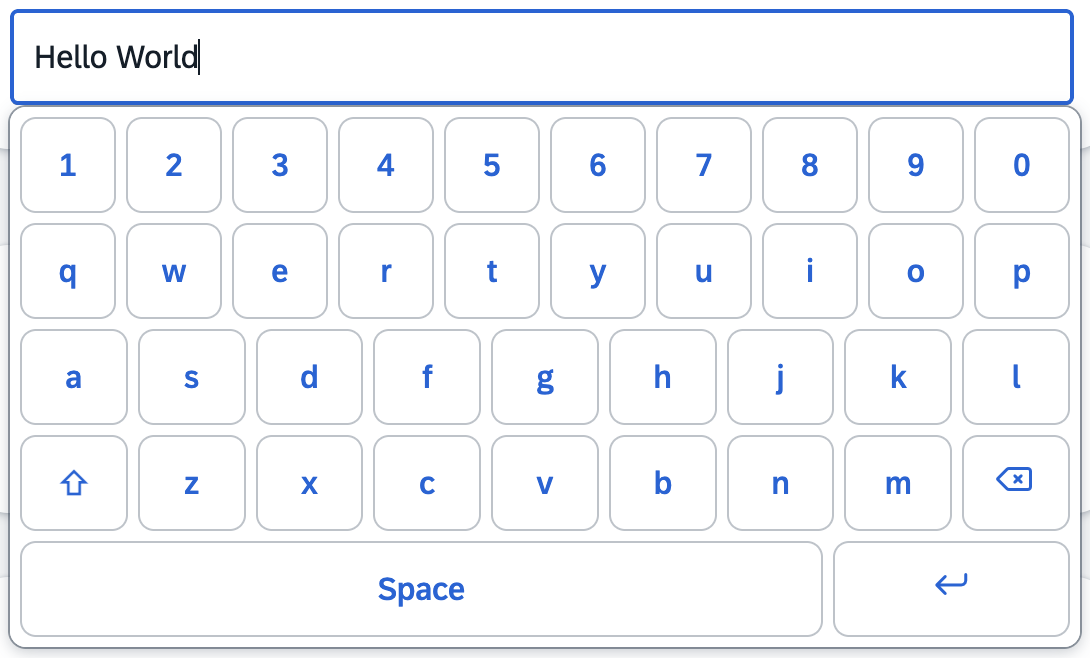
The keyboard types into the field: it is filled with the value of the field whenever the popover opens, every key fires liveChange, and its Enter key fires change and submit — the popover stays open, since the field still has the focus. tc:TextArea takes the same aggregation, where Enter adds a line break instead.
Docked
docked takes the keyboard out of the flow of the page and puts it at the bottom edge of the screen, over the content, the way the on-screen keyboard of a phone does. On a phone or a tablet it takes the full width of the screen and width is not looked at; from 1024px up it keeps its own width and is centered.
<tc:Keyboard
	value="{/code}"
	size="XL"
	mode="German"
	docked="true"
	change=".onChange" />
It works the same way on a field: put the keyboard in the keyboard aggregation as above and set docked, and the popover that carries it is docked instead of being placed at the field.
How high the keyboard reaches differs between the two, and that follows from where it sits. On a field it is carried into the static area by its popover, so it covers everything — a modal dialog included, which is what makes a field inside a dialog typeable. Standing on a page of its own it stays part of that page, and a page is a stacking context: it covers the content around it, but the block layer of a modal dialog still comes out on top.
One thing to watch in the app around it: position: fixed is measured against the screen only as long as no element on the way up creates a containing block of its own. sap.tnt.ToolPage does, with a will-change: transform on its content area — a docked keyboard inside one ends up pinned to that area instead of the screen. Setting will-change: auto on .sapTntToolPageMain in the application's own stylesheet is enough; it is what the demo of this library does.
tc:BarcodeInput
On a shop floor or in a warehouse most input does not come from a keyboard but from a barcode scanner in keyboard wedge mode: it types the code into the focused field within a few milliseconds and closes it with Enter. A plain input cannot tell that apart from a person, so an application ends up reacting either to every Enter or to none.
tc:BarcodeInput measures the time between the keystrokes. A run of at least minLength characters whose gaps all stay below scanTimeout and that is closed by Enter fires scan; everything else is manual input and fires change:
<tc:BarcodeInput
	value="{/code}"
	placeholder="Scan a pallet..."
	size="XL"
	clearOnScan="true"
	scan=".onScan"
	change=".onManualEntry" />
So a scanned code can go straight to the backend while a typed one gets a confirmation first. prefix and suffix cut off the characters scanners put around the code.
tc:SignaturePad
Handing over goods, confirming a repair or acknowledging a safety briefing all end with a signature, and on a tablet the natural place for it is the screen. tc:SignaturePad draws on a canvas and hands the result over as a PNG data URL in value, so it can be bound to a model and sent to the backend like any other value:
<tc:SignaturePad
	value="{/signature}"
	placeholder="Sign here"
	height="12rem"
	size="XL"
	change=".onSigned" />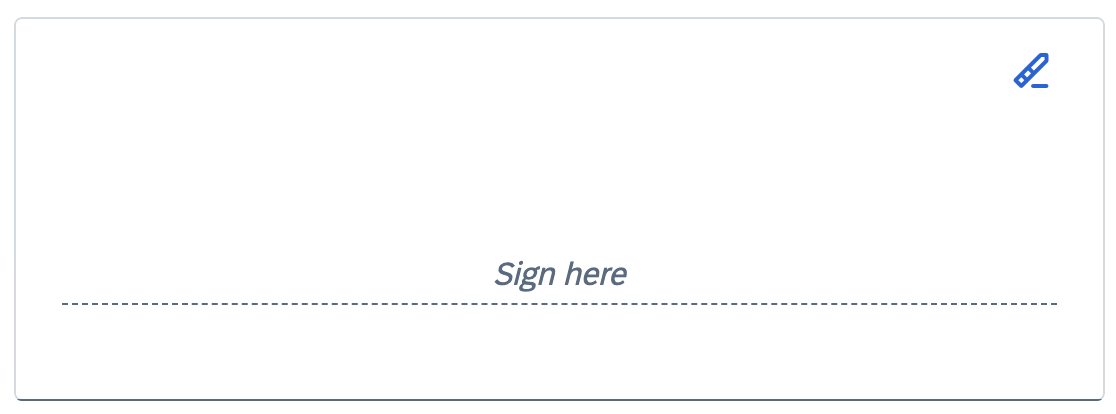
Stroke width, placeholder and clear button follow the size property, and the pad keeps its strokes when it is resized.
Requirements
- UI5 version 1.102 or higher (OpenUI5 or SAPUI5)
1.102 is the oldest release the library runs on, and the test page, the unit tests and the UI tests are checked against it. Where a release has the newer API — sap/base/i18n/Localization from 1.116 on, sap/ui/core/Lib from 1.118 on — the library uses it; on an older one, the Core of UI5 stands in (src/compat.ts). The Core methods are deprecated in current releases, which is why they are only the fallback and never run where the newer API is there.
One thing looks different before 1.110: sap.m.Dialog has no footer aggregation there, so QuickDialog puts its actions at the end of the content of the dialog instead of into its footer. They work the same, they only scroll with the content.
And one before 1.108: the themes do not tell yet whether a link is underlined — at rest, under the mouse, while pressed. Link then follows the base theme: no underline at rest, one under the mouse and while pressed (src/themes/base/Compat.less). From 1.108 on, the theme decides, as before.
Installation
The library is published on npm as ui5.touch.controls and can be consumed in any UI5 application that is built with the UI5 Tooling (v3 or higher).
1. Install the package
Install the library as a regular dependency (not a devDependency) so the UI5 Tooling picks it up as a project dependency:
npm install ui5.touch.controls{
"dependencies": {
"ui5.touch.controls": "^1.6.1"
}
}The package ships a ui5.yaml, so the UI5 Tooling automatically resolves it as a library dependency.
With UI5 middleware (alternative setup)
Instead of consuming the library as a UI5 Tooling project dependency, you can serve it statically with ui5-middleware-servestatic:
npm i ui5.touch.controls && npm i -D ui5-middleware-servestaticAdd the following configuration to your ui5.yaml:
server:
  customMiddleware:
    - name: ui5-middleware-servestatic
      afterMiddleware: compression
      mountPath: /resources/ui5/touch/controls/
      configuration:
        npmPackagePath: 'ui5.touch.controls/dist/resources/ui5/touch/controls'
2. Declare the library in manifest.json
Add the library to the dependencies of your app:
{
	"sap.ui5": {
		"dependencies": {
			"libs": {
				"ui5.touch.controls": {}
			}
		}
	}
}
3. Add the namespace to your views
<mvc:View
	xmlns:mvc="sap.ui.core.mvc"
	xmlns="sap.m"
	xmlns:tc="ui5.touch.controls">
	<tc:Button text="Hello" size="XL" />
</mvc:View>
TypeScript support
For TypeScript projects, add the package to the types entry in your tsconfig.json — otherwise the UI5 Tooling will not load the library automatically:
{
	"compilerOptions": {
		"types": [
			"@sapui5/types",
			"ui5.touch.controls"
		]
	}
}
The package includes TypeScript type definitions (dist/index.d.ts), so you get full typing out of the box:
import Button from "ui5/touch/controls/Button";
import { SizeMode } from "ui5/touch/controls/library";

const button = new Button({ text: "Confirm", size: SizeMode.XL });
Controls
Touch versions of sap.m controls
These are rebuilds of standard controls. They keep the properties, aggregations and events of their originals for the common cases, so they can be used as a drop-in replacement — the Replaces column names the control each one steps in for.
| Control | Replaces | Description |
|---|---|---|
tc:Button | sap.m.Button | Button with configurable size, icon, icon position, type (all sap.m.ButtonType values), side padding and width. Fires press. |
tc:SegmentedButton | sap.m.SegmentedButton | A row of joined buttons of which exactly one is selected, filled through tc:SegmentedButtonItem (key, text, icon, enabled). Supports selectedKey, width for evenly spread segments and fires selectionChange. |
tc:CheckBox | sap.m.CheckBox | Check box whose box, check mark, label and hit area scale together. Supports selected, partiallySelected, text, editable, wrapping, value states and width. Fires select. |
tc:RadioButton / tc:RadioButtonGroup | sap.m.RadioButton / sap.m.RadioButtonGroup | Circle, dot, label and hit area scale together. Buttons sharing a groupName are mutually exclusive; the group arranges them in columns and hands its size, enabled, editable and value state down to them. Fires select. |
tc:Switch | sap.m.Switch | Track, handle and label scale together, where sap.m.Switch is fixed at 4rem x 2rem. Supports state, customTextOn, customTextOff and the AcceptReject type. Fires change. |
tc:Select | sap.m.Select | Drop-down filled with plain sap.ui.core.Item elements. The list opens in a popover whose rows are as big as the field, so they can be hit with a finger — the native list of sap.m.Select keeps its standard row height however large the field is. Supports selectedKey, editable, forceSelection, value states and width. On a phone the list takes the whole screen, as it does in sap.m, under the heading of pickerTitle. Fires change. |
tc:ComboBox | sap.m.ComboBox | A tc:Select the user can type into: free text is allowed and what is typed filters the list, whose rows are as big as the field. Works together with the keyboards of this library on a device without a hardware keyboard. Supports value, selectedKey, placeholder, editable, value states, width and showSecondaryValues, which puts the additionalText of a sap.ui.core.ListItem at the end of a row. On a phone the list takes the whole screen under the heading of pickerTitle and brings a field of its own to go on typing in, as it does in sap.m. Fires change and selectionChange. |
tc:DatePicker | sap.m.DatePicker | Field with a calendar built from the library's own buttons, so a day is a square that grows with size instead of the fixed grid of sap.ui.unified.Calendar. Days and months view, minDate / maxDate, valueFormat and displayFormat. Fires change. |
tc:TimePicker | sap.m.TimePicker | Field with two columns of buttons — hours and minutes — so a time is picked with one tap on a target that grows with size, where sap.m.TimePicker uses a slider that has to be dragged. Supports minutesStep, valueFormat and displayFormat. Fires change. |
tc:Input | sap.m.Input | Single-line input with configurable size. A keyboard can be put into its keyboard aggregation; with showKeyboard it then opens in a popover below the field while the field has the focus and types into it. |
tc:TextArea | sap.m.TextArea | Multi-line input with configurable size, rows, max length and value states. Takes a keyboard in its keyboard aggregation just like tc:Input does; there the Enter key adds a line break. Fires change / liveChange. |
tc:Text | sap.m.Text | Text with configurable size and color. Fires press. |
tc:Link | sap.m.Link | Anchor with configurable size, so the area that can be hit with a finger grows with the label. Supports href, target, wrapping, subtle, emphasized and width; a target="_blank" link automatically gets rel="noopener noreferrer". Fires press. |
tc:Toolbar | sap.m.Toolbar | Toolbar container with a content aggregation. Usable in standard aggregations such as the footer of a Page or Dialog. |
tc:OverflowToolbar | sap.m.OverflowToolbar | Like tc:Toolbar, but content that does not fit into the available width is moved behind a button with three dots which opens a popover with the remaining content. Understands the priorities of sap.m.OverflowToolbarLayoutData. |
tc:StepInput | sap.m.StepInput | Minus button, input and plus button, sized together. Supports min, max, step. Fires change. |
QuickDialog | sap.m.MessageBox | Helper class for touch-ready dialogs, used from the controller instead of a view: show, confirm, information, error, input, select, details. Every method returns a Promise. |
Controls without a sap.m equivalent
These exist only in this library, for situations that only come up on a touch device — see New controls for touch above for what they are good for.
| Control | Description |
|---|---|
tc:BarcodeInput | Input field that tells a barcode scanner from a person typing: a run of at least minLength characters whose gaps stay below scanTimeout and that is closed by Enter fires scan, everything else fires change. prefix and suffix are cut off the code, clearOnScan empties the field for the next one. |
tc:Keyboard | On-screen keyboard of letters, built from the library's own buttons. mode is the arrangement of a country (English, German, French, Spanish, Italian, Portuguese, Swedish, Turkish, Romanian, Ukrainian, Russian, Hindi); displayNumbers, showSpecialCharacters, showEmojis, letterCase, showCapsLock, showEscape, enterText and extraKeys say what else is on it. |
tc:NumberPad | Pad of digits in three columns. mode picks the block (Simple, Phone, Calculator); showDecimalSeparator, decimalSeparator, showSign and showSpecialCharacters fill in the rest. |
tc:CustomKeyboard | The keyboard whose keys are handed to it: layout for a single set of rows, the layouts aggregation of tc:KeyboardLayout for several that switch between each other, and display to say what a single key reads. |
tc:KeyboardBase | Abstract base of the three. Carries value, emphasizedKeys, maxLength, enabled, hardwareKeys, size, width and docked, and fires change / keyPress / enter / escape. It is the type the keyboard aggregation of tc:Input and tc:TextArea takes, so any of the three fits in there. |
tc:SignaturePad | A field to sign in with a finger or a stylus. Draws on a canvas and hands the signature over as a PNG data URL in value. Stroke width, placeholder and clear button follow size; the strokes survive a resize. Fires change. |
Sizes
Every control has the same size property. Available values:
S · M (default) · L · XL · 2XL · 3XL · 4XL · 5XL · 6XL
The size scales font size, icon size, padding and height together, so the controls stay proportional at every step.
ISized
All controls with a size property implement the marker interface ui5.touch.controls.ISized. This allows generic size handling, e.g. to apply a user setting to a whole view:
if (control.isA<ISized>("ui5.touch.controls.ISized")) {
	control.setSize(SizeMode.XL);
}
Theme compatibility
The library ships its own theme library for the following themes, so the controls take their colours, borders and shadows from the theme parameters of the active theme and blend in with the surrounding sap.m controls. Set the theme as usual through data-sap-ui-theme in the bootstrap or at runtime through Theming.setTheme().
| Theme | Theme ID | Supported | Remark |
|---|---|---|---|
| Horizon | sap_horizon | ✅ | Default theme of the demo |
| Horizon Dark | sap_horizon_dark | ✅ | Dark variant of Horizon |
| Horizon High Contrast Black | sap_horizon_hcb | ✅ | High contrast, dark background |
| Horizon High Contrast White | sap_horizon_hcw | ✅ | High contrast, light background |
| Fiori 3 (Quartz Light) | sap_fiori_3 | ✅ | Previous default theme of SAPUI5 / OpenUI5 |
| Fiori 3 Dark (Quartz Dark) | sap_fiori_3_dark | ✅ | Dark variant of Fiori 3 |
Themes that are not listed here are not shipped with the library. UI5 then falls back to the base theme for ui5.touch.controls, so the controls stay usable, but they will not match the colours of the rest of the application.
More examples
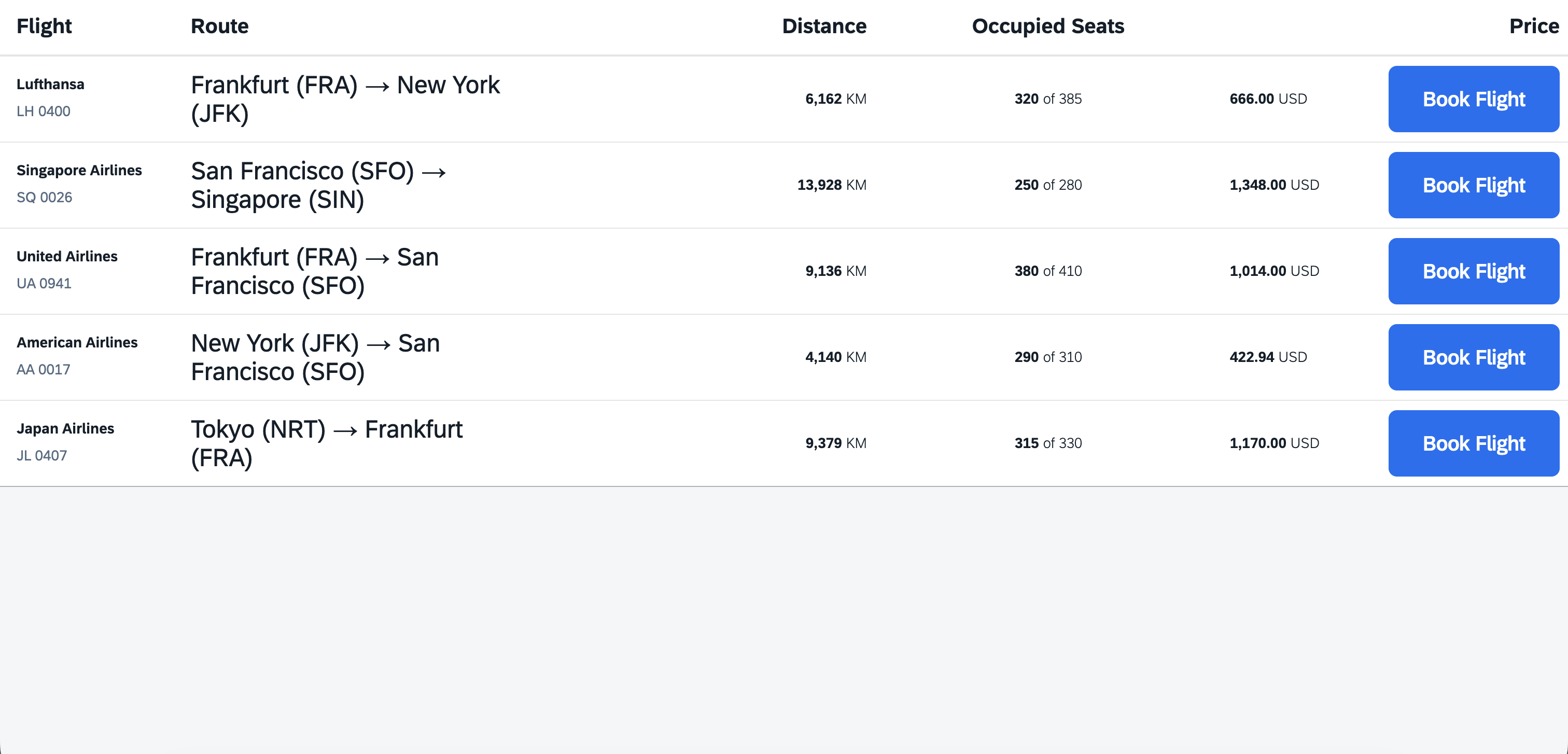
The controls integrate seamlessly with existing standard controls and aggregations — for example tc:Button and tc:Text inside a sap.m.Table:
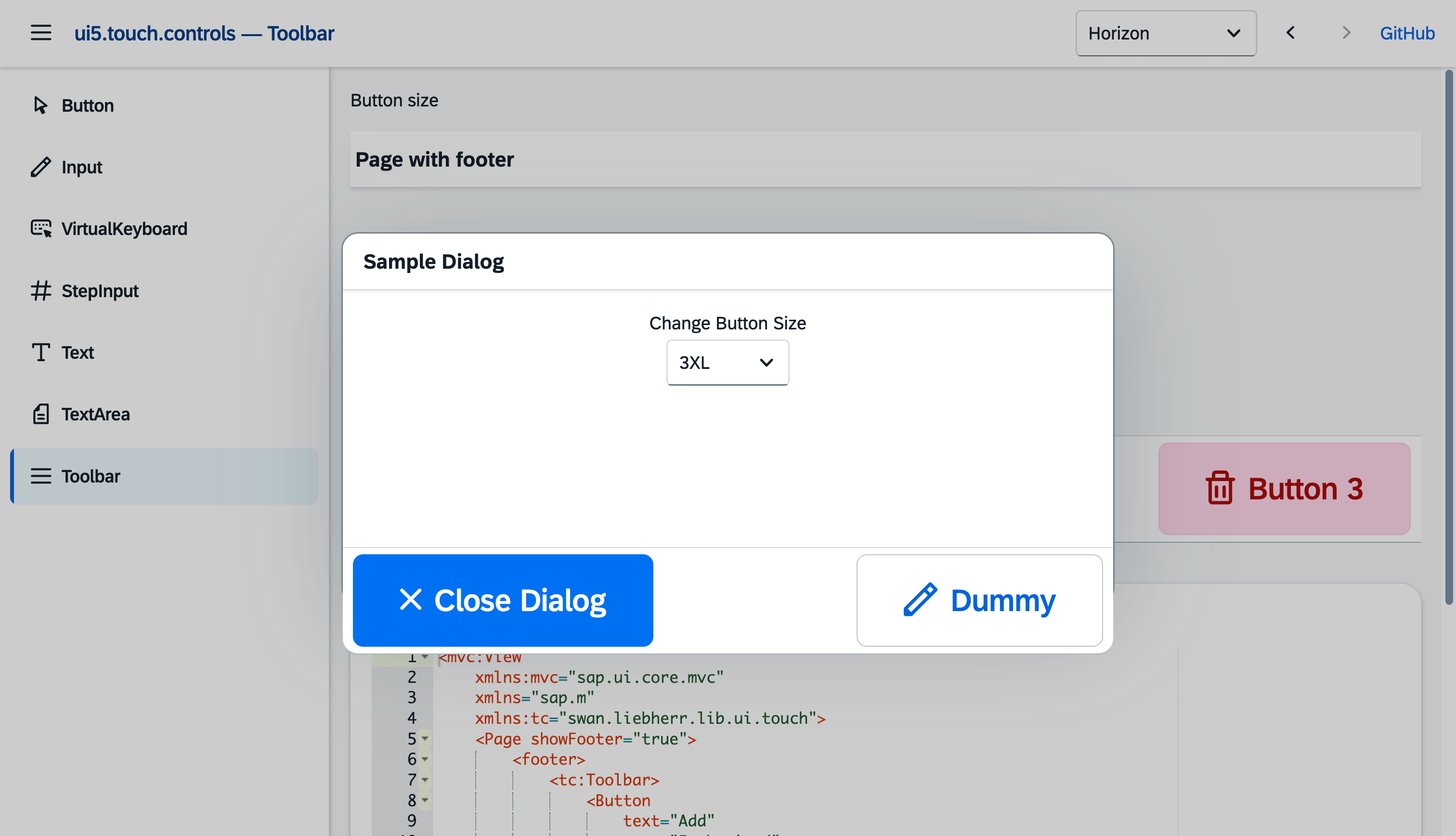
Use tc:Toolbar or tc:OverflowToolbar as a replacement for the toolbar in a Page or Dialog:
⚠️ Aggregations that only accept sap.m.Button
Some standard aggregations are typed to sap.m.Button and therefore cannot take a tc:Button at all — the most common ones are buttons, beginButton and endButton of sap.m.Dialog:
<!-- does NOT work — these aggregations only accept sap.m.Button -->
<Dialog title="Delete order">
	<buttons>
		<tc:Button text="Delete" type="Reject" size="XL" press=".onDelete" />
		<tc:Button text="Cancel" size="XL" press=".onCancel" />
	</buttons>
</Dialog>
UI5 rejects the control at runtime:
"Element ui5.touch.controls.Button#__button0" is not valid
for aggregation "buttons" of Element sap.m.Dialog#__dialog0
And these button slots are not meant to be resized either — they are laid out for the standard button height.
The way around it is the footer aggregation. It is typed to sap.m.Toolbar (available since UI5 1.110), and because tc:Toolbar and tc:OverflowToolbar extend sap.m.Toolbar, they fit straight in. The dialog then sizes its footer to the toolbar, so touch-sized buttons are rendered properly:
<!-- works — the footer takes any sap.m.Toolbar, so also the touch ones -->
<Dialog title="Delete order">
	<footer>
		<tc:OverflowToolbar size="XL">
			<tc:Button text="Delete" type="Reject" icon="sap-icon://delete" size="XL" press=".onDelete" />
			<ToolbarSpacer />
			<tc:Button text="Cancel" icon="sap-icon://decline" size="XL" press=".onCancel" />
		</tc:OverflowToolbar>
	</footer>
</Dialog>
Use tc:OverflowToolbar rather than tc:Toolbar whenever the dialog can get narrow — actions that no longer fit then move into the overflow popover instead of being cut off.
The same applies in a controller:
import Button from "ui5/touch/controls/Button";
import OverflowToolbar from "ui5/touch/controls/OverflowToolbar";
import { SizeMode } from "ui5/touch/controls/library";

dialog.setFooter(
	new OverflowToolbar({
		size: SizeMode.XL,
		content: [
			new Button({ text: "Delete", type: ButtonType.Reject, size: SizeMode.XL, press: onDelete }),
			new ToolbarSpacer(),
			new Button({ text: "Cancel", size: SizeMode.XL, press: onCancel }),
		],
	}),
);
For plain message-box style dialogs you do not have to build this yourself — QuickDialog already creates its footer this way, sized through its buttonSize option. On UI5 before 1.110, where a dialog has no footer, it places the same toolbar at the end of the content.
Development
Prerequisites
- Node.js ≥ 24
- pnpm
Getting started
pnpm install
npm run start
This starts the dev server (ui5 serve with ui5-docs.yaml) and opens the demo application. The demo is a standalone UI5 app in docs/: Component.ts and manifest.json wire the router, view/ holds one XML view per page and controller/ the matching controllers. The shell (side navigation, theme switcher, previous/next) lives in view/App.view.xml, the page list in model/pages.ts. It always runs against the latest UI5.
Test pages
test/ holds a single plain page that shows every control, grouped, each in a card with a row per case — no descriptions, no models, no routing, so a broken render is the library's doing and not the demo's. Its look comes from sap.m controls and the theme, so it is the same on every UI5 version the library supports, which is what it exists for:
npm run start:test          # latest
npm run start:test:1.102    # the oldest supported release
npm run start:test:1.108    # and 1.116, 1.120, 1.124, 1.130, 1.140
#Button in the hash — or ?control=Button, or the menu on top — narrows the page to a single control; without either, every control is shown, group after group. Switching by hash rebuilds the page without reloading it. The menu next to it switches the theme and keeps it in the address (?sap-ui-theme=). The cases are built in test/cases.ts, the groups in test/groups.ts.
A control that replaces one of sap.m shows the original in the same card, below its own rows under the heading sap.m: the same cases, built from the sap.m control, so the two can be compared side by side. sap.m has no size, so the rows of sizes come down to one control there. The originals are built in test/originals.ts; their rows carry the class touchTestOriginal, and window.touchTestOriginals lists the controls that have them.
Unit tests
test/unit holds the unit tests: one QUnit module per control or group of controls, written in TypeScript and run in the browser by the UI5 test starter, so the controls are rendered, tapped and typed into the way a user does it. Every bug that was fixed comes with a test that would have caught it.
npm run start:unit     # open the test suite in the browser
npm run test:unit      # run it headless, on the version pinned in ui5-test.yaml
A single module can be picked from the QUnit toolbar of the open suite. test/unit/helpers.ts has what the modules share: placing a control and cleaning up after it, and the taps, keys and pointers a user causes.
UI tests
The same page is what the UI tests run against. They are written with wdi5 (WebdriverIO plus the UI5 service), so the controls are addressed through the UI5 control tree and read back through their own getters:
npm run test:ui                        # the version pinned in ui5-test.yaml
UI5_VERSION=1.116.0 npm run test:ui    # any other release
npm test                               # the unit tests and the UI tests together
wdio.conf.js starts the dev server itself, so there is nothing to have running beforehand. The suite checks that every control of test/cases.ts is on the page, that every control the documentation names a sap.m original for shows it next to itself, that a CheckBox, a Switch, an Input and a Select still react, that a Button grows with its size, and that the page reports no error along the way.
The GitHub workflow ci.yml runs the unit tests and the UI tests on every supported UI5 release in parallel, next to the type check, the lint run and the build. The matrix is not a second list: scripts/ui5-versions.mjs reads it from the start:test* scripts in package.json, so a release is added to CI by adding the script for it.
The badges at the top of this file show one job of that workflow each, on main. They are looked up by the name of the job — Types, Lint, Build, UI tests on UI5 1.116 — and the name has to match exactly, so renaming a job means changing its badge with it.
Scripts
| Script | Description |
|---|---|
npm run start | Start the local dev server with livereload and open the demo application |
npm run start:test | Open the plain test page on the latest UI5 |
npm run start:test:1.102 | Same page on UI5 1.102, the oldest supported release |
npm run start:test:1.108 | Same page on UI5 1.108 (:1.116, :1.120, :1.124, :1.130 and :1.140 for the other supported versions) |
npm run build | Build the library into dist/ |
npm run build:demo | Build of library and demo with preload bundles (used for the GitHub Pages deployment) |
npm run build:ts-interfaces | Generate the *.gen.d.ts TypeScript interfaces for the controls |
npm run start:unit | Open the QUnit test suite in the browser |
npm test | Run the unit tests and the UI tests headless (UI5_VERSION picks the release) |
npm run test:unit | Run the QUnit unit tests headless |
npm run test:ui | Run the wdi5 UI tests against the test page (UI5_VERSION picks the release) |
npm run check:ts | TypeScript type check (tsc --noEmit) |
npm run check:lint | ESLint check for src, docs, test, e2e, scripts and wdio.conf.js |
npm run build:icon-font | Generate the library's icon font (TTF/WOFF/WOFF2 + metadata) from the SVGs in src/icons (runs automatically before start/build) |
npm run clean | Remove dist and coverage |
Project structure
src/                  Library sources (controls, library.ts, themes)
src/themes/           Base + theme-specific LESS files
docs/                 Demo application (Component, manifest, views, controllers)
test/                 Plain test page (one section per control)
test/unit/            QUnit unit tests, one module per control
e2e/                  wdi5 UI tests, and the spec that runs the unit tests headless
scripts/              Build helper scripts
ui5.yaml              UI5 tooling config (library build)
ui5-docs.yaml         UI5 tooling config (dev server / demo application)
ui5-test.yaml         UI5 tooling config (test page, any UI5 version)
ui5-demo.yaml         UI5 tooling config (GitHub Pages build)
Deployment
Pushes to main trigger the GitHub Actions workflow (.github/workflows/deploy-pages.yml), which builds the demo application with npm run build:demo and deploys it to GitHub Pages.
That build is ui5 build --all, and the --all is what matters: it writes a library-preload.js for every UI5 library the demo uses. Without them the browser asks for every single module — 181 requests before the first screen, 106 of them from sap.m alone. With them it is 48.
The demo's own files are bundled by scripts/build-component-preload.mjs, which runs right after the build. The UI5 tooling cannot do it here: its bundler reads from /resources/ and writes to /resources/, while the demo of a library project lives in /test-resources/. The script writes the same sap.ui.require.preload(...) call the tooling would, so a page change costs one request instead of up to 54.
License
Licensed under the Apache License 2.0.
History
Fixes 1
Notes
A dialog no longer shows an empty strip below its buttons on UI5 1.153.
npm install ui5.touch.controls@1.6.1Fixed
- Empty strip below the footer of a dialog - a
sap.m.Dialogwith aToolbarorOverflowToolbarin its footer, e.g. aQuickDialog, no longer ends with an empty strip as tall as the footer below its buttons on UI5 1.153, which showed as an extra border (#9). UI5 1.153 keeps the footer of a dialog in the flow, so it no longer gets room reserved for it; up to UI5 1.144 it still does.
Changed 2, Fixes 6
Notes
Runs on UI5 1.102 and newer, a disabled button keeps the colors of its type - in a bar as well - and a tall toolbar of a page no longer covers its content.
npm install ui5.touch.controls@1.6.0Changed
- UI5 1.102 is the oldest supported release - it was 1.108. The underline of a
Linkthere is that of the base theme, as the themes of 1.102 do not set it yet. CI runs the unit and UI tests on 1.102 as well. sizeofToolbarandOverflowToolbaris the least height of the bar: it is at least as tall as a button of that size. On theOverflowToolbarit only sized the overflow button before.
Fixed
- Toolbars in a
sap.m.Page- aToolbarorOverflowToolbarin the header or the footer no longer covers the content of the page when it is taller than a toolbar of sap.m, e.g. with buttons of sizeLand up. The content starts below and ends above the bars as they are rendered, as in asap.m.Dialog. sizeon aToolbar- it has thesizeproperty of theOverflowToolbarnow; before, it failed withunknown setting 'size'.style="Clear"-ToolbarandOverflowToolbarfollow thestylethey inherit fromsap.m.Toolbar:Cleartakes away the line below the bar. Both always drew it before.- Disabled buttons in a bar - a disabled
Buttonin a bar, e.g. anOverflowToolbarin the footer of a page, keeps the text color of its type. Withsap_fiori_3, the text of e.g. a disabledSuccessbutton was grey-blue instead of white. - Disabled buttons under the mouse - a disabled
Buttonkeeps its look; before, the hover colors were shown on it. - Hovered buttons in the early Horizon releases - a
Buttonunder the mouse looks like the sap.m button there as well: the shadow of 1.102 and 1.116, and the text color ofDefault,BackandUpon 1.102.
- UI5 1.102 is the oldest supported release - it was 1.108. The underline of a
Other 2
Notes
- Small Bugfix in IconFont used by Keyboard that causes missing icons for backspace and enter key in some cases
- Improved Docs pages
Other 22
Notes
Added
- [Keyboard] — An on-screen keyboard of letters. The mode is the arrangement of a country: English, German, French, Spanish, Italian, Portuguese, Swedish, Turkish, Romanian, Ukrainian, Russian or Hindi.
- [Keyboard] — Turkish is the Q arrangement, and its case is Turkish too: i becomes İ and I becomes ı, which the ordinary change of case gets wrong. Swedish is the arrangement Finland writes on as well; Romanian is the standard one, with the comma-below Ș and Ț rather than the cedilla ones.
- The letters a keyboard of keys writes with a dead key — the accented vowels of Portuguese and Italian — sit on a set of their own, reached by a key beside the space bar the way the digits are. A key that is tapped once has nowhere for a dead key to wait.
- displayNumbers decides where the digits go: in a row above the letters, behind a key of their own, or not at all. By default it is the first on a computer and the second on a phone.
- showSpecialCharacters adds a set of brackets, signs and currencies, and showEmojis a set of faces behind a key of its own.
- letterCase pins the keyboard to upper or lower case — for a field with a case of its own, like a material number or a licence plate.
- showCapsLock, showEscape and enterText add the keys a real keyboard has and say what the Enter key reads.
- extraKeys put keys of your own beside the space bar, on every set: an at sign for an address field, a unit for a quantity.
- [NumberPad] — A pad of digits in three columns. The mode picks the block: Simple like a computer, Phone with star and hash, Calculator with the four operations.
- showDecimalSeparator and decimalSeparator on the [NumberPad], which follows the current language unless told otherwise.
- [CustomKeyboard] — The keyboard whose keys are handed to it row by row. It carries what was the layout property and covers everything the other two do not.
- [KeyboardBase] — The machine behind all three, and the type the keyboard aggregation of a field is typed to, so any of the three fits in there.
- The texts the controls put on the screen themselves are translated into fourteen languages: English, German, Spanish, French, Hindi, Italian, Japanese, Dutch, Polish, Portuguese, Russian, Turkish, Ukrainian and Chinese. That is the actions of a [QuickDialog], its Show details, the line a [ComboBox] shows when nothing matches, the hint on an empty [SignaturePad] and the on/off of a [Switch].
Changed
- VirtualKeyboard is gone. Its mode mixed languages, device shapes, purposes and pads in one list of fifteen values — use [Keyboard] for letters, [NumberPad] for digits and [CustomKeyboard] for keys of your own.
- The aggregation of [Input] and [TextArea] is now called keyboard instead of virtualKeyboard, and showVirtualKeyboard is showKeyboard.
- KeyboardMode carries the arrangements of the countries and nothing else. NumberKeys, LetterCase and NumberPadMode are the new types beside it.
- The CSS classes are touchKeyboard, touchKeyboardRow, touchKeyboardDocked and touchKeyboardDisabled — they were named after the control that is gone.
- The placeholder of a [SignaturePad] defaults to an empty string instead of Sign here; a pad is built with the hint of the library in the language of the application. An empty placeholder still leaves the baseline bare.
Fixed
- A Ghost [Button] looks like its sap.m original in the two Horizon themes, which style the type differently from every other theme.
Demo
- The code examples carry a copy button, and the code blocks follow the dark theme.
- The demo speaks the same fourteen languages as the library, chosen in the header — the footer, the control reference and the playgrounds included.
- A search sits in the middle of the header. It finds a page by its name, by the sap.m control it steps in for — sap.m.Select leads to the touch Select — and by what the page is about, so barcode and signature arrive without knowing what the control is called.
Features 16, Changed 2, Fixes 3
Notes
Twelve more
sap.mcontrols, a virtual keyboard inside theInput, and a demo application in place of the old test pages.Added
- CheckBox — the touch version of
sap.m.CheckBox, with the tristate selection of the original. - RadioButton and RadioButtonGroup, including the column layout of the group.
- Switch, with the accept/reject and on/off text variants of
sap.m.Switch. - Select, whose picker is a list of touch buttons instead of a dropdown.
- ComboBox, with the same filtering as
sap.m.ComboBoxand a picker built for fingers. - DatePicker with a touch calendar, and TimePicker with a touch clock.
- Link, sized like every other control of the library.
- SegmentedButton and SegmentedButtonItem.
- OverflowToolbar, which moves what does not fit into an overflow area.
- BarcodeInput, a field that collects the keystrokes of a barcode scanner.
- SignaturePad, a canvas to sign on with a finger or a pen.
InputandTextAreashow a keyboard of their own: put aVirtualKeyboardinto the newvirtualKeyboardaggregation and switchshowVirtualKeyboardon, and the keyboard opens in a popover while the field has the focus. In theTextAreaits Enter key adds a line break.ComboBoxhasshowSecondaryValues, which puts theadditionalTextof asap.ui.core.ListItemat the end of every entry, assap.m.ComboBoxdoes.QuickDialog.select()builds its field from the touchComboBoxand takes aselectSizefor it.VirtualKeyboardhas amodeproperty with the ready-made layoutsQWERTY,Numeric,PhoneandCalculator. Onlymode="Custom"reads the rows from thelayoutproperty, which is where every keyboard used to start.OverflowToolbartakes aToolbarSpacer.
Changed
- Every measurement a size stands for now comes from one stylesheet,
Sizing.less, which writes the ladder of a size into custom properties on a single class per control. Sizes look and behave as before. - The oldest UI5 release the library runs on is 1.116, and the test page is checked against it. What sets the limit is
sap/base/i18n/Localization, which theDatePickerreads the language from and which does not exist before 1.116.
Fixed
InputandTextAreakeep the field outline of Horizon, and theTextAreasits at the height of itssap.moriginal.- Content marked
NeverOverflowmoves into the overflow area as a last resort instead of widening the toolbar, and the overflow button stays at its right end. - The library builds and draws on UI5 1.116 and later again: the theme parameters that only the newer releases define are used with a fallback, so the arrows, the tick of the
CheckBoxand the other icons of the library show up on every supported version.
- CheckBox — the touch version of
Notes
Notes
Notes
Others providing
Compare all 2 on the Touch operation page →- @ui5/webcomponents@ui5/webcomponentsSAP's UI elements as standard custom elements, ui5-button among them, implementing SAP Fiori design and usable from plain HTML, React, Angular or Vue.sap official, ui5SAP's UI elements as standard custom elementsfrom UI5
Details
Sources
Sources are graph entities: the same page may back several entries, and an unreachable source flags every row that rests on it.
Compatibility and provenance
Flavors
“`press=".onSave"` still calls the same method in your controller” — mariokernich/ui5-touch-controls — README
“can be consumed in any UI5 application that is built with the [UI5 Tooling](https://sap.github.io/ui5-tooling/) (v3 or higher)” — mariokernich/ui5-touch-controls — README
History in the atlas
- First seen.
For your agent
- Ref
artifact:mariokernich-ui5-touch-controls- JSON
- /artifacts/mariokernich-ui5-touch-controls.json
- MCP
- Connecting an agent