integration-suite-partner-directory-accelerator-for-pipeline-concept
A Java Swing desktop tool that maintains the Partner Directory entries the Pipeline for Cloud IntegrationCloud IntegrationBuilds and runs integration flows that process, route and map messages between cloud and on-premise systems, SAP and non-SAP, through prebuilt adapters; available only under an SAP Integration Suite plan.sap official, btp reads at runtime.
The Pipeline Concept reads the Partner Directory for message-processing configuration at runtime, and this tool gives that directory a UI over a tenant's own API: it reads, creates and updates the Partner Directory entries used for the Pipeline Concept, generates and maintains the XSLTs those entries need from a tabular input, and replicates entries across the tenants of a landscape. It is written in Java 17, and the Pipeline it supports is the path SAP publishes for customers moving from on-premise Process Integration or Process Orchestration to SAP Integration SuiteSAP Integration SuiteSAP's integration service on BTP: Cloud Integration for orchestration, API Management in front of it, and an MCP gateway that serves a managed API to agents.sap official, btp. It shows only the Partner Directory entries used for the Pipeline Concept, and its known issues state that deleting existing alternative partners and binary parameters is not possible from the tool.
Facts
Where it sits
Who is behind it

In the atlas: maintains 222@SAP-samplesmaintainerPhilippe AddorContributes to this

In the atlas: contributes to 1@fippu82Lorena HanserContributes to this

In the atlas: contributes to 2@lorena-hanser2 contributors
What it declares
Every artifact
- Type
- Desktop app
- Origin
- By SAP
As a desktop app
- Runs on
- WindowsmacOS
- Distributed through
- Binary download
Connections
Moving and transforming messages between systems in middleware
Integration service on BTP with Cloud Integration and API Management
The Java runtime and tools a Java program is run with. For the things here, the full JDK an on-premises agent such as the Cloud Connector needs on its host.
Download
README
quoted from SAP-samples/integration-suite-partner-directory-accelerator-for-pipeline-concept under Apache-2.0, readPartner Directory Accelerator for Pipeline Concept


Description
This tool supports the Pipeline for Cloud Integration (formerly Pipeline Concept), which helps customers to migrate from their on-premise Process Integration / Process Orchestration systems to the cloud-based SAP Integration Suite. The Pipeline relies on the Partner Directory, which contains configuration on message processing behavior, and dynamically reads the Partner Directory content at runtime.
The purpose of this tool is to simplify the interaction with the Partner Directory for the Pipeline by providing a UI. To do so, access to a tenant's API needs to be configured, so you can read, create and update Partner Directory entries which are used for the Pipeline (other Partner Directory entries are not shown here). Key features are the XSLT generation and maintenance from a tabular input format, as well as the replication of Partner Directory content in different tenants of a landscape.
Before using this tool, please make yourself familiar with the Pipeline. An introduction to the Pipeline can be found in this SAP Community blog. Being used for the Pipeline, the documentation provides further information on the Partner Directory. The tool is written in Java 21 and uses the Partner Directory API to provide a Java Swing UI for simple user interaction with the Partner Directory content. More information about this API is available on the Business Accelerator Hub.
Table of Content
- Description
- Table of Content
- Events
- Requirements
- Download and Installation
- Usage of the Tool
- Troubleshooting
- Error when configuring API: (certificate_unknown) PKIX path building failed: sun.security.provider.certpath.SunCertPathBuilderException: unable to find valid certification path to requested target
- Error when configuring API: JSONObject["d"] not found /
Error when configuring API: A JSONObject text must begin with '{' at 1 [character 2 line 1] /
Error when configuring API: URI with undefined scheme /
Error when configuring API: null - Error when generating XSLT from input data. If "Default" is selected as the behavior when no receiver is found, the Default Receiver System must be specified in the corresponding input field.
- Error when generating XSLT from input data. Table which is missing data: [name of table]
- Error when generating XSLT from input data. Make sure that all tables and the receiver not found section are filled properly.
- The generated XSLT might contain invalid syntax: (...) /
The shown XSLT might contain invalid syntax: (...) Do you want to send the shown XSLT to the API anyway? - Error when merging XSLT.
- Known Issues
- Development
- How to obtain support
- Contributing
- License
Events
As part of Devtoberfest 2025, two sessions took place which are related to this tool. These sessions are available on YouTube and can serve as an introduction:
🔴 Accelerate your move to the cloud via Pipeline for Cloud Integration
By Alexander Bundschuh
Session generally about the Pipeline for Cloud Integration
🔴 Partner Directory Accelerator Tool for Pipeline Concept - an SAP Open-Source Project
By Lorena Hanser
Session specifically about this accelerator tool by focusing on setup and usage
Link to slides
Requirements
The tool is built using OpenJDK 21 by SapMachine, which is required and can be downloaded here.
Download and Installation
Please download the latest version of the tool from the releases section.
The runnable file is called PartnerDirectoryAcceleratorUI-1.1-jar-with-dependencies.jar. Additionally, there is a start script called start.bat / start.sh. Download these files to your local device, locate them in the same folder and open this folder in the terminal.
Depending on your operating system, run one of the following commands from the terminal or command prompt:
On Windows
./start.batOn Unix / macOS
chmod +x start.sh
./start.sh
Get Notification for a new Release
You can get notified by email for each new release which is published for this repository (if you have a GitHub account). To set up these notifications, on top of the root page of this repository, select "Watch" (or "Unwatch" if you are already watching). Under "Custom", you can select "Releases", and make sure to chick "Apply".
Then, check the notification settings of your GitHub account. Under "Subscriptions" > "Watching", make sure that you have selected your desired notification channels, e.g., "Email". You can find information about notifications in the GitHub Docs.
Usage of the Tool
To ensure you always see the latest data, this tool sends HTTP requests each time a new page is displayed or another tab is selected. Therefore, depending on your network connection and the number of Partner Directory entries in your tenant, you might need to be a bit patient...
The following images show the tool with sample scenarios available in a GitHub repository by Alexander Bundschuh.
Header Buttons
Tenant dropdown menu
In this tool, credentials to different tenants can be added. The idea is to easily allow switching between multiple tenants, e.g. DEV, QA, and PROD tenant of your landscape. If you haven't added a tenant before, the dropdown menu shows the label "Add new tenant first...", which is explained in the next section.
To provide this support of multiple tenants, a file called tenants.json is created when starting the tool, which is located in the same directory as the .jar file. This file is automatically generated and contains sensitive data. Please do not share this file and please do not change the content of this file.
Add new tenant
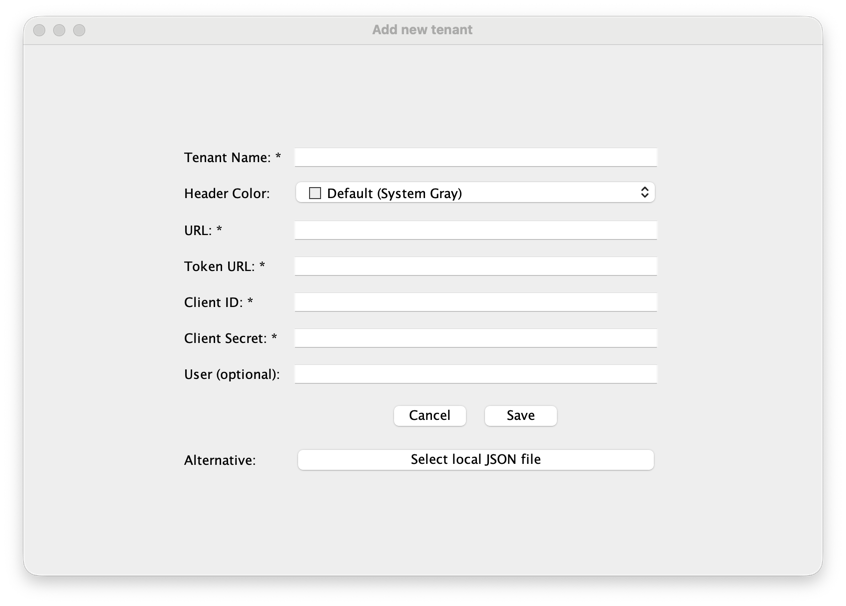
The "Add new tenant" button allows you to specify the URL to the Partner Directory API from which you want the data to be displayed. To configure the API, the credentials of a service key from the BTP is required, which you can either manually fill into the input fields or upload the local JSON file from your device which contains the service key. In the BTP cockpit, from your subaccount, navigate to Services > Instances and Subscriptions > Instances. An instance of the service SAP Process Integration Runtime with plan api and the role AuthGroup_TenantPartnerDirectoryConfigurator needs to exist, with a service key containing all required credentials. For more information, please refer to the documentation.
Manual input allows you to fill out the input fields:
Tenant Name: Here you can add any name for the tenant you are adding. Please make sure that the tenant name is unique for all the tenants you added.Critical: With this checkbox, you can e.g. mark productive tenants. For critical tenants, the header bar of the UI is colored in red.Header Color: Optionally choose a header color per tenant to visually distinguish DEV / QA / PROD systems.URL: The URL to access the Partner Directory API, usually ending with.hana.ondemand.com. The string/api/v1/will automatically be added here if you don't enter it. Please make sure that the URL is unique for all the tenants you added.Token URL: This URL is called to get the token, it usually ends with/oauth/token, which should be included here as it is shown in the BTP.Client ID: The client ID is required to get an OAuth token and can be seen in the service instance credentials in the BTP.Client Secret: The client secret is required to get an OAuth token and can be seen in the service instance credentials in the BTP.User: This field is optional. If you provide a value here, it is added as theuserquery parameter for POST and PUT requests, for example.../api/v1/AlternativePartners?user=123. In SAP Integration Suite, this value is shown as Created By / Last Modified By for the corresponding Partner Directory entry.
Select local JSON file can be used as an alternative to manual input. Here, you can click the button to select a local JSON file. The service key can directly be downloaded from the BTP: from your subaccount, navigate to Services > Instances and Subscriptions > Instances. To download the credentials as JSON file, first click on the name of your service key and then choose the download button. You still need to add a tenant name.
For easier usage, you can specify the location of your local JSON file in the start.bat or shart.sh script before you run the tool. To do so, simply add the relative or local path to the JSON file at the end (surrounded by quotation marks if the path includes spaces). If you add the path to credentials of a tenant which is already configured, this tenant is automatically selected for your initial view. Otherwise, if you haven't added this tenant before, it is added to your list of tenants, and you can edit it.
If you are facing errors while configuring the API, please refer to the section Troubleshooting.
Edit selected tenant
The "Edit selected tenant" button gives you the option to edit the tenant which you have currently selected. E.g., you can update outdated credentials, give it a different name, or (un)mark it as critical. The meaning of the input fields is explained above.
Delete selected tenant
By using the "Delete selected tenant" button, you can remove the credentials maintained for the current tenant (which in the background will remove this tenant from your local tenants.json file, you can find more information about this file here).
The last tenant cannot be deleted. Instead, you can edit the currently selected tenant.
Reload data from API
The "Reload data from API" button can be used to get the latest data from the API and display the latest alternative partners in the table below.
Alternative Partners Page
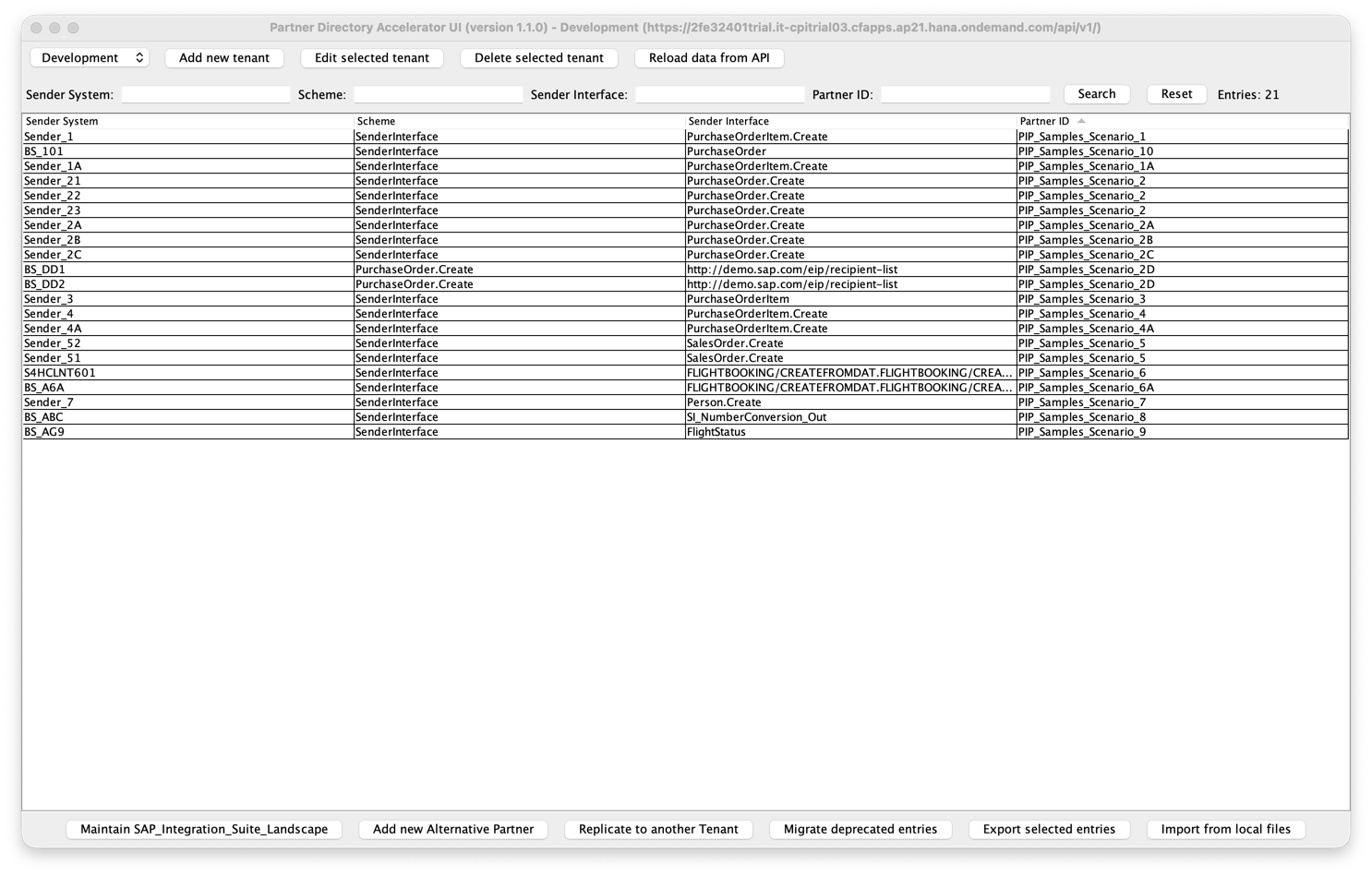
Once the API is configured, a table with all alternative partners is shown.
Search option
It is possible to search for entries within the alternative partners table. There is one search field present for each column. If search terms in multiple fields are present, the table just shows entries which match all the search values. Searching is case-insensitive.
Next to the buttons "Search" and "Reset", there is a label showing the number of entries which are currently shown in the table below. If you add any search terms, the number of entries is automatically updated.
Alternative Partners Table
Since the tool is developed to support the Pipeline for Cloud Integration, in the table, only these alternative partners are shown which are related to the Pipeline, by using filter criteria: all alternative partners are shown where the scheme equals "SenderInterface". Additionally, to support XI inbound scenarios, alternative partners are displayed for which a receiver determination is maintained as a binary parameter or string parameter.
You can sort the entries of the table by clicking on the name of the column you want to sort by. By default, the table is sort by Partner ID.
To edit an alternative partner and interact with the binary parameters and string parameters of the same Partner ID, click on a row of the table to navigate to its Parameters Page.
Maintain SAP_Integration_Suite_Landscape
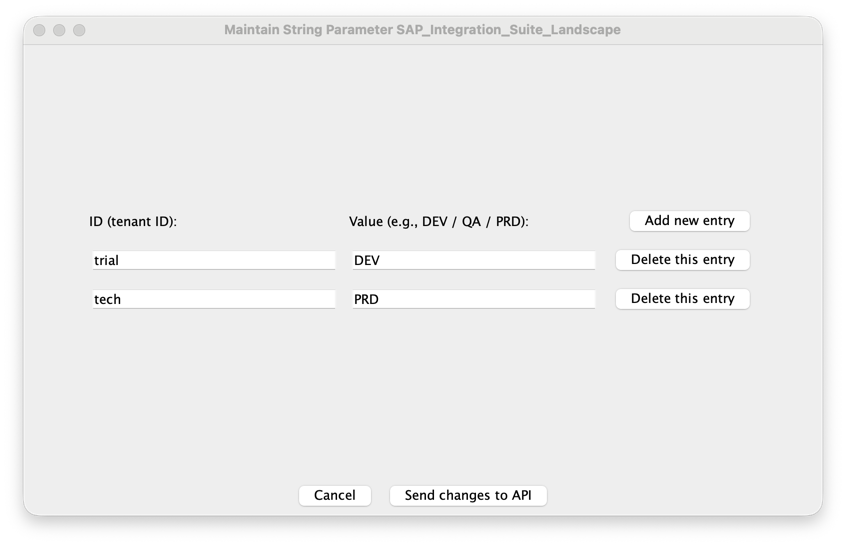
With the string parameter SAP_Integration_Suite_Landscape, you can map a tenant ID to a stage ID. Depending on the number of stages in your landscape, you can add more lines to create new entries. Additionally, you can change or delete existing entries. These existing entries are ordered by their time created.
For demonstration purposes, in the screenshot, a trial tenant is shown as sample DEV tenant.
Add New Alternative Partner
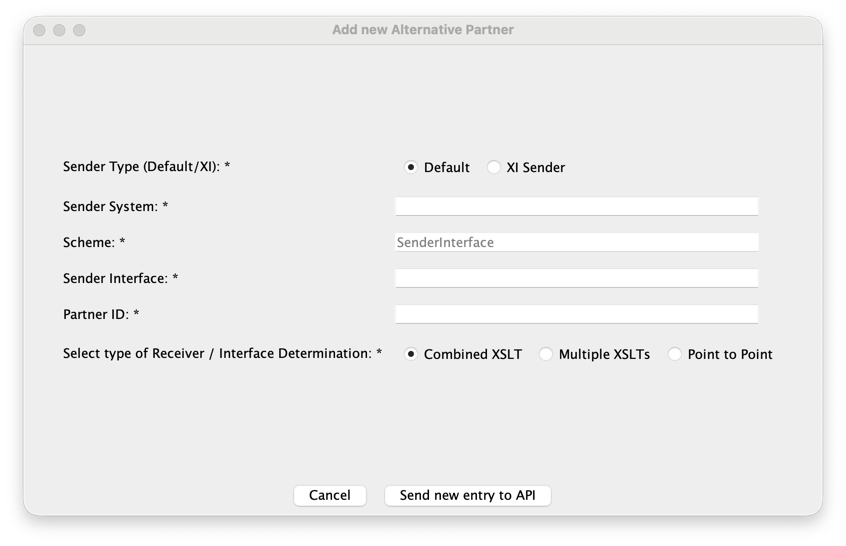
At the bottom of the page, the "Add new Alternative Partner" button allows you to create a new alternative partner. Insert the required values: Sender System (named "Agency" for alternative partner), Sender Interface (named "Id" for alternative partner), and Partner ID (also known as Pid). The only function of the Sender Type (Default/XI) option buttons is to adjust this form to the style of Alternative Partner entry. The value for "Scheme" is fixed to "SenderInterface" for default scenarios (non-SAP senders and IDoc). For XI inbound scenarios, the Scheme field changes to Interface Name, while the Interface Name field changes to Namespace, as described in the linked documentation.
Additionally, decide for a type of receiver / interface determination:
- Option 1: Combined XSLT is the default and allows you to have receiver and interface determinations combined in one single XSLT mapping, as released in version 1.0.8 of the Pipeline.
- Option 2: Multiple XSLTs results in one XSLT as receiver determination and additionally one XSLT as interface determination per receiver.
- Option 3: Point to Point uses string parameters to define exactly one receiver and one interface, which came with version 1.0.6 of the Pipeline.
While entering values, the UI shows a warning if sender system, sender interface, scheme/namespace, or partner ID contains spaces.
By sending the data to the API, a new alternative partner is created and its Parameters Page is shown, so you can add binary parameters, string parameters, and alternative partners for landscape stages.
Replication to another Tenant
By clicking the "Replication to another Tenant" button, the view is switched to the Replication Page.
Migrate deprecated entries
Since the introduction of the Pipeline, some entries in the Partner Directory are no longer recommended for use. To change them to the latest recommendations, click on the button "Migrate deprecated entries" to open the Migrate deprecated entries Page and to specify which entries should be migrated.
Export to local files
By clicking the "Export selected entries" button, the view is switched to the Export Page.
Import from local files
By clicking the "Import from local files" button, a file chooser dialog opens. You can select one or multiple JSON files to import. The file chooser opens in the export folder next to the tenants.json file by default (if it exists), so you can quickly navigate to a previously created export. Once you confirm the selection, the Import dialog is shown.
Parameters Page
On the parameters page, you can create and update all binary parameters and string parameters having the same Partner ID as the selected one. It is also possible to update the selected alternative partner. Only these binary parameters are shown for which the "ContentType" starts with "xsl".
Headers for Alternative Partner
On the upper part of the page, you can update the values for Sender System (named "agency" for alternative partner) and Sender Interface (named "id" for alternative partner). Once a value is changed, buttons to send and discard the changes on the alternative partner are shown. For the Pid, there is a dedicated button to change it. This is because the Pid is a key for both binary and string parameters, so "changing" it actually means to delete and newly create these all existing parameters of your scenario.
Additionally, four action buttons are available next to the Sender System field:
-
"Copy this scenario" allows you to quickly create a new scenario by copying the current one. A dialog appears with all fields editable (Scheme, Sender Interface, Sender System, and Partner ID). You can modify any or all of these values to create a new scenario. The dialog also includes two checkboxes (both checked by default):
- "Include Binary Parameters (XSLT mappings)" - Copies all receiver and interface determination XSLTs from the current scenario
- "Include String Parameters" - Copies all string parameters (receiver queues, landscape mappings, etc.)
This is particularly useful for creating multiple sender system scenarios or duplicating complex configurations. Simply modify the fields as needed and confirm to create the complete copy with all associated parameters. If you keep the same Partner ID, the selected binary and string parameters are not copied again to avoid overwriting the original scenario's parameters.
-
"Delete this alternative partner only" removes just the currently opened alternative partner.
-
"Delete whole scenario of this Partner ID" removes the complete scenario for the current Partner ID including all related alternative partners, binary parameters, and string parameters.
-
"Change Pid" allows you to change the Partner ID of the current scenario. This operation will update the Partner ID for all associated binary and string parameters at once. Note that the new Partner ID must be unique and not already exist in the system.
In all relevant input fields of this area (for example sender system, sender interface, and partner ID), the UI shows a warning if a value contains spaces.
Option 1: Combined XSLT
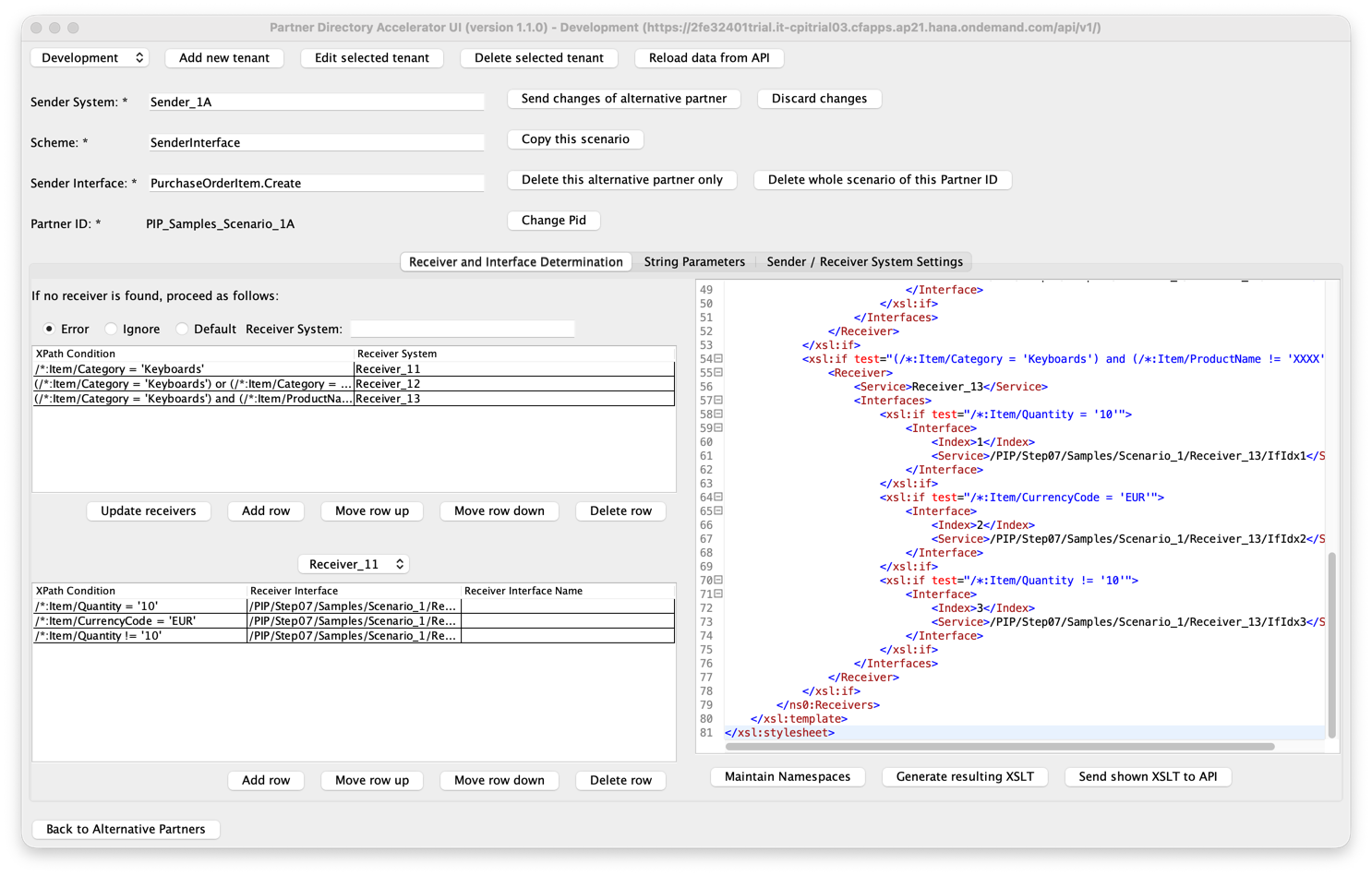
In the "Receiver and Interface Determination" tab, a combined XSLT mapping for both receiver and interface determination can be created.
For the receiver determination, it consists of two parts: the processing if no receiver is found (represented by radio buttons) and conditions with resulting receivers (represented by a table). If no receiver is found, the options "Error", "Ignore", and "Default" are available. In case the "Default" option is selected, a default receiver system needs to be specified. In the table, conditions and resulting receiver systems can be specified. It is possible to add new rows, move a selected row up or down, and delete a selected row.
For each receiver specified in the receiver determination, an interface determination should be present. First, select the receiver for which you want to see the interface determination. The dropdown menu contain all receiver systems present in the receiver determination. In the table, conditions and resulting receiver interfaces can be specified. It is possible to add new rows, move a selected row up or down, and delete a selected row.
For XI inbound scenarios, the interface determination table also includes Receiver Interface Name, and this value is considered when generating and parsing XSLTs.
Maintain Namespaces
The "Maintain Namespaces" button allow you to set the namespace URI for each namespace prefix which occurs in one of the tables as part of a XPath conditions. If no namespace exists, the dialog is empty. When generating, all these namespaces maintained are added on top of your XSLT.
Generate resulting XSLT
By clicking the "Generate resulting XSLT" button, the information from the table on the left-hand side is read to generate an XSLT based on this data and show it on the right-hand side. Now, the newly generated XSLT can be sent to the API.
If you get an invalid syntax warning, please refer to the troubleshooting section.
Send shown XSLT to API
Please note that by clicking the "Send shown XSLT to API" button, always the XSLT mapping shown on the right-hand side is sent to the API. In case this differs from the data in the tables, the data in the tables is not considered.
Option 2: Multiple XSLTs
Receiver Determination
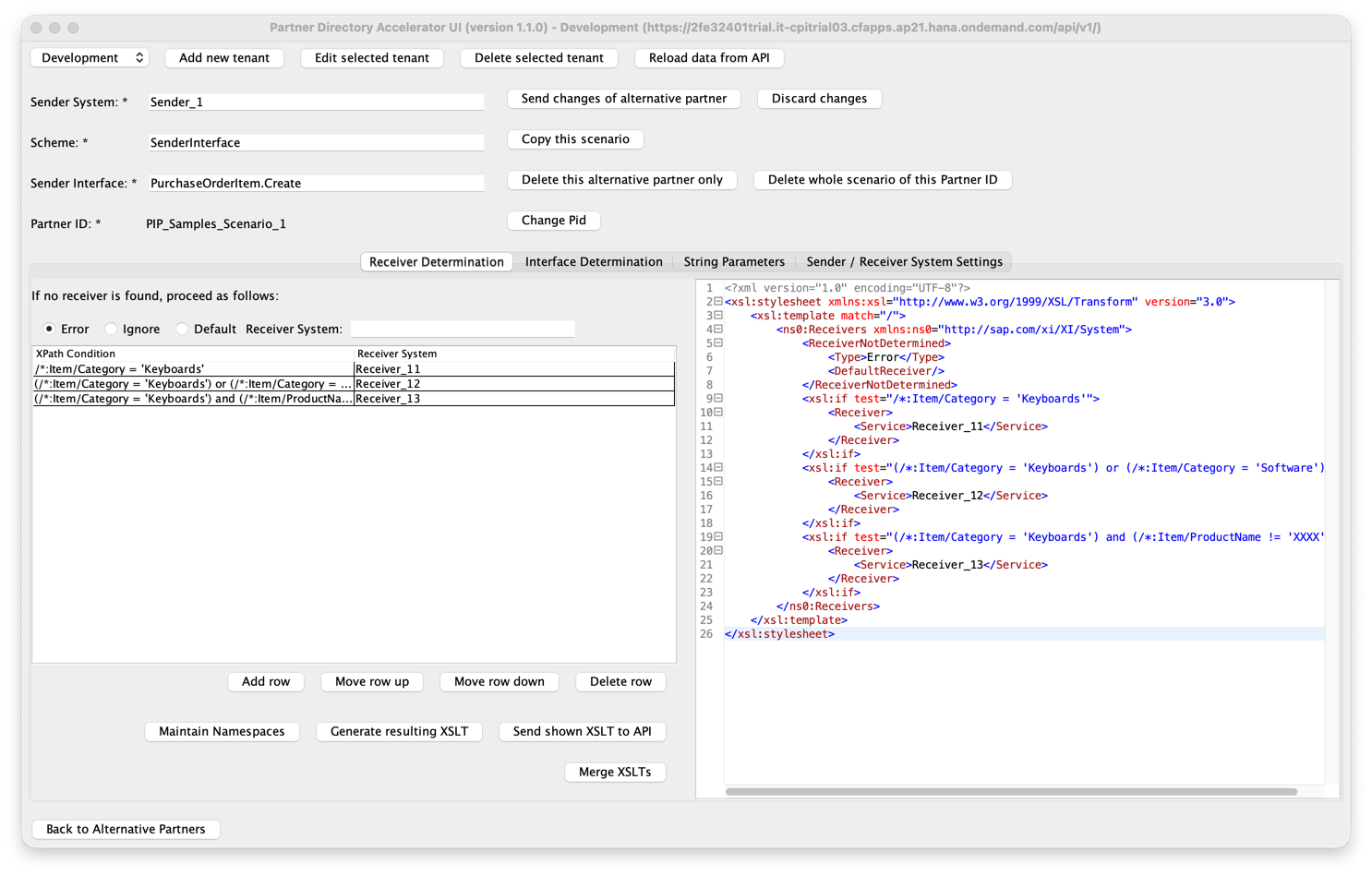
In the "Receiver Determination" tab, an XSLT mapping to determine the receiver can be created or edited. It consists of two parts: the processing if no receiver is found (represented by radio buttons) and conditions with resulting receivers (represented by a table).
If no receiver is found, the options "Error", "Ignore", and "Default" are available. In case the "Default" option is selected, a default receiver system needs to be specified.
In the table, conditions and resulting receiver systems can be specified. It is possible to add new rows, move a selected row up or down, and delete a selected row.
Maintain Namespaces
The "Maintain Namespaces" button allow you to set the namespace URI for each namespace prefix which occurs in one of the table above as part of a XPath conditions. If no namespace exists, the dialog is empty. When generating, all these namespaces maintained are added on top of your XSLT.
Generate resulting XSLT
By clicking the "Generate resulting XSLT" button, all information from the left-hand side, including the radio buttons and the table, are read to generate an XSLT based on this data and show it on the right-hand side. Now, the newly generated XSLT can be sent to the API.
If you get an invalid syntax warning, please refer to the troubleshooting section.
Send shown XSLT to API
Please note that by clicking the "Send shown XSLT to API" button, always the receiver determination shown on the right-hand side is sent to the API. In case this differs from the data in the table, the data in the table is not considered.
Merge XSLTs
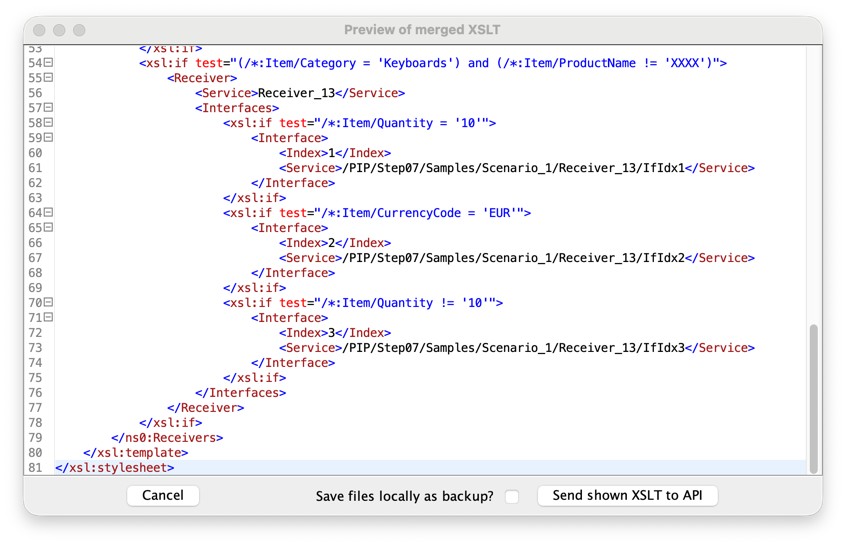
In case you rather want to use combined XSLTs instead, there is a button called "Merge XSLTs". To use this feature, for each receiver existing in the receiver determination, an interface determination needs to exist as binary parameter and all these XSLTs may not contain any syntax errors. Note that for merging, always the XSLTs are considered which are currently given back by the API, local changes in the tables are not taken into account, so make sure to send them first before merging. Click on the "Merge XSLTs" button to see a preview of your combined XSLT based on the latest data. In case of any errors during merging, please refer to the troubleshooting section. If the combined XSLT contains syntax errors, a warning will be shown. You can change the XSLT before or after, but not during merging. Before sending the merged XSLT to the API, decide if you want to save the XSLT files from both receiver and interface determination as local files, as sending the combined XSLT means to delete the multiple XSLTs. Once sent, the new XSLT is shown in the view for Option 1: Combined XSLT.
Interface Determination
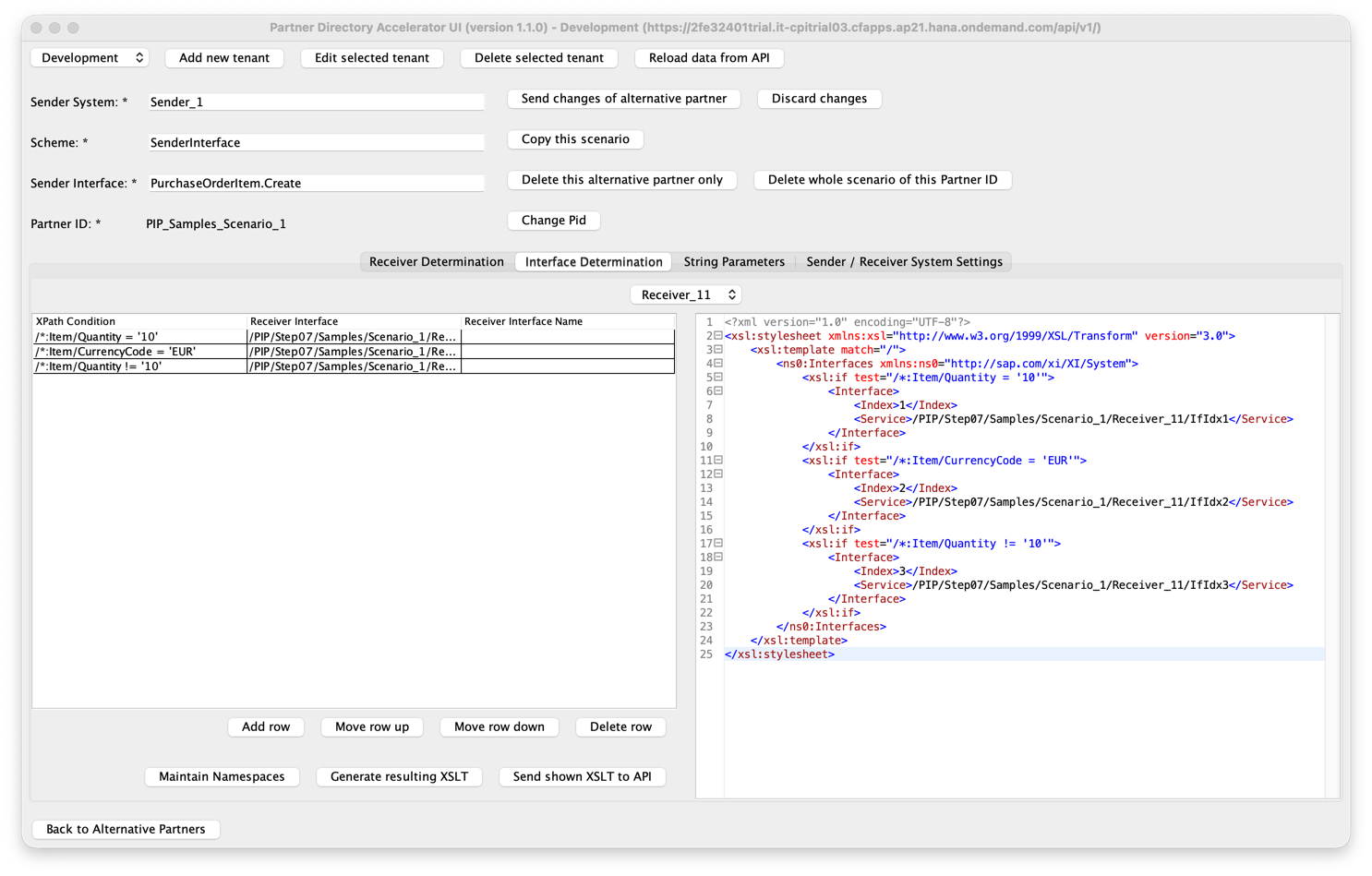
In the "Interface Determination" tab, XSLT mappings to determine the interface for each possible receiver can be created or edited. For each receiver specified in the receiver determination, an interface determination should be present.
First, select the receiver for which you want to see the interface determination. The dropdown menu contain all receiver systems present in the receiver determination.
In the table, conditions and resulting receiver interfaces can be specified. It is possible to add new rows, move a selected row up or down, and delete a selected row.
For XI inbound scenarios, an additional Receiver Interface Name column is available and included when generating and parsing XSLTs.
Maintain Namespaces
The "Maintain Namespaces" button allow you to set the namespace URI for each namespace prefix which occurs in one of the table above as part of a XPath conditions. If no namespace exists, the dialog is empty. When generating, all these namespaces maintained are added on top of your XSLT.
Generate resulting XSLT
By clicking the "Generate resulting XSLT" button, the information from the table on the left-hand side is read to generate an XSLT based on this data and show it on the right-hand side. Now, the newly generated XSLT can be sent to the API.
If you get an invalid syntax warning, please refer to the troubleshooting section.
Send shown XSLT to API
Please note that by clicking the "Send shown XSLT to API" button, always the interface determination shown on the right-hand side is sent to the API. In case this differs from the data in the table, the data in the table is not considered.
Option 3: Point to Point
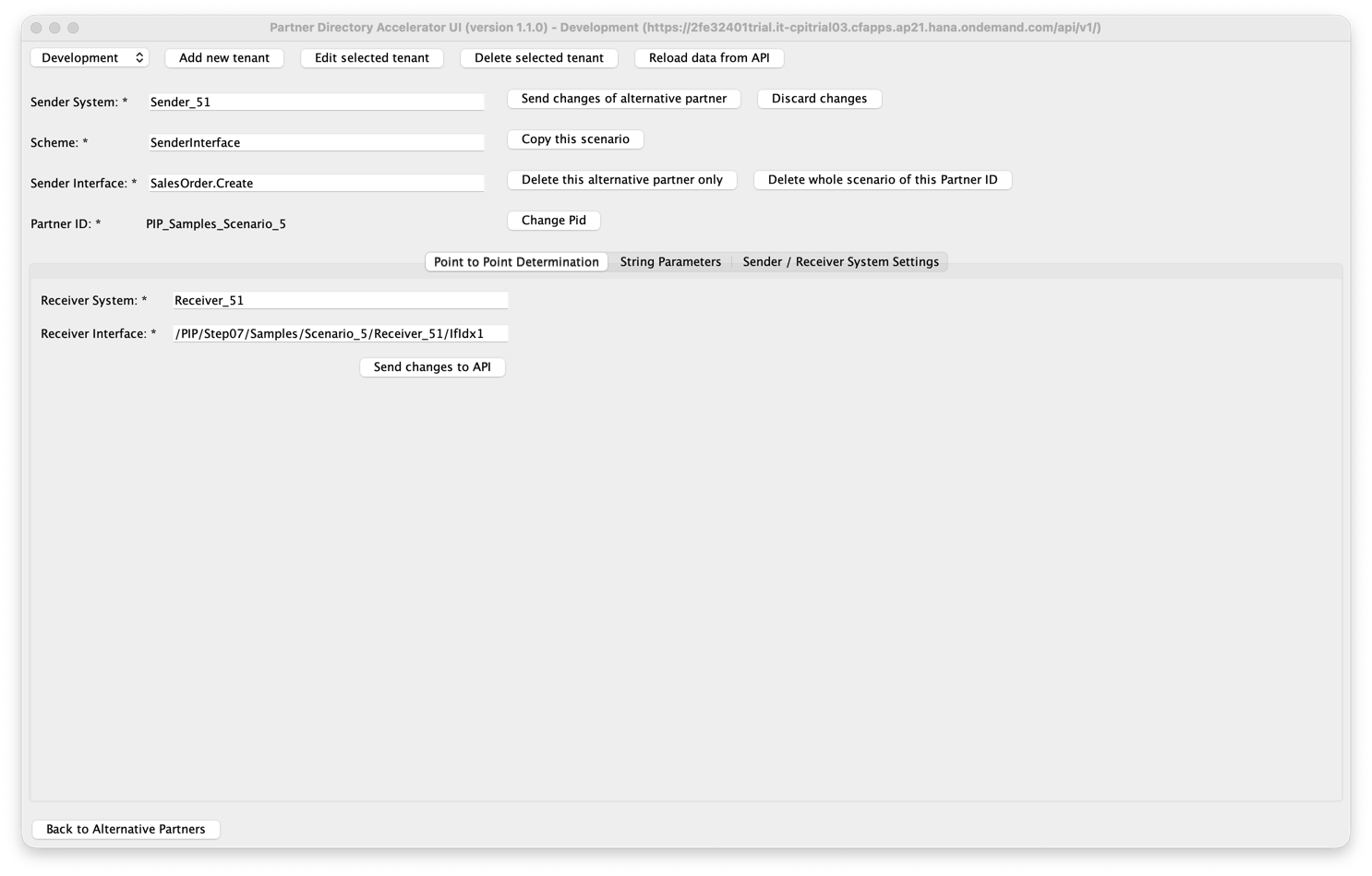
In the "Point to Point Determination" tab, exactly one receiver system and one receiver interface can be specified.
By clicking the "Send changes to API" button, existing string parameters starting with the IDs "receiverDetermination" and "interfaceDetermination_" are deleted. Then, the values from the input fields are sent to the API.
String Parameters
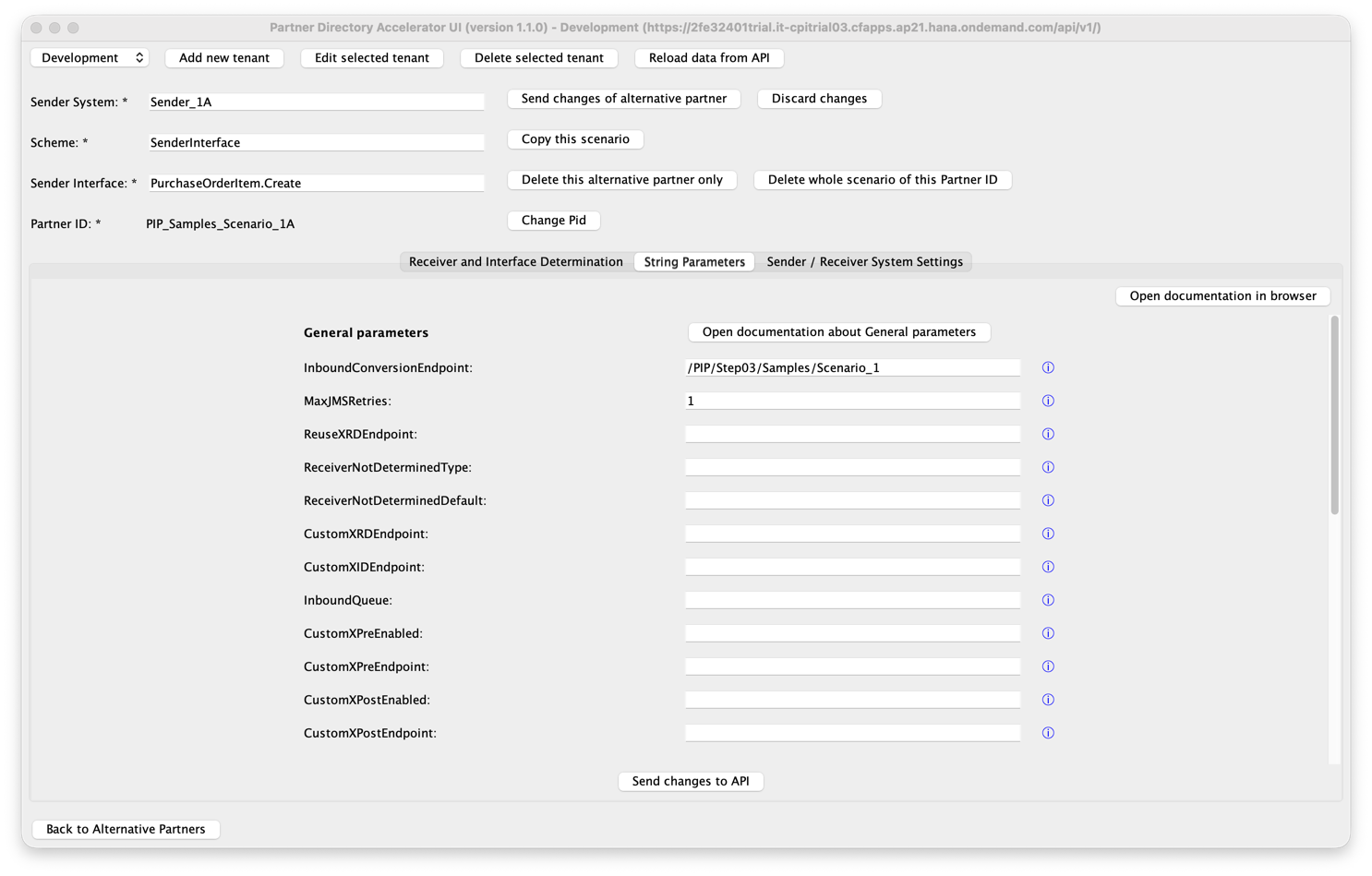
In the "String Parameters" tab, string parameters can be added, updated, and deleted by entering the desired value in the input field of the corresponding ID.
Some notes:
-
The string parameters relevant to the Pipeline are listed in the documentation.
-
Here you can, for example, configure a receiver-specific queue on a per-scenario basis. See documentation
-
Additionally, the scenario-specific string parameters for the community extension Process Integration Pipeline Extension - Restart via Data Store are supported (namely RetryDataStore, restartMode, and MaxDataStoreRetries).
By clicking the "Send changes to API" button, all values in the input fields are read and sent to the API to create or update the relevant string parameter. If an input field is empty, the relevant string parameter will be deleted if it exists.
Sender / Receiver System Settings (Prev. Landscape Stages)
Changes in version 1.1.0: The tab got renamed to "Sender / Receiver System Settings" as it now supports configuring the receiver-specific default queue for all receivers of a scenario.
Here you can:
- Configure a receiver-specific default queue name (optional, otherwise the default outbound queue PIPQ04 is used by the Pipeline Iflows)
- Configure system identifier <> alias mapping for the different landscape stages.
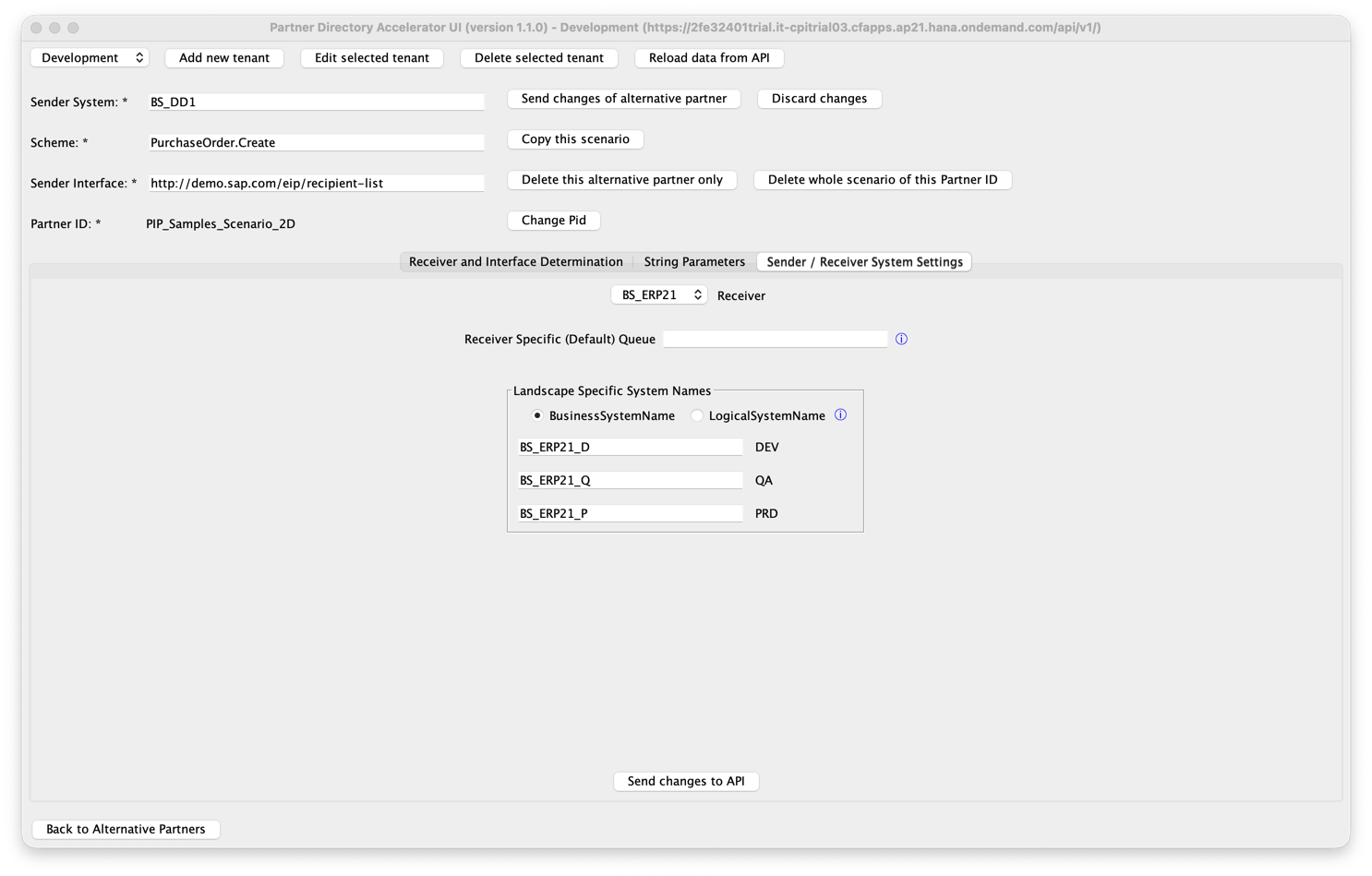
The support of landscape stages was introduced with version 1.0.9 of the Pipeline.
Make sure to maintain the string parameter SAP_Integration_Suite_Landscape before using the tab for landscape stages.
All sender and receiver systems of the current scenario are shown in the dropdown. This should be the system alias. With the radio buttons, you can switch between BusinessSystemName and LogicalSystemName.
For each value maintained in SAP_Integration_Suite_Landscape, a line is shown. If mappings of actual name to alias are existing, these are shown. Note that only these mappings are shown where the stage (alias of alternative partner) matches one of the value in SAP_Integration_Suite_Landscape.
You can maintain new actual system names, and edit or existing ones. By clicking "Send changes to API", HTTP requests are sent to reflect your changes in the Partner Directory. Note that only the currently shown entries are sent to the API. This means that if you are making changes for different systems or schemes, make sure to send them to the API every time before switching to a new view.
Replication Page
The idea of the replication page is to allow selecting multiple entries of the Partner Directory and create / update these entries in another tenant. In the replication page, multiple alternative partners can be selected. For replicating, the selected alternative partners as well as the binary parameters and string parameters with the same Partner ID are replicated to another tenant. In addition, receiver-specific default queue entries (String Parameter ReceiverSpecificQueue with receiver name as Pid) are replicated for all receivers that are part of the selected scenarios. A possible use case is to move the Partner Directory entries e.g. from a Dev tenant to QA to Prod. Please make sure that you have already added the target tenant which you want to replicate to.
Replication Table
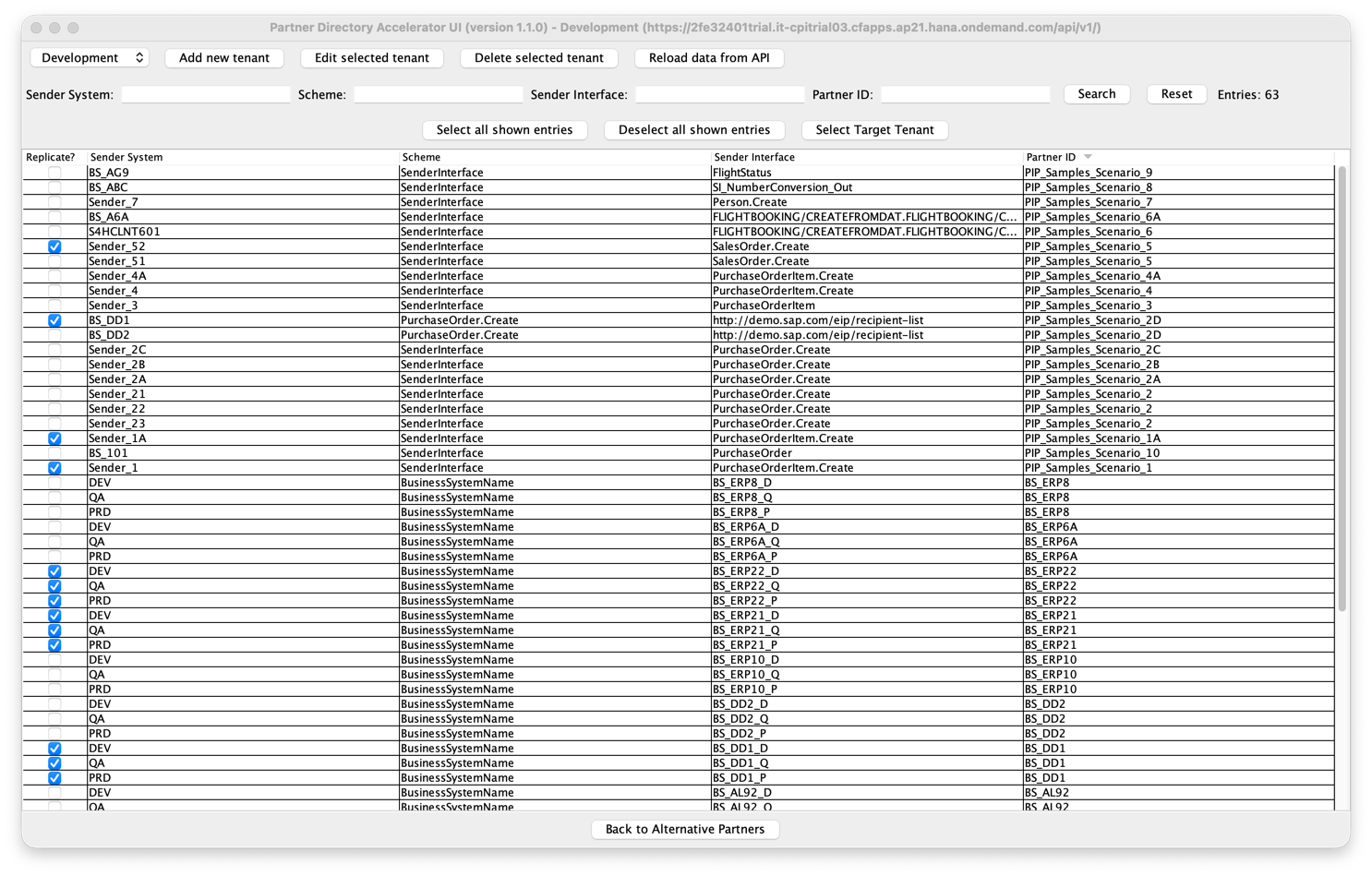
The replication table shows alternative partners and is extended by a checkbox column. By clicking a checkbox in a row, the alternative partner is selected for replication. In this table, the alternative partners of the alternative partners table are shown as well as the alternative partners for landscape stages.
Selecting an alternative partner means that during replication, all binary parameters and string parameters with the same Pid are replicated as well. Additionally, receiver-specific default queue entries are included for receivers derived from the selected scenarios.
(De)Select all shown entries
The buttons "Deselect all shown entries" and "Select all shown entries" on the bottom allow to (de)select multiple alternative partners at once. This can be used in combination with the search option which with you can filter for specific entries and select all these filtered entries at once.
Dialog for Replication to another Tenant
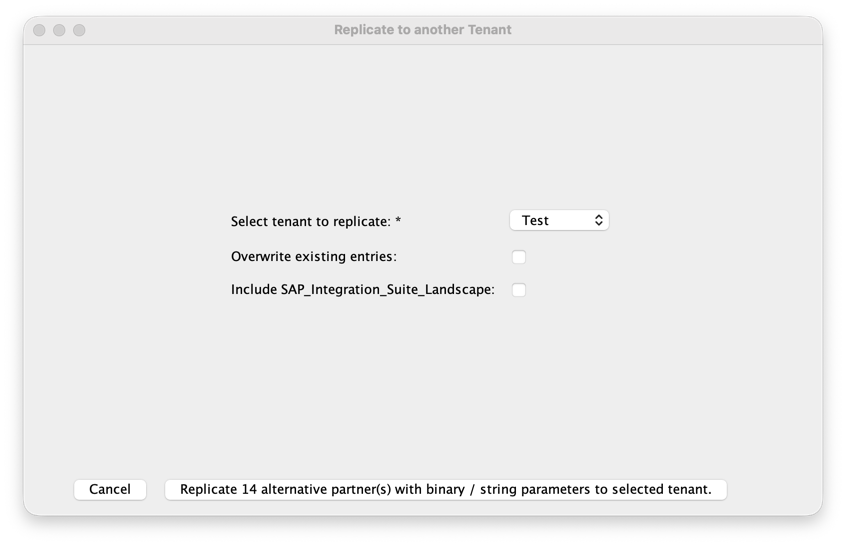
Once you have selected all alternative partners to replicate, you can click on "Select Target Tenant". By using the dropdown menu, you need to select your target tenant from the list of tenants you previously added.
You can decide to overwrite entries which already exist in the target tenant. If the checkbox is not checked, only HTTP Post requests are sent to create new entries. If the combination of keys of an entry already exist, the request will fail and the errors returned by the API will be displayed. Changes in v1.1.0: The previously selected scenarios/systems remain selected so that you can retry the replication with a modified selection or use the "Overwrite existing entries" function (checkbox), if you like. If the corresponding checkbox is checked, an HTTP Post request is sent at first. If the combination of keys already exist, the tools sends an additional HTTP Put request to overwrite the existing entry in the target tenant.
If you select "Include SAP_Integration_Suite_Landscape", all string parameters having the Pid "SAP_Integration_Suite_Landscape" are included in the replication. This should only be necessary once (for a new landscape) or if you edited tenant names or stage names.
The button "Replicate x alternative partners with binary / string parameters to selected tenant" starts the replication to the selected tenant. Depending (among others) on the number of replicated entries and your network connection, this can take some time. During replication, you can see details in the logs. Once finished, the source tenant view is displayed again (Changes in v1.1.0: previously the app switched to the target tenant page - however, it was not obvious that the tenant selection changed.)
Migrate deprecated entries Page
As the Pipeline has already been introduced in 2024, there are meanwhile some Partner Directory entries which are not recommended anymore. There are two options for which the migration of old Partner Directory entries is supported: migration of old Pids which use tilde instead of alternative partners and merging of multiple XSLTs into one combined XSLT. You can switch between these two pages using the radio buttons on top of the screen. If you want to migrate both, start by migrating the tilde Pids.
Migrate Pids with tilde Page
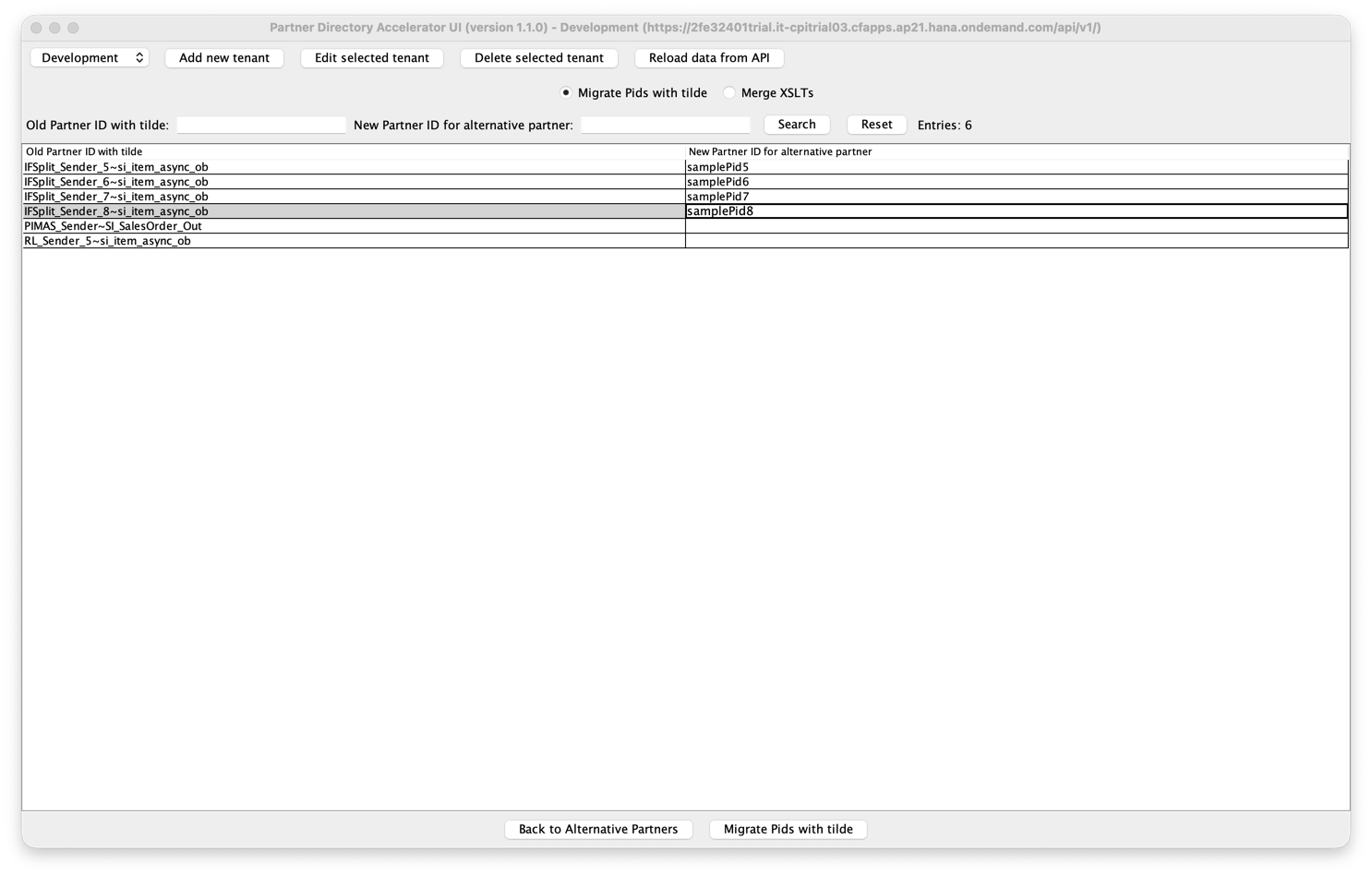
This table will show all Partner IDs which contain a tilde if there is a receiver determination as binary or string parameter maintained for this Pid. As usual, there is a search option, and you can sort the table by clicking on the name of the column. In the left column, the old Pid is read-only.
For each tilde scenario which you would like to migrate to a new Pid using an alternative partner, maintain a new Pid in the right column. Make sure that the new Pid is unique in the Partner Directory of your tenant. If you added all new Pids which you would like to migrate, click on "Migrate Pids with tilde" on the bottom. You can choose if you want to delete the old Partner Directory entries (alternative partners, binary and string parameters) using tilde during migration, which effects all scenarios for which a new Pid is maintained.
After confirming, depending on the number of scenarios you would like to migrate, this might take a while. In that time, tool will create the new entries (alternative partners, binary and string parameters) and deletes the old ones depending on your choice. Once completed, a pop-up shows if there were errors during migration or if everything worked smoothly. The Alternative Partners Page will be shown, including all your newly migrated scenarios.
During migration, scheme of the new alternative partner is set to "SenderInterface" as constant. In case of XI inbound scenarios, you need to manually change the alternative partner later.
Merge XSLTs Page
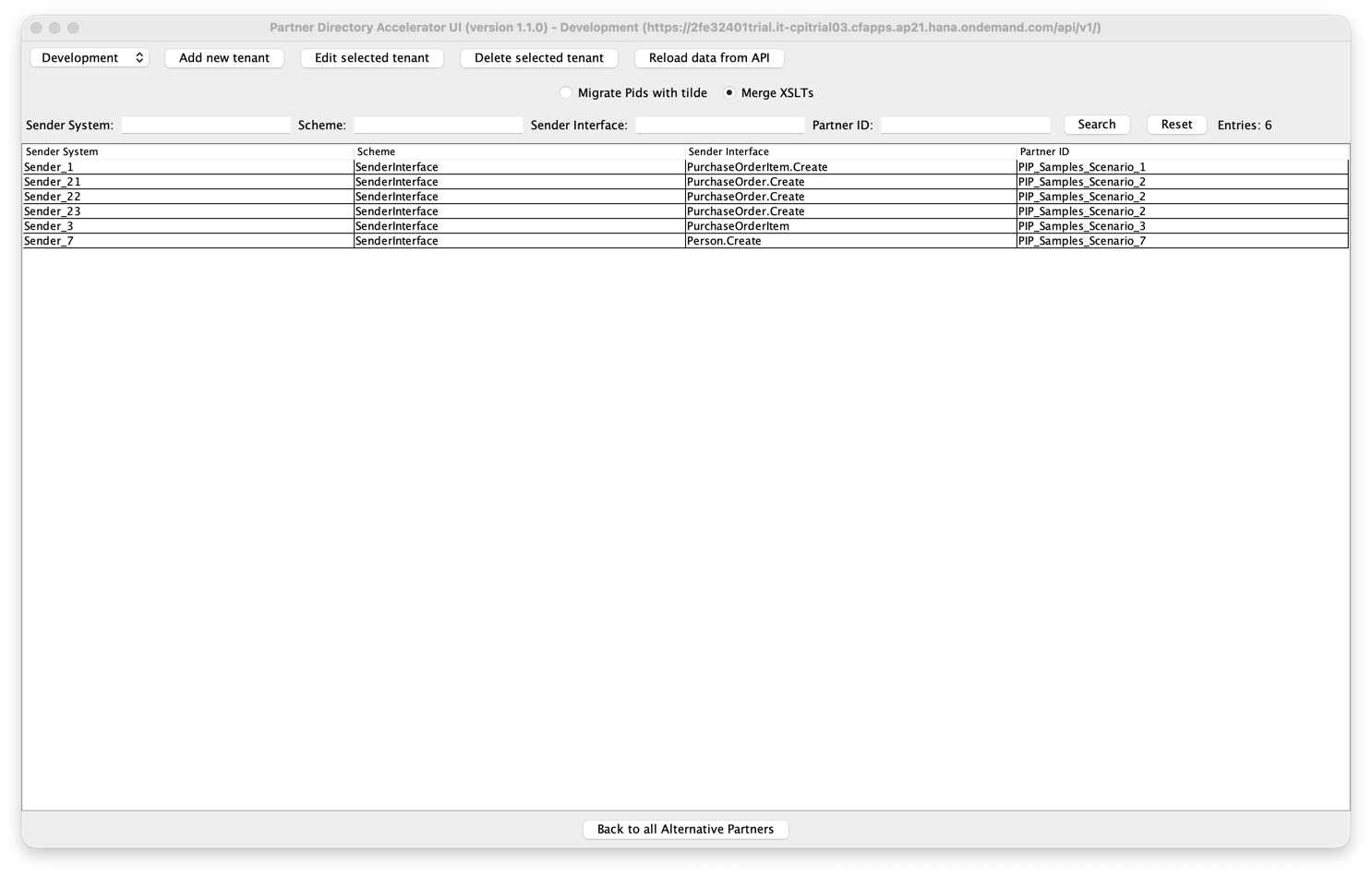
This page shows a list of scenarios for which an alternative partner exists and for which binary parameters exist for both receiver determination and interface determination. With these criteria, scenarios using Option 2: Multiple XSLTs should be shown. Note that scenarios using special cases might be shown here although there are not supported to be merged automatically.
From the table, you can click on a row to end up on its Parameters Page, which should be Option 2: Multiple XSLTs. On the bottom, there is a "Merge XSLTs" button, see above. In case of any errors during merging, please refer to the troubleshooting section.
Export Page
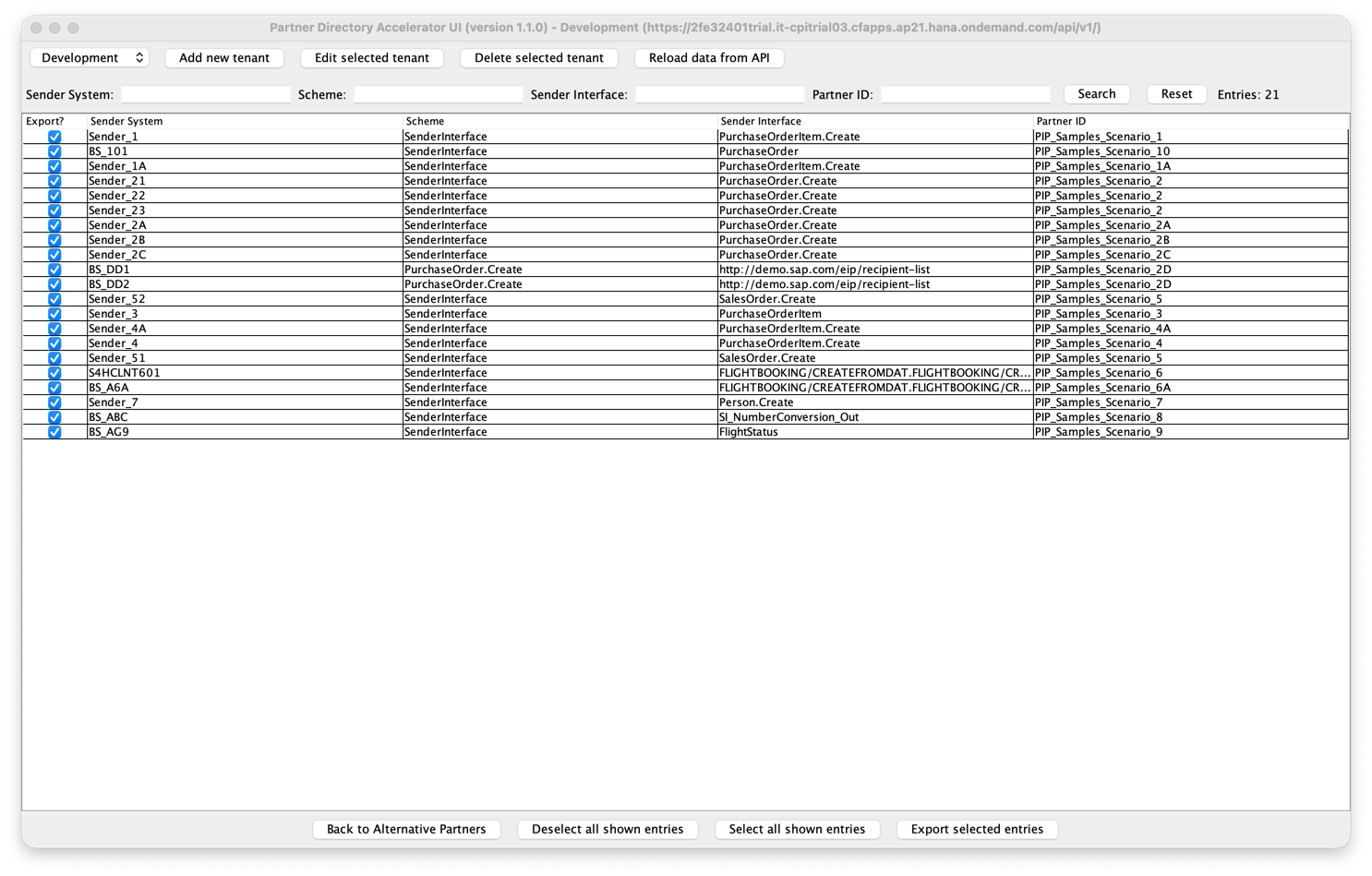
The export page allows you to save Partner Directory entries as local JSON files, for example to create a backup or to transfer entries between tenants without a direct API connection. The exported files are stored in the export folder next to the tenants.json file, in a subfolder named after the current tenant and the export timestamp (e.g. export/MyTenant_20260729_143022/). This makes it easy to identify and manage multiple exports over time.
Export Table
The export table shows the same alternative partners as the Alternative Partners Table, extended by a checkbox column. By clicking a checkbox in a row, the alternative partner is selected for export.
The buttons "Deselect all shown entries" and "Select all shown entries" on the bottom allow to (de)select multiple alternative partners at once. This can be used in combination with the search option to filter for specific entries and select all of them at once.
Dialog for Export
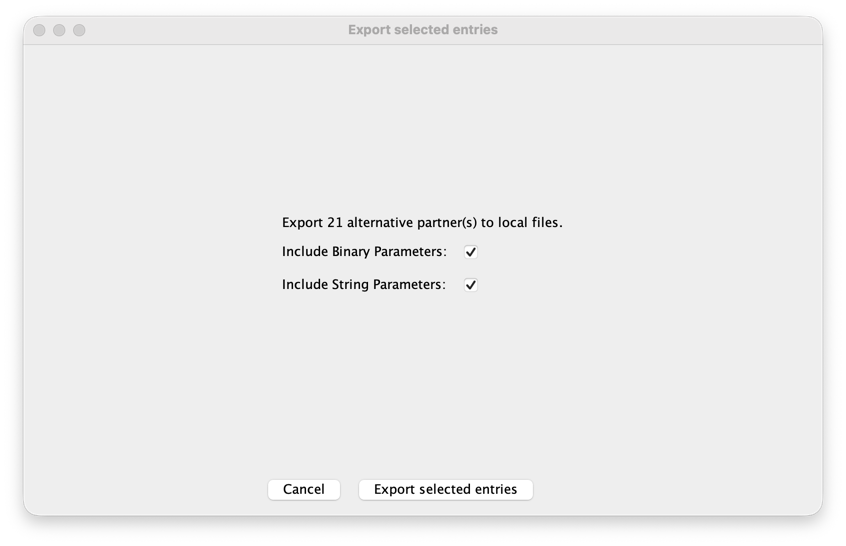
Once you have selected the entries to export, click "Export selected entries". A dialog appears confirming the number of entries to be exported.
If all alternative partners are selected, two additional checkboxes are shown, allowing you to decide whether binary parameters and string parameters should be included in the export. Both are checked by default. If only a subset of alternative partners is selected, the binary and string parameters for the corresponding Partner IDs are always included in the export.
Clicking "Export selected entries" in the dialog starts the export. The following files are written to the output folder, depending on the selection:
AlternativePartners.response.json: The selected alternative partners with their full API metadata.BinaryParameters.response.json: The binary parameters (XSLT files) for the exported Partner IDs.StringParameters.response.json: The string parameters for the exported Partner IDs.
Once finished, a success message shows the full path to the output folder.
Dialog for Import
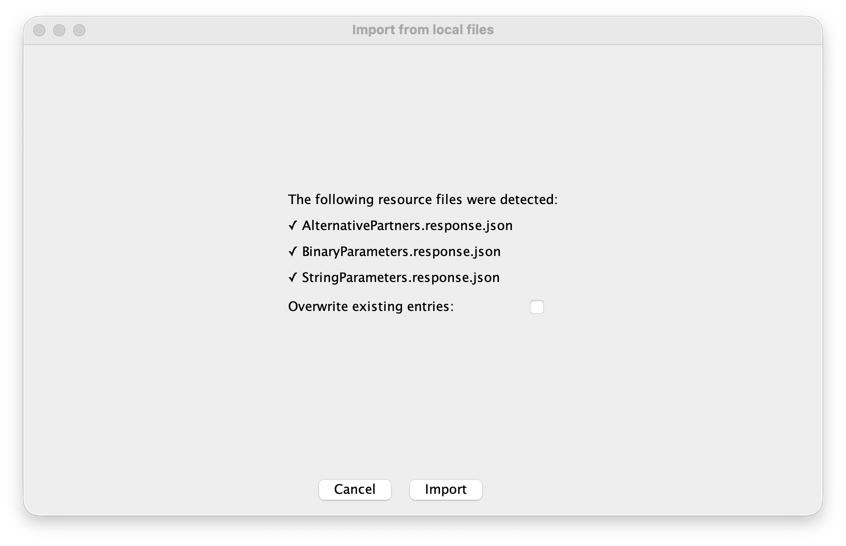
The import dialog allows you to load previously exported Partner Directory entries from local JSON files back into your tenant. This can be used to restore entries from a backup or to import entries from another tenant without a direct API connection.
When the file chooser is opened, you can select one or multiple JSON files at once. The tool detects the resource type of each file automatically — first by checking whether the filename contains a known resource name (AlternativePartners, BinaryParameters, or StringParameters), and, if that is not the case, by inspecting the JSON content itself (using the __metadata.type field or the structure of the entries). This means that plain API exports with arbitrary file names are supported as well.
The dialog shows all detected files grouped by resource type with a checkmark (✓). If none of the selected files could be identified as a supported resource, the import button is disabled.
You can decide to overwrite entries which already exist in the target tenant. If the checkbox is not checked, only HTTP Post requests are sent to create new entries. If the combination of keys of an entry already exists, the request will fail. In contrast, if the checkbox is checked, an HTTP Post request is sent first. If the entry already exists, an additional HTTP Put request is sent to overwrite it. This is the same behavior as for replication.
After clicking "Import", the entries are imported in the background. Once finished, the data is automatically reloaded from the API and the alternative partners table is refreshed so that newly imported entries are visible immediately. A success message is shown if all entries were imported without errors, or a warning message with the number of failed requests if any errors occurred.
Troubleshooting
Error when configuring API: (certificate_unknown) PKIX path building failed: sun.security.provider.certpath.SunCertPathBuilderException: unable to find valid certification path to requested target
This error can occur when you try to send the initial HTTP request but a certificate is missing. To resolve the error, you need to import the SSL certificate of the SAP Integration Suite into the local JRE keystore. To do so, download the certificate from SAP Integration Suite URL and store it on your local device. Then, import the certificate into your local JRE keystore, as explained in this guide. After importing the certificate, please restart the accelerator tool.
Error when configuring API: JSONObject["d"] not found /
Error when configuring API: A JSONObject text must begin with '{' at 1 [character 2 line 1] /
Error when configuring API: URI with undefined scheme /
Error when configuring API: null
This error can occur when the initial HTTP request fails. Please double-check that the credentials you provided meet the requirements as described in the previous section Add new tenant (e.g., that the URL ends with "/api/v1/"), and check for typos in the credentials.
Error when generating XSLT from input data. If "Default" is selected as the behavior when no receiver is found, the Default Receiver System must be specified in the corresponding input field.
This error is related to the section "If no receiver is found, proceed as follows:" in the UI. Here, you can select what to do if no receiver is found. Specifically, this can either cause an error, be ignored, or a default receiver system is specified. The error occurs if "Default" is selected but no default receiver system is specified in the input field.
Error when generating XSLT from input data. Table which is missing data: [name of table]
The error occurs if either no receiver system is specified in a table for receiver determination or no receiver interface is specified in a table for interface determination. A XPath condition is not required. The error message shows the name of the table which caused the error. Attention: in case the error occurs while generating a Combined XSLT, the table which is missing data might not be visible in the UI but can be shown by selecting the corresponding radio button.
Error when generating XSLT from input data. Make sure that all tables and the receiver not found section are filled properly.
This error occurs in general if data is missing for generating the XSLT and no more specific error could be provided. Please make sure that all data is filled properly.
The generated XSLT might contain invalid syntax: (...) /
The shown XSLT might contain invalid syntax: (...) Do you want to send the shown XSLT to the API anyway?
When generating an XSLT or trying to send it to the API, a syntax validation check is performed in the background using the Saxon XSLT Processor. If the syntax check passes, the XSLT is directly shown / sent to the API. If the syntax check fails, a dialog with details is shown. The recommendation is to review and edit the input data and regenerate the XSLT with valid syntax.
If you decide to send an XSLT with syntax errors to the API, please be aware that afterward, it might not be possible to fetch the XSLT content into the tabular format which you can edit. Instead, it might be required to edit / delete the XSLT with syntax errors outside the tool.
Please note that the results of this syntax check may differ from those obtained when processing the XSLT files within SAP Integration Suite itself. The syntax validation performed by this tool is intended to be a useful aid, but it does not guarantee absolute correctness or compatibility with SAP Integration Suite. Therefore, it is recommended to thoroughly test your XSLT files in the actual SAP Integration Suite environment to ensure proper functionality.
Error when merging XSLT.
Please note that the merge XSLT feature only works under the following prerequisites:
- The scenario doesn't use tilde (so migrating tilde must be done before).
- XSLT exists for receiver determination.
- For each receiver in the receiver determination, an XSLT for interface determination exists.
- The XSLTs do not contain any syntax errors.
Known Issues
Currently, there are some limits which the tool is not capable of:
- Individual binary parameters still cannot be deleted directly from the UI. However, alternative partners can now be deleted from the Parameters Page, and a complete scenario of one Partner ID can also be deleted there including its related binary and string parameters.
- The special case "Bypass Receiver Determination" (which uses a string parameter for receiver determination and an XSLT for interface determination) is not supported.
- For the community extension Process Integration Pipeline Extension - Restart via Data Store, the restart job profiles are currently not supported. In contrast, the scenario-specific restart configuration settings (string parameters RetryDataStore, restartMode, and MaxDataStoreRetries) are supported.
To find or to report an issue, please refer to section How to obtain support.
Development
XSLT Handling
The UI of the tool is built using Java Swing. All classes related to the UI can be found in the folder src/main/java/org/example/ui.
For generating XSLT outputs, the template engine Apache FreeMarker is used. The templates can be found in the folder src/main/resources/templates. These templates take objects from the folder src/main/java/org/example/templates to transform them into XSLTs.
The other way around, for existing XSLTs, the data is extracted to a table by using XPath expressions.
JAR Generation
If you make changes to the code, you can generate a new .jar file by running the following terminal command in the root directory of the project. Two .jar files will be generated. Note that only the file PartnerDirectoryAcceleratorTool-1.1-jar-with-dependencies.jar contains all the necessary dependencies to run as a standalone application.
mvn clean package && cp target/PartnerDirectoryAcceleratorUI-1.1-jar-with-dependencies.jar . && cp target/PartnerDirectoryAcceleratorUI-1.1.jar .
In case you do not have the Maven command line installed, please follow this guide.
How to obtain support
Create an issue in this repository if you find a bug or have questions about the content.
Some bugs or questions might have been reported before. If so, you can upvote them by reacting with thumbs up.
Contributing
If you wish to contribute code, offer fixes or improvements, please send a pull request. Due to legal reasons, contributors will be asked to accept a DCO when they create the first pull request to this project. This happens in an automated fashion during the submission process. SAP uses the standard DCO text of the Linux Foundation.
Information on how the tool is developed can be found here.
License
Copyright (c) 2026 SAP SE or an SAP affiliate company. All rights reserved. This project is licensed under the Apache Software License, version 2.0 except as noted otherwise in the LICENSE file.
History
Notes
In order to run the new release, update both your
.jarfile and thestart.batorstart.shscript.
Export / Import of Partner Directory entries
You can now export selected scenarios to local JSON files and import them again later. This supports backup/restore and transfer workflows without direct tenant-to-tenant API replication. The import dialog also detects selected file types automatically.
See Export to local files, Import from local files, Export Page, and Dialog for Import.
Copy Scenario
You can now copy the current scenario to a new one, with optional inclusion of binary parameters (XSLT mappings) and string parameters.
See Headers for Alternative Partner.
Closes issue #11.
Delete Alternative Partner or Complete Scenario
From the Parameters Page, you can now delete either only the current alternative partner or the complete scenario (alternative partners, binary parameters, and string parameters) for a Partner ID.
See Headers for Alternative Partner.
Closes issue #7.
Maintain Receiver-Specific Queues on Scenario-Level
Before, it was only possible to maintain a default receiver-specific queue on level of the receiver name. Now, it's also possible to maintain a receiver-specific queue on scenario-level.
See String Parameters and Sender / Receiver System Settings (Prev. Landscape Stages).
Replicate Receiver-Specific Queues
Replication now also includes receiver-specific default queue entries for receivers that are part of the selected scenarios. This helps keep outbound queue behavior aligned across tenants.
See Replication Page and Dialog for Replication to another Tenant.
Receiver Interface Name in XSLT Handling
For XI inbound scenarios, interface determination supports Receiver Interface Name in table handling and XSLT generation/parsing.
See Option 1: Combined XSLT and Option 2: Multiple XSLTs.
Java 21
The tool now runs on Java 21.
See Requirements.
Tenant Header Color
You can configure a header color per tenant to better differentiate systems (for example DEV/QA/PROD).
See Add new tenant.
Warning for Spaces in Alternative Partner Inputs
The UI now warns if relevant alternative partner input values contain spaces.
See Add New Alternative Partner and Headers for Alternative Partner.
Other Changes and Improvements
- Added optional
userquery parameter for POST/PUT requests (displayed as Created By / Last Modified By in SAP Integration Suite). - Automatically adds
/api/v1/to tenant URLs when missing during configuration. Closes issue #17. - Improved handling for string parameters, added tooltips and links to documentation.
Bug fixes
A big thank you to @fippu82 for the great contribution in PR #19!
Notes
Migrate old Pids with tilde
For scenarios using the old Pid approach with tilde instead of the one with alternative partners, you now have the option to once-only migrate this old Pid to a new one which will create an alternative partner and change the Pid for all binary and string parameters (by deleting and newly creating them). Start by clicking on the "Migrate deprecated entries" button.
See Migrate Pids with tilde page.
Merge multiple XSLTs into one combined XSLT
For scenarios using multiple XSLTs, you get the one-time option to merge them into one combined XSLT. There is an overview as part of the Migrate deprecated entries page.
See Merge XSLTs
Rename Pid
For existing scenarios, you can now change their Pid which will affect all alternative partners, binary and string parameters of this scenario.
See Headers for Alternative Partner.
Closes issue #9.
Support for namespaces in XSLT generation
For all namespace prefixes defined as XPath condition in a table, you can now maintain its namespace URI to be added on top of XSLT.
See Option 1: Combined XSLT, and Option 2: Multiple XSLTs.
Improved Dialog to Add New Alternative Partner
You can now switch between default scenarios and scenarios using XI namespace.
See Add New Alternative Partner.
Special thanks to @fippu82 for developing this feature!
Other changes and new features
- Changed default sort order of Alternative Partners Page to sort by Pid.
- Changed default sort order of SAP_Integration_Suite_Landscape to sort by created time.
- Number of entries in alternative partner table is now shown on top next to search, being updated for each search term.
- Get requests handle pagination of Partner Directory API.
- For new alternative partner, open parameters page directly.
- If no receiver / interface determination is maintained, dialog asks to select type of determination.
- Added version of tool on top in UI.
Bug fixes
- Fixed XSLT to table for combined XSLT with same ProcessDirect addresses. Closes issue #12.
- Support for renaming receiver names in table for receiver determination using combined XSLT.
- Changed window size to not overlap with taskbar on Windows.
Notes
Support for Landscape Stages
The string parameter SAP_Integration_Suite_Landscape can be maintained. Additionally, for each scenario, the mapping of actual system name to system alias is supported.
String parameter SAP_Integration_Suite_Landscape and alternative partners for landscape stages can be replicated to another tenant.
See Maintain SAP_Integration_Suite_Landscape, Landscape Stages, and Replication Page.
Closes issue #3.
XSLT Parameters
Parameters in XSLT such as <xsl:param name="SAP_SenderOperation"/> are now supported in XSLT generation.
Closes issue #2.
Alternative Partners with Namespace as Scheme
When creating an alternative partner, a custom value for scheme can be set to support XI inbound scenarios.
See Add New Alternative Partner.
Closes issue #1.
Deletion of Tenant supported
Closes issue #4.
String Parameters for Data Store Extension
For the community extension "Process Integration Pipeline Extension - Restart via Data Store", the scenario-specific string parameters are supported (namely RetryDataStore, restartMode, and MaxDataStoreRetries).
See String Parameters for scenario-specific string parameters and Known Issues for restart job profiles.
Bug fixes
Others providing
Compare all 2 on the Integration flows page →- Cloud IntegrationCloud IntegrationBuilds and runs integration flows that process, route and map messages between cloud and on-premise systems, SAP and non-SAP, through prebuilt adapters; available only under an SAP Integration Suite plan.sap official, btpBuilds and runs integration flows between cloud and on premise
Details
Sources
Sources are graph entities: the same page may back several entries, and an unreachable source flags every row that rests on it.
Compatibility and provenance
Contributors
History in the atlas
- First seen.
For your agent
- Ref
artifact:sap-samples-integration-suite-partner-directory-accelerator-for-pipeline-concept- JSON
- /artifacts/sap-samples-integration-suite-partner-directory-accelerator-for-pipeline-concept.json
- MCP
- Connecting an agent