xsc-to-native-hana-cloud
A guide to converting an XS Classic delivery unit or package into native SAP HANA CloudSAP HANA CloudThe managed database under most of this: CAP's default target, the store Datasphere and Analytics Cloud sit on, and a service with plans and components.sap official, btp database artefacts, with no service layer migration and no AI in the conversion.
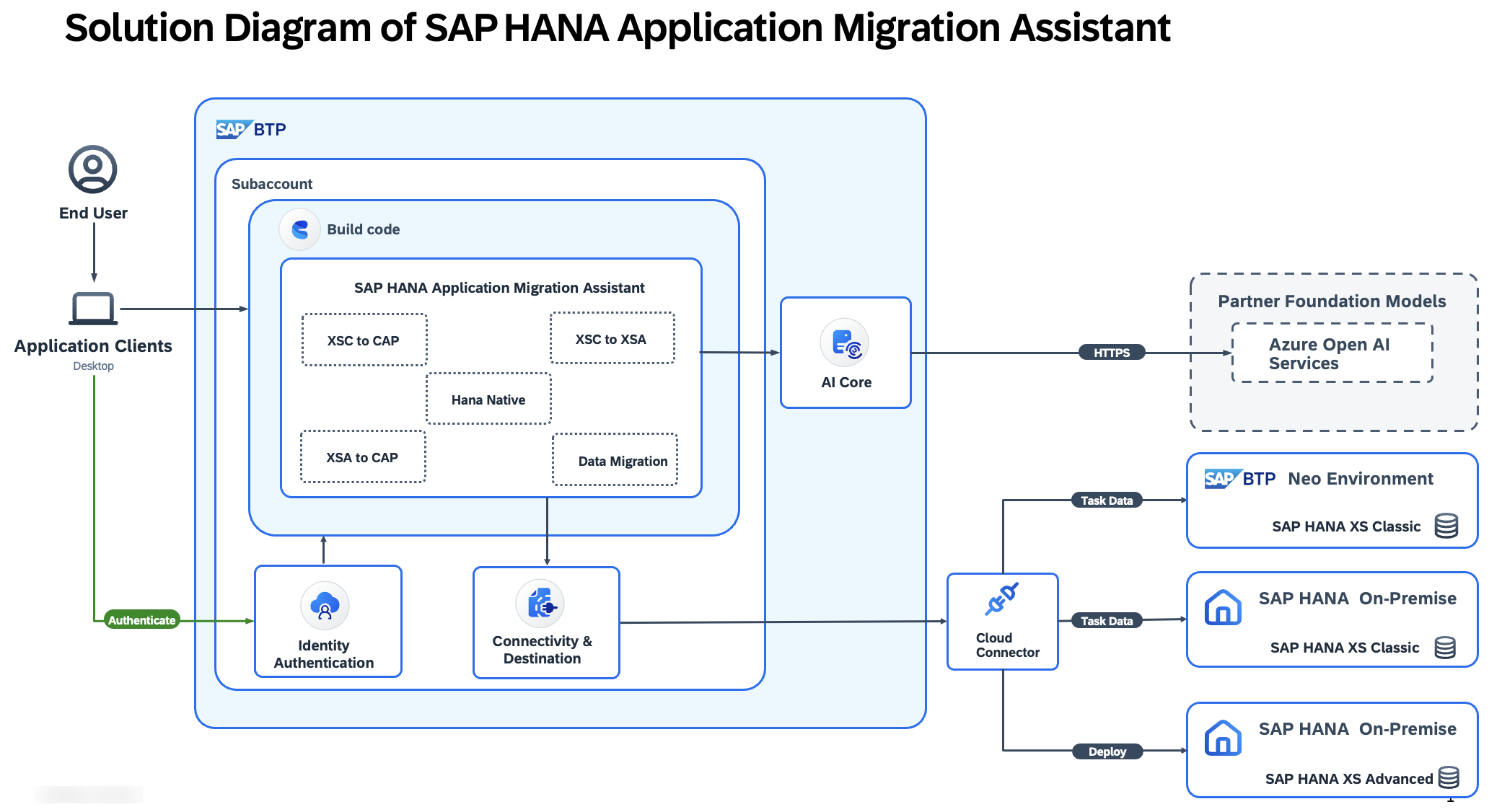
Uses the SAP HANA Application Migration extension in a SAP HANA Native Application dev space in SAP Business Application StudioSAP Business Application StudioSAP's development environment for business applications, delivered as a cloud service and opened in a browser, where work happens in preconfigured dev spaces.sap official, btp to transform XS Classic Repository objects such as .hdbdd, .hdbtable and .hdbview files into their SAP HANA Native equivalents, renamed for SAP HANA CloudSAP HANA CloudThe managed database under most of this: CAP's default target, the store Datasphere and Analytics Cloud sit on, and a service with plans and components.sap official, btp conventions, with the source system reached through the Cloud ConnectorCloud ConnectorSAP's on-premises agent that links SAP BTP applications to systems in a customer's own network, as a reverse invoke proxy that exposes only the systems and resources it is configured to allow.sap official, btp and an SAP BTP destination. The source is a delivery unit or a package name, and the wizard also asks for an XSC compatibility mode that decides whether calculation views keep their XS Classic behaviour, and for a staged or non-staged migration, which differ in whether each external container and schema gets its own synonyms and grants. The README states this path performs only database artefact migration and no service layer migration, and that all transformations are rule-based and deterministic with no AI anywhere in the process. The walkthrough runs on the SHINE demo content packaged as the HCO_DEMOCONTENT delivery unit, ships a postMigChanges-HanaNative.js script that makes most of the post-migration edits, and leaves two by hand: the schema name in the role files, and the grants on _SYS_BI.
Facts
Where it sits
Who is behind it

In the atlas: maintains 222@SAP-samplesmaintainerLalithManokarContributes to this

In the atlas: contributes to 6@LalithManokarphalaksha-c-g-sap-comContributes to this

In the atlas: contributes to 1@phalaksha-c-g-sap-comPriyanka R SContributes to this

In the atlas: contributes to 6@PriyankaShivakumar3 contributors
Before choosing this
Conditions
PracticalFunctional boundary
Directed at single-tenant applications, which the guide states as its scope. Migration of the whole delivery unit or package fails if any source file has errors; the README gives JavaScript files containing unknown characters as its example.
What it declares
Every artifact
- Type
- Sample
- Origin
- By SAP
- Use as
- A reference
As a sample
- Form
- does not say
Connections
Moving an application, integration or database to another platform
SAP's on-premises agent linking SAP BTP to customer-network systems
Managed SAP HANA database service on BTP
Browser-based development environment with dev spaces
Download
README
quoted from SAP-samples/xsc-to-native-hana-cloud under Apache-2.0, readMigration of SAP HANA XS Classic To SAP HANA Native Using SAP HANA Application Migration
Table of Contents
- Migration of SAP HANA XS Classic To SAP HANA Native Using SAP HANA Application Migration
- Table of Contents
- Description
- Introduction
- Requirements
- Where to Start
- Step-1: Install and Configure the SAP Cloud Connector
- Step-2: Setup an SAP BTP Destination to connect to the source system
- Step-3: Create a SAP Business Application Studio Devspace with the SAP HANA Application Migration Extension installed
- Step-4: Migrate using the SAP HANA Application Migration
- Step-5: Database post migration changes
- Step-6: Deployment of the Migrated database artifacts
- Known Issues in SAP HANA Application Migration
- Supported Features
- Unsupported Features
- Learning Resources
- How to obtain support
- License
Description
The SAP HANA Application Migration Extension enables users to migrate XS Classic applications packaged either as a Delivery Unit or as a Package into SAP HANA Native applications, targeting SAP HANA Cloud as the database.
In this enhanced version, the Extension performs:
Automated Conversion of Database Artifacts: Source XS Classic Repository database objects (such as .hdbdd, .hdbtable, .hdbview, etc.) are transformed into their corresponding SAP HANA Native compliant database artifacts, with naming adapted to SAP HANA Cloud conventions.
In this sample, conversion of Source XS Classic Repository database artifacts to the corresponding target SAP HANA Native compliance database artifacts are listed.
Introduction
SAP HANA Interactive Education or SHINE is a demo application that is packaged as HCO_DEMOCONTENT Delivery Unit. It includes the following features:
- HDI Features:
- Table
- HDBDD Views
- Sequence
- Calculation Views
- Analytical Views
- Attribute Views
- Associations
- Table Functions
- Synonyms
- Procedures
- Spatial Features
- Local Time Data Generation
- Index
- Structured Privilege
- Analytical Privilege
HCO_DEMOCONTENT follows the XS Classic Programming Model(XSC) and uses SAP HANA on-premise for the database. This article describes the steps to be followed to migrate this Delivery Unit from XS Classic to SAP HANA Native with SAP HANA Cloud as the database using the SAP HANA Application Migration Extension.
Requirements
- XS Classic on-premise database source system with the HCO_DEMOCONTENT delivery unit.
- SAP Business Technology Platform subaccount with the following
- Service instances:
SAP Hana CloudandSAP Hana Schemas and HDI Containers
- Subscription
- SAP Business Application Studio or or SAP Build with SAP HANA Tools extension for database development and deployment.
- Service instances:
- SAP Cloud Connector
Where to Start
To successfully migrate the HCO_DEMOCONTENT sample delivery unit using the SAP HANA Application Migration Extension, follow the steps below:
- Install and configure the SAP Cloud Connector.
- Setup an SAP BTP Destination to connect to the source system.
- Create a Dev Space in SAP Business Application Studio with SAP HANA Application Migration Extension extension installed.
- Migrate using the SAP HANA Application Migration Extension.
- Database post migration changes.
- Deployment of the migrated database artifacts.
Note
This sample covers only the migration of the database artifacts from SAP Neo Database and on-prem XS classic databases to SAP Hana Cloud. For the XSC to Hana Native path, Migration Extension performs only database artifact migration, tt does not perform any service layer migration. It does not use AI to perform any part of the migration process. All transformations are rule-based and deterministic. The migration steps should be tested in a development environment before production. This guide is directed at single-tenant-applications.
Step-1: Install and Configure the SAP Cloud Connector
-
Install the SAP Cloud Connector on your local system. For the installation and setup of the cloud connector, please refer to this Documentation.
-
After installing the cloud connector, you can access it by opening your web browser and going to
https://localhost:<port-no>/. Use your credentials to log in. -
Once you've successfully logged in, you should set up two connections in the Cloud Connector.
-
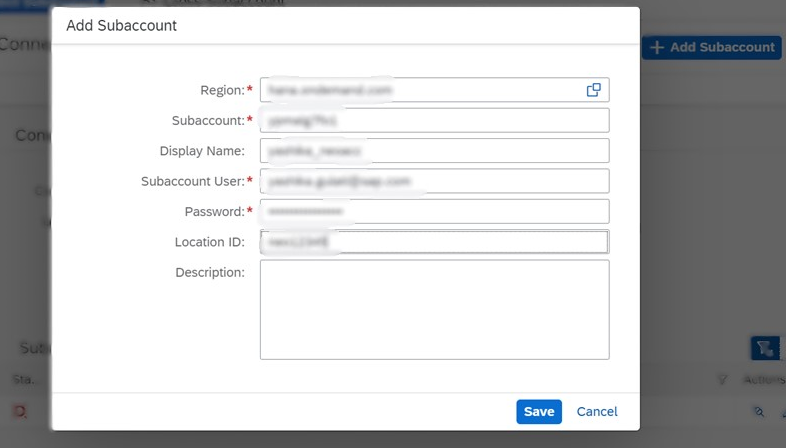
The first connection should link to the subaccount with the source database, and the second connection should be for the target subaccount with the SAP Hana Cloud. To establish these connections, click on the connector button in the left menu.
-
Now, enter the necessary details for your subaccount - this includes the Region, Subaccount ID, Display Name, Subaccount User, Password, and Location ID. After entering all the information, click on 'Save'.
-
-
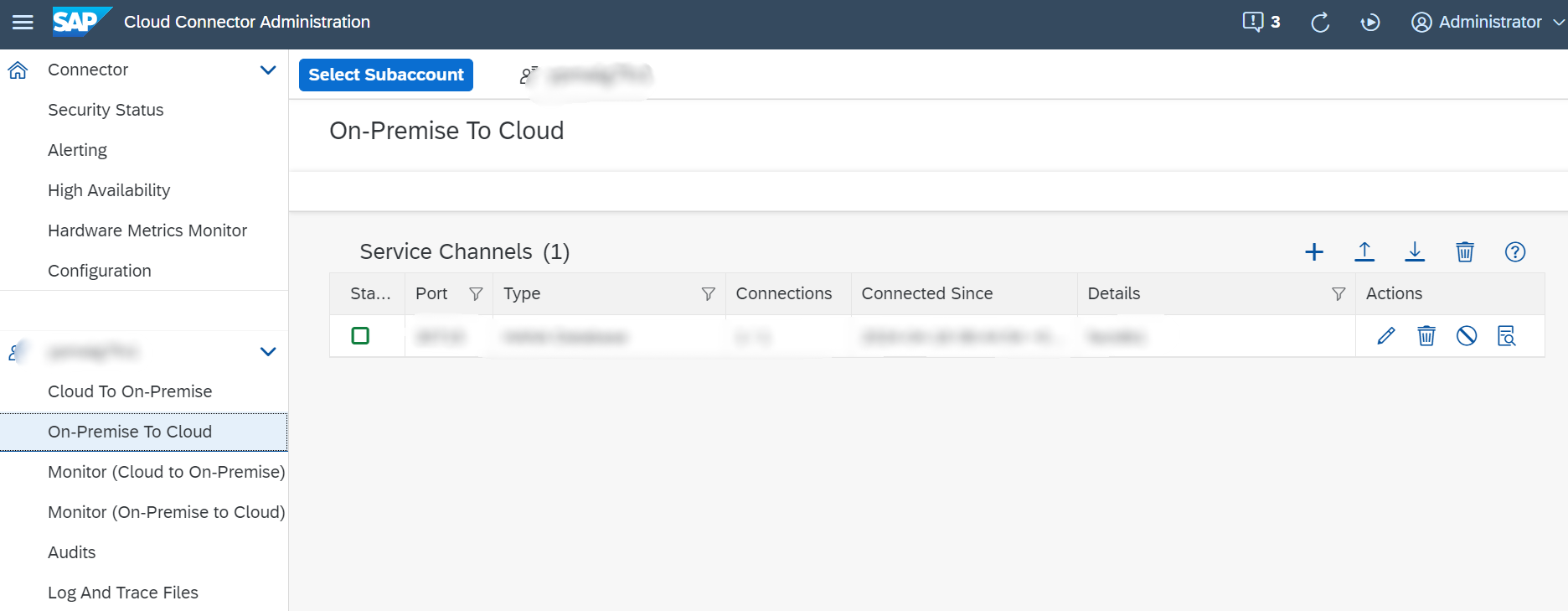
Select the subaccount where the source database is located, then add a service channel under 'on-prem to cloud' using the following details:
-
Type: HANA Database
-
HANA Instance Name: < DB/Schema ID >
-
Local Instance Number: Input any two-digit number between 00 and 09. This number is used to compute the port number needed to access the SAP instance in the SAP Hana Cloud. The local port is calculated from the local instance number (3<n<15). For example, if the number is 7, then the local port would be 30715.
-
Connections: 1
-
-
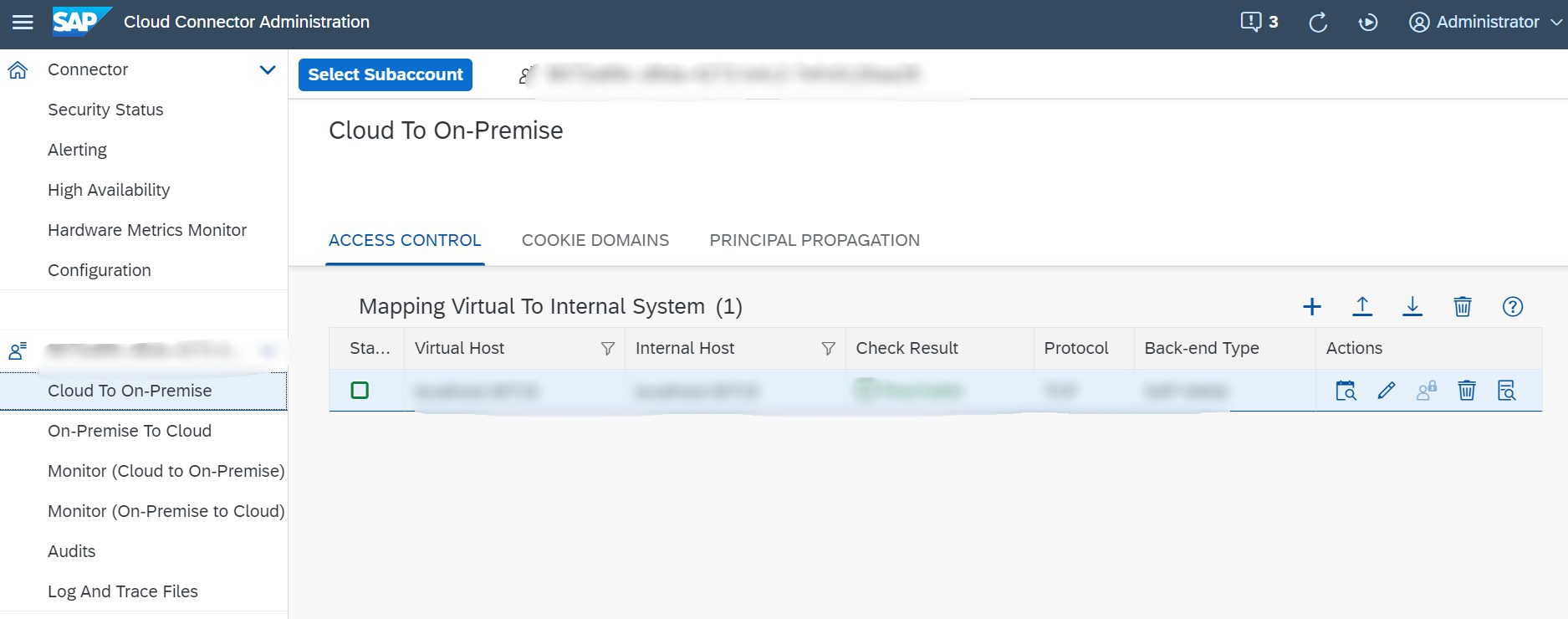
In the SAP Business Technology Platform (BTP) Cloud Foundry account where the SAP Business Application Studio (BAS) subscription is created, select 'Cloud to On-Prem' and add a mapping with the following details:
-
Back-end Type: SAP Hana
-
Protocol: TCP
-
Internal Host: localhost
-
Internal Port: < portno > (The port number derived from your local instance number)
-
Virtual Host: myvirtualhost
-
Virtual Port: This should be the same as your internal port
-
Principal Type: None
-
Step-2: Setup an SAP BTP Destination to connect to the source system
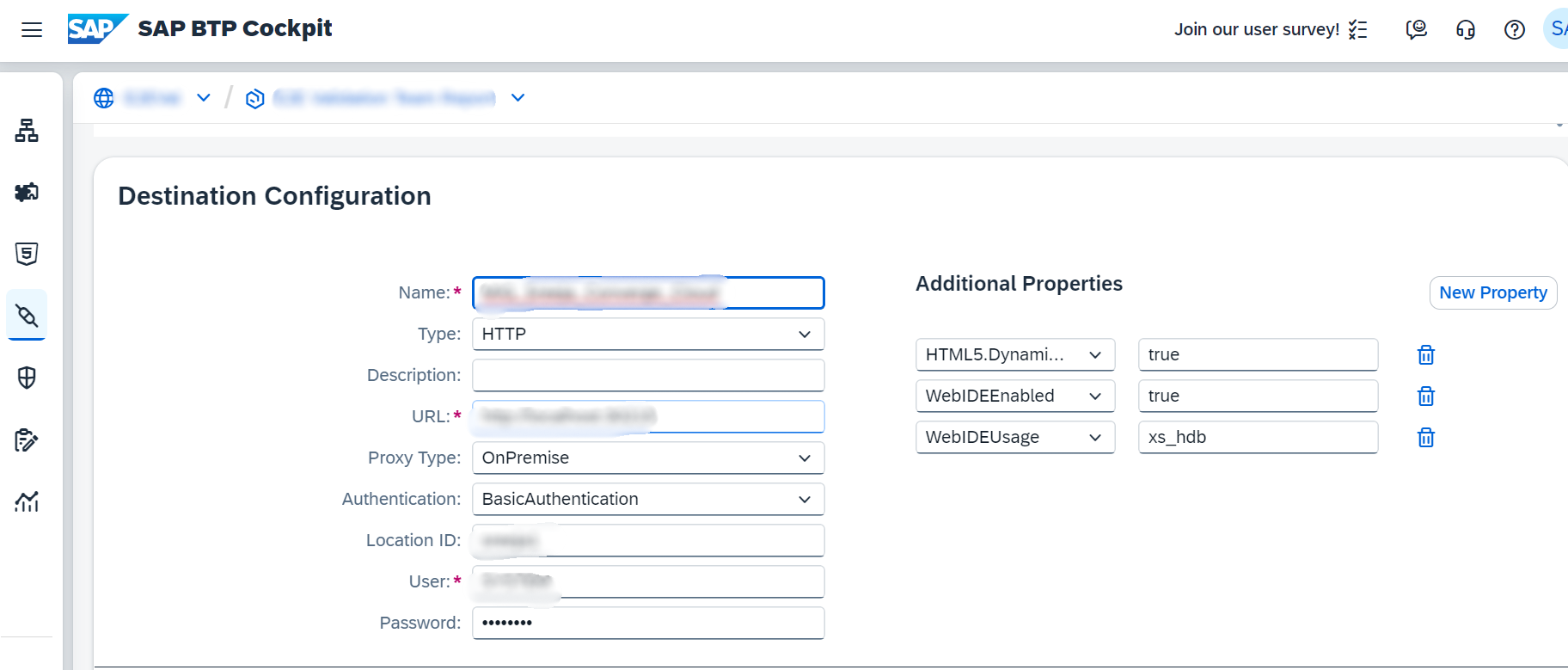
Navigate to the SAP BTP Cloud Foundry subaccount and select 'Destination' under 'Connectivity' from the left menu pane. Create a new destination using the following details:
- Name: < Destination name >
- Type: HTTP
- URL:
https://<virtual-host>:<virtual-port-no>/ - ProxyType: on-premise
- Authentication: NoAuthentication
- Locationid: Location id as mentioned in cloud connector
And the following additional properties:
- HTML5.DynamicDestination : true
- WebIDEEnabled : true
- WebIDEUsage : xs_hdb
Step-3: Create a SAP Business Application Studio or SAP Build Devspace with the SAP HANA Application Migration Extension installed
-
In the SAP BTP subaccount where you created the destination, establish a subscription to SAP Business Application Studio (BAS).
-
Open SAP Business Application studio subscription.
-
Select "Create Dev Space". Assign a desired name to your Dev Space and select the "SAP HANA Native Application" type. Then, choose the
SAP HANA Application MigrationExtension to help with migration. TheSAP Hana ToolsExtension will be selected by default and is required for deployment. Finally, click on "Create Dev Space". -
Wait for the status of your newly created Dev Space to change to "Running". Once it's running, you can open it by clicking on the name of the Dev space that you just created.
-
Navigate to the folder by clicking on File -> Open Folder. Enter the path
/home/user/projects/and click on OK. -
Once the folder opens, you can select the SAP HANA Application Migration Extension from the Command Palette (You can access the Command Palette from View -> Command Palette).
Step-4: Migrate using the SAP HANA Application Migration
-
Open the the Command Palette and type "SAP HANA Application Migration Extension" and select the command when it appears.
-
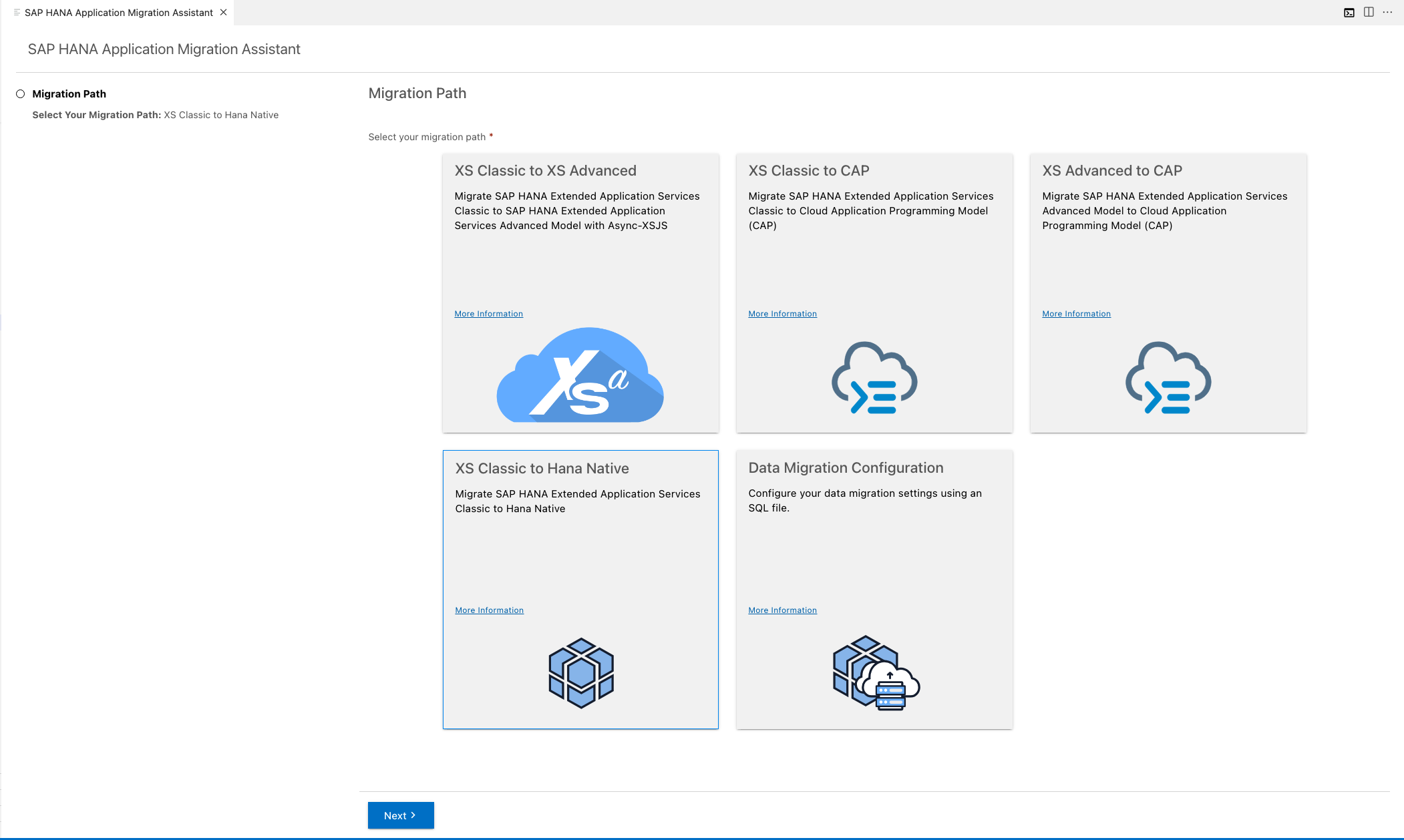
When the Migration Extension Wizard opens, select the migration path. Since we are migrating from XS Classic to SAP HANA Native, select
XSC to HANA nativeas your migration path.
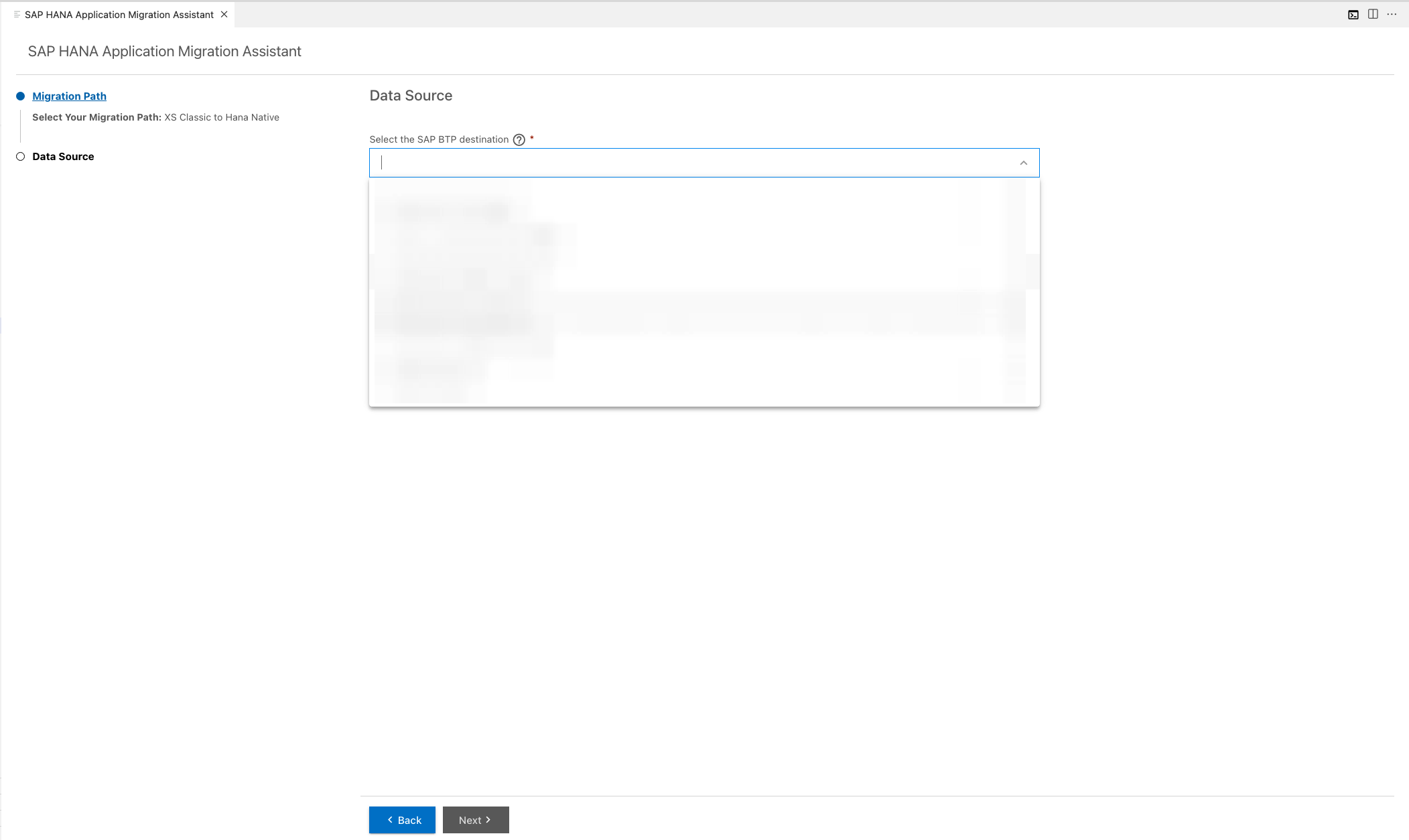
- In the Data Source page of the wizard, choose the destination you previously created from the dropdown menu.
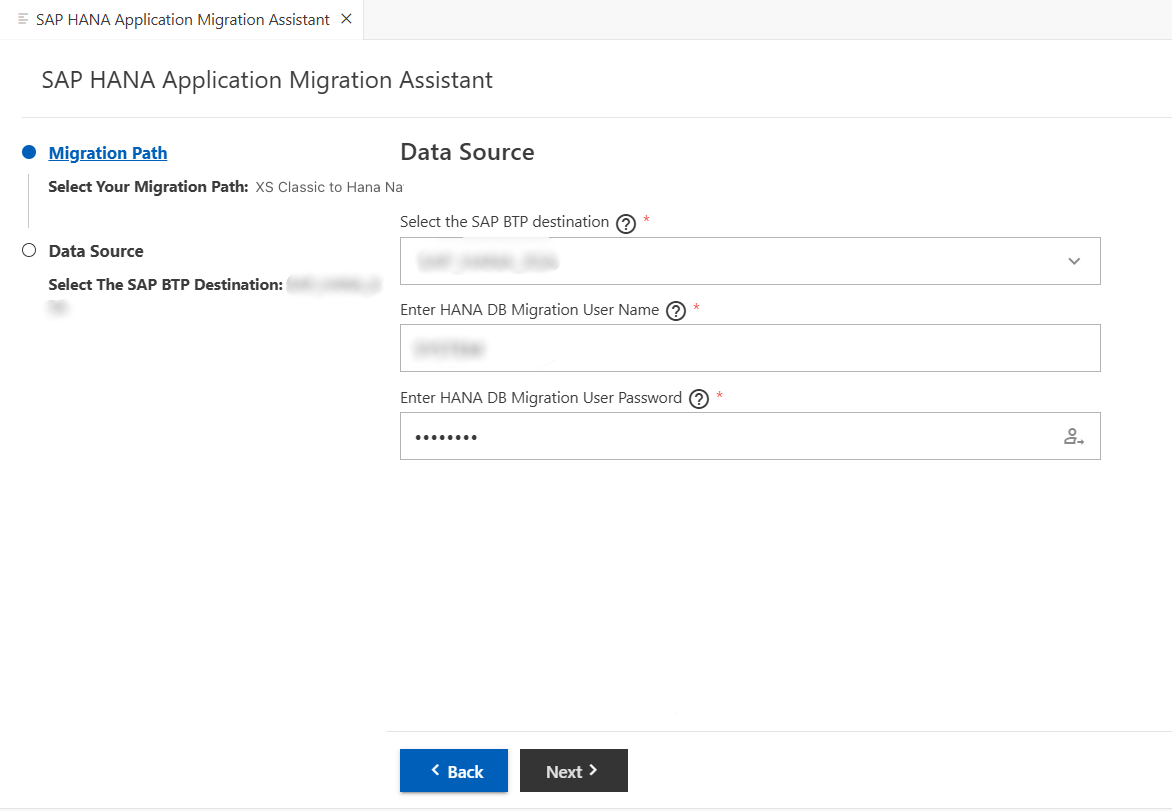
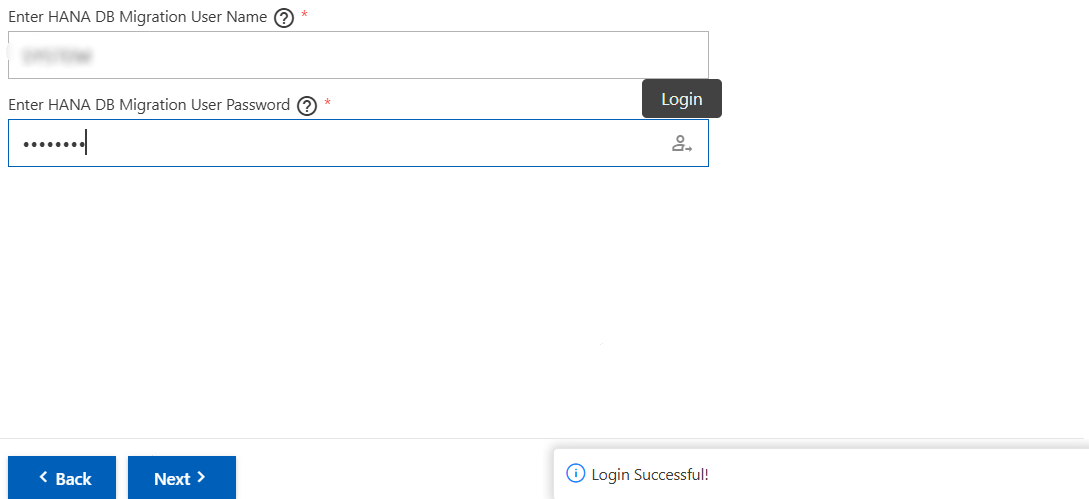
- Enter the user credentials for the SAP HANA Database Migration User - username and password - into their respective fields. Hit the login button to authorize these credentials.Procedure to create migration user
- To proceed, click on the Next button.
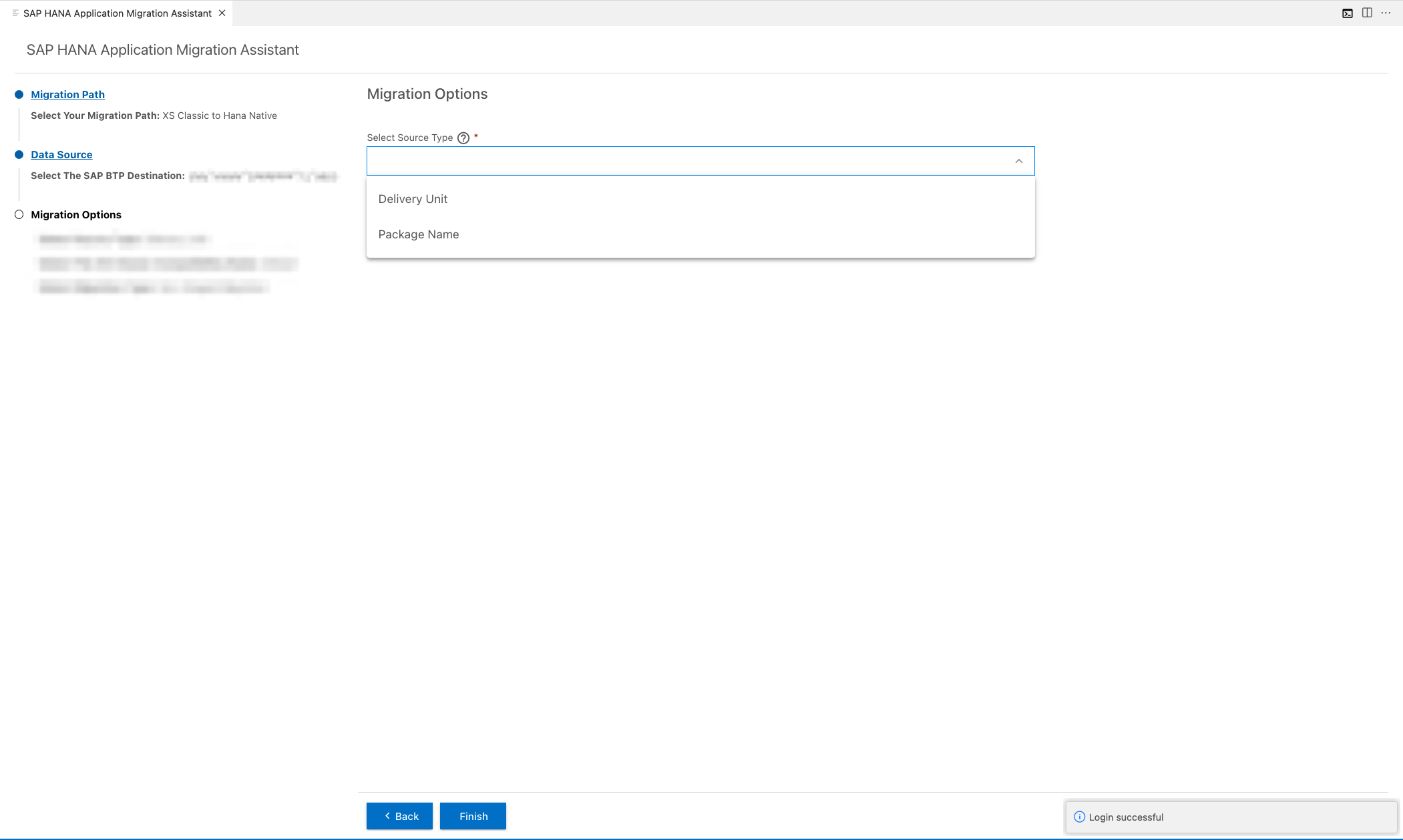
- In the "Migration Options" page, select "Delivery Unit" or "Package Name" as your source type from the drop-down menu. The SAP HANA Application Migration Extension supports package level migration as well.
- Enter the name of your Source Delivery Unit in this case, it would be
HCO_DEMOCONTENTor Source Package Name which will besap.hana.democontent.epm:true.
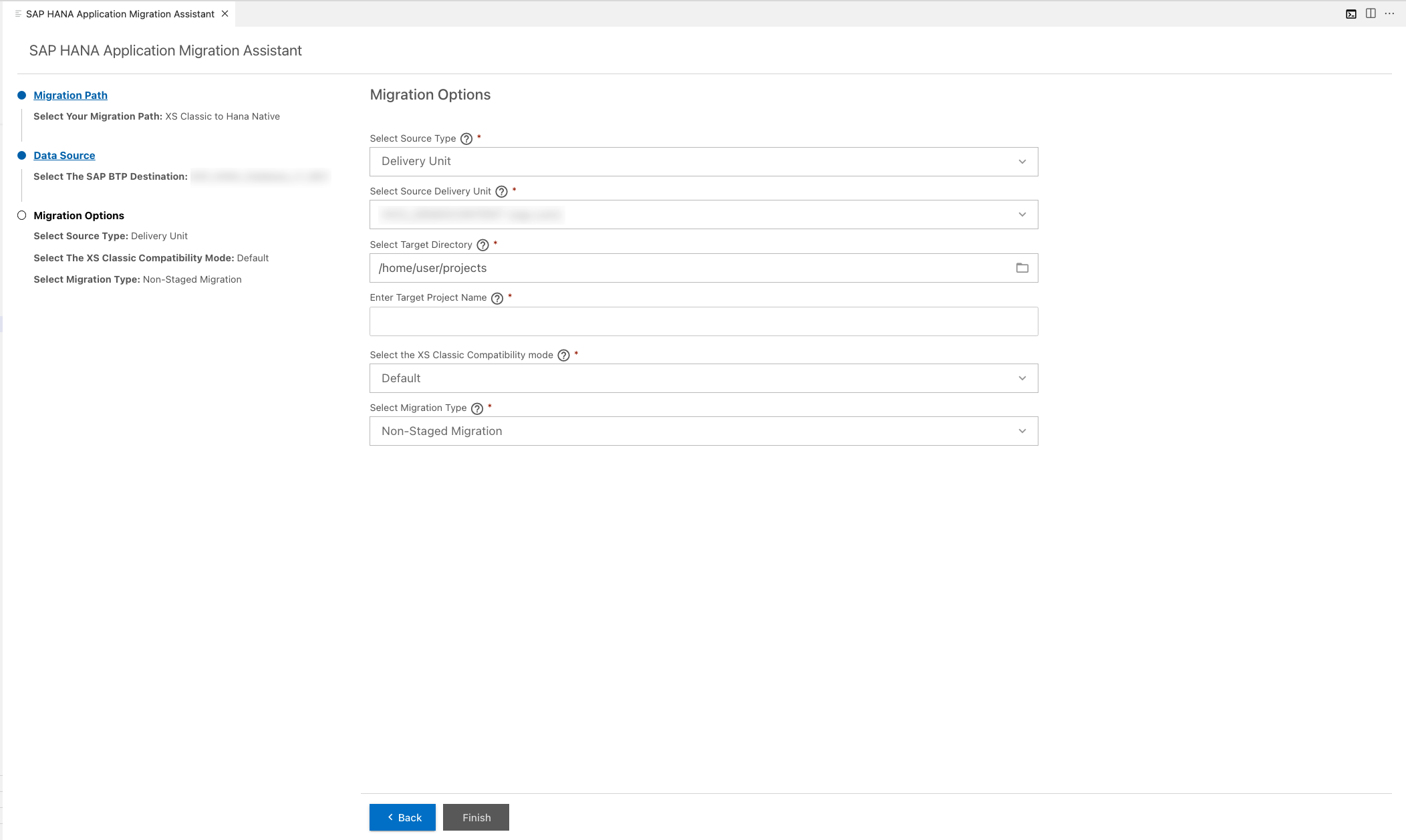
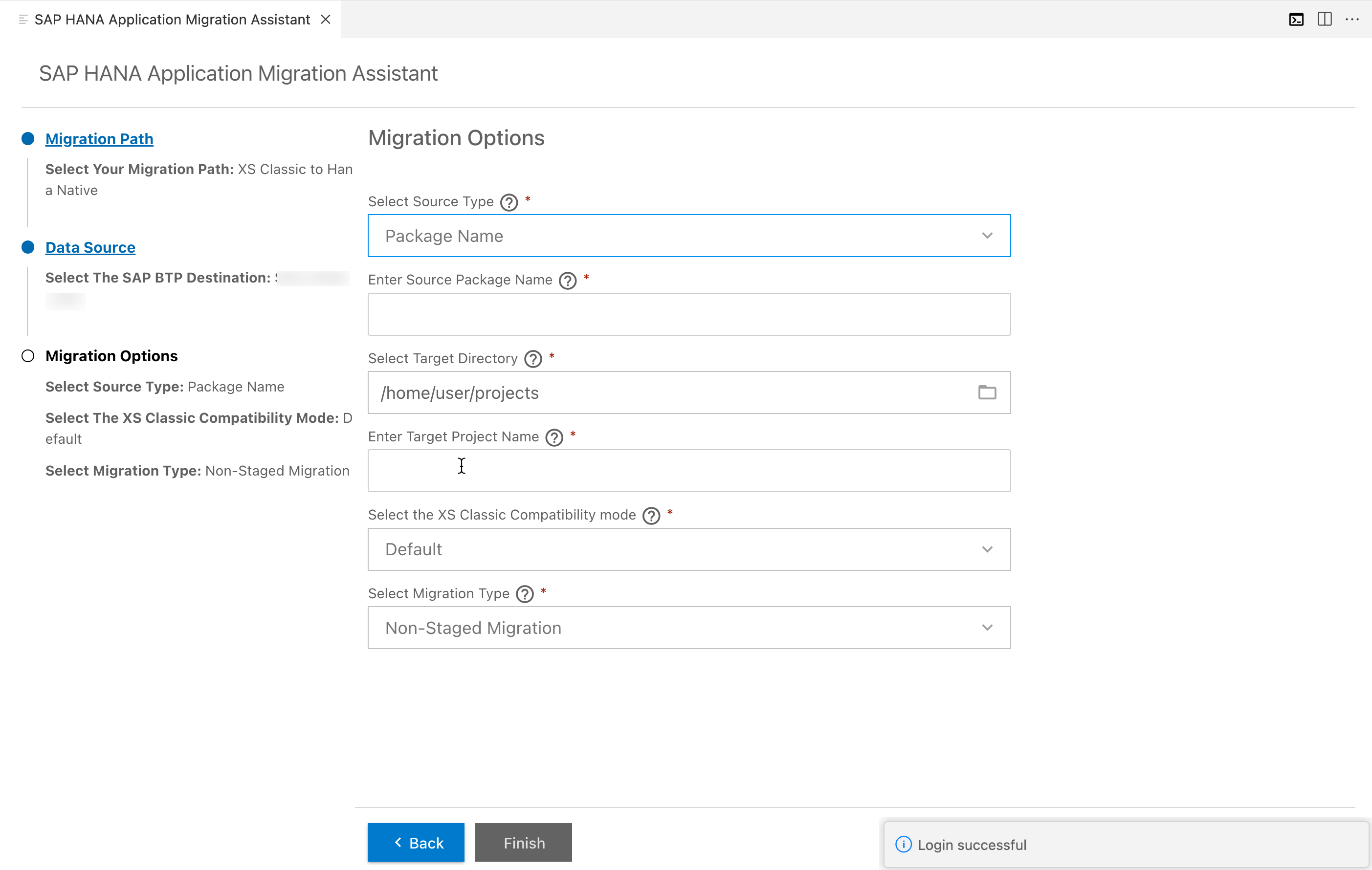
-
Choose the target directory. This is where the migration results will be stored.
Note: Ensure that the directory you select is a sub-directory of
/home/user/projects.
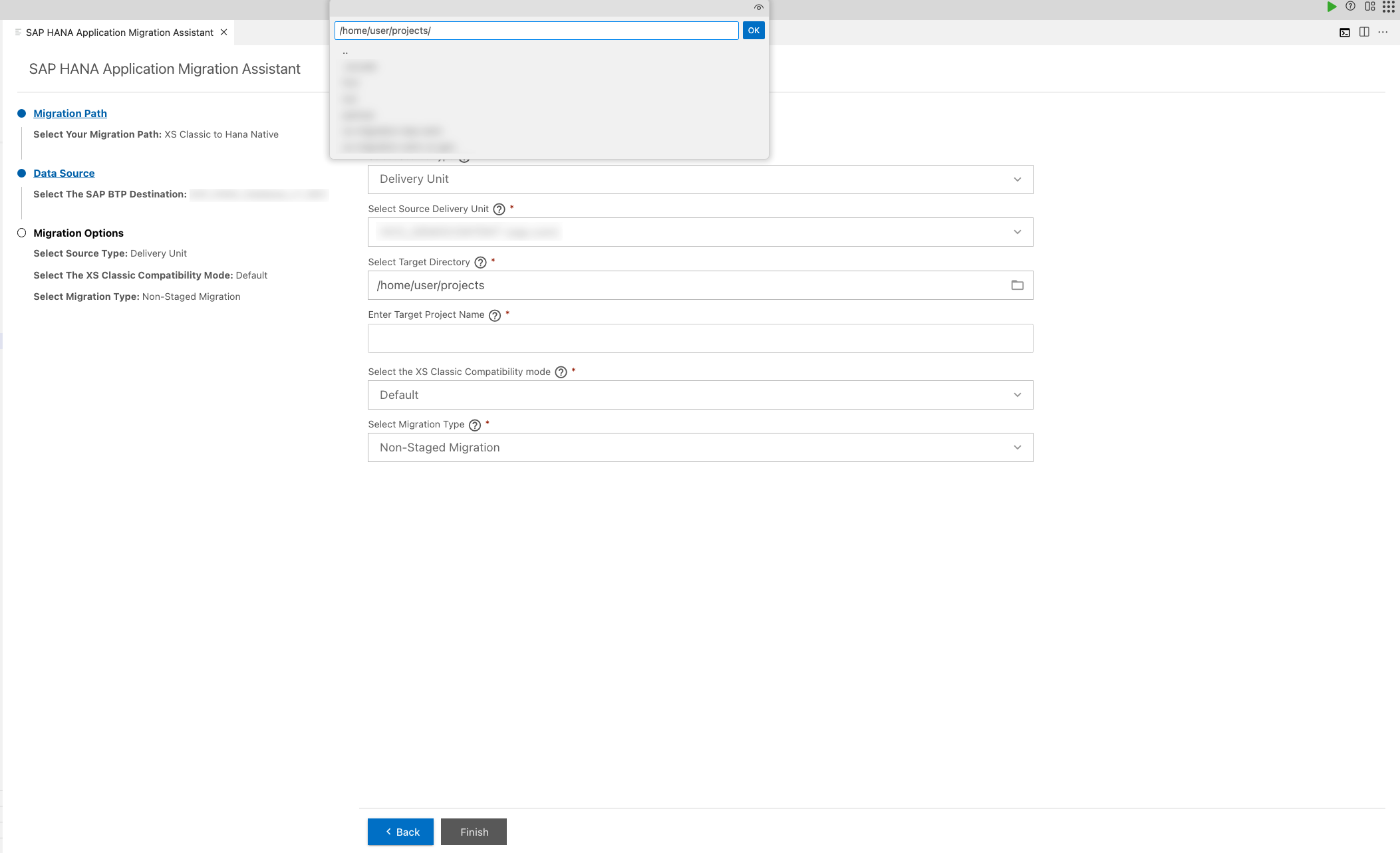
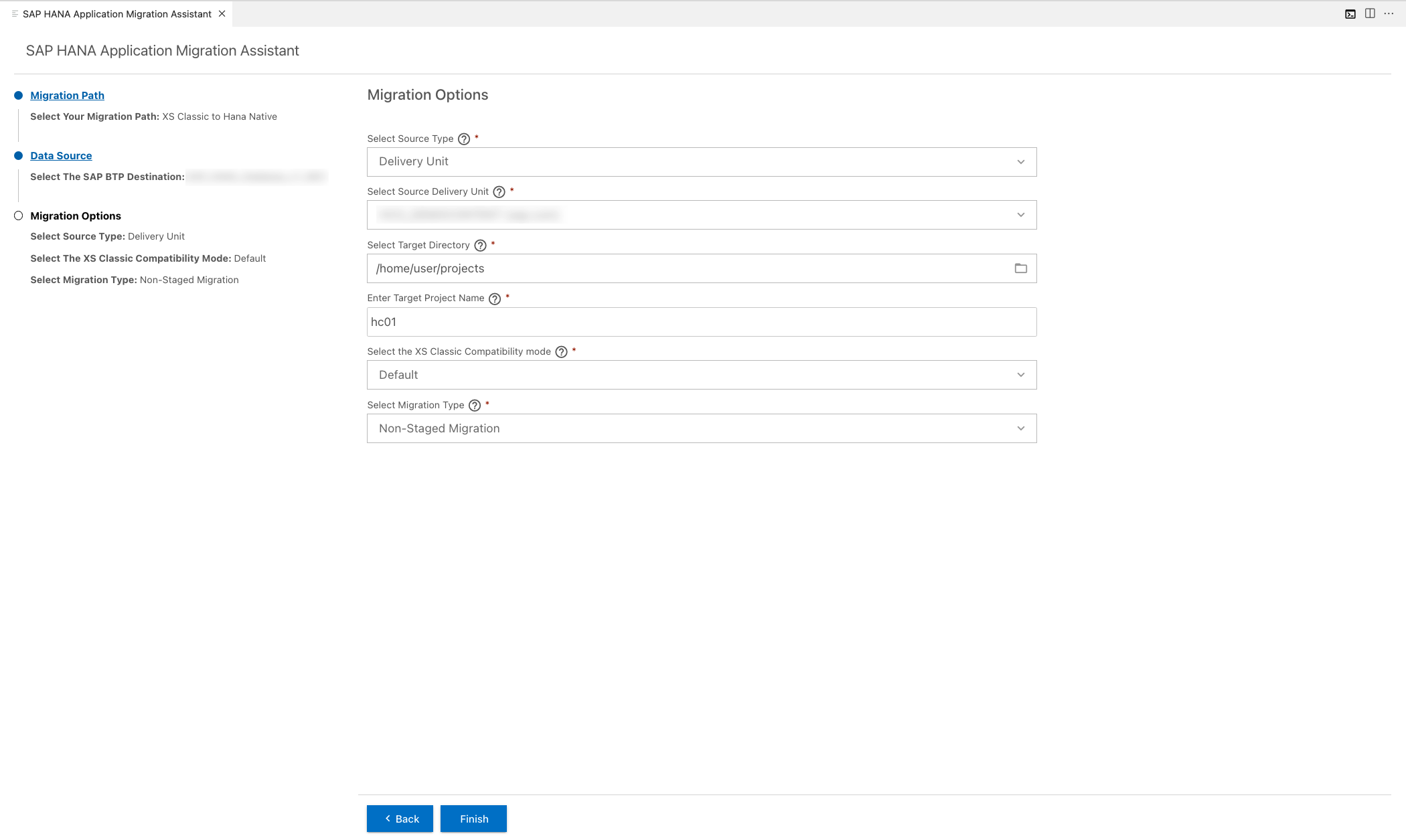
- Specify a unique name for the Target Folder, where the migration results will be saved. Once you've entered the name, click on Finish.
- Select the XSC Compatilibity Mode by setting it to True, False or Default.
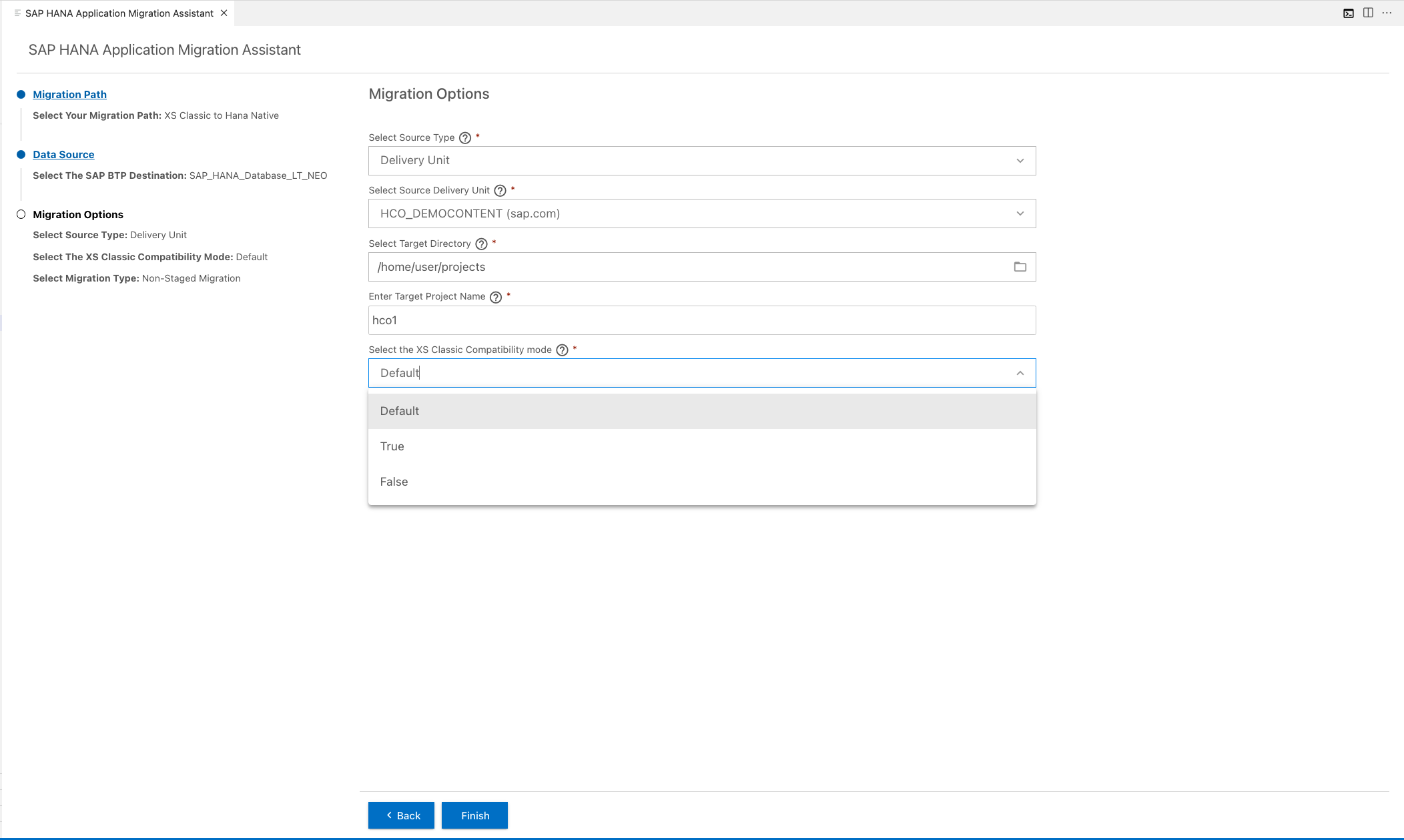
xsc-compatibility-mode is a view property introduced to maintain behavioral compatibility with how Calculation Views, especially those with aggregation nodes or star joins, worked in XS Classic (XSC) when migrating them to HANA Deployment Infrastructure (HDI) in XSA. In the SAP HANA Application Migration Extension, the UI provides a drop down with 3 options for the xsc-compatibility-mode. They are:
please refer to xsCompatibilitymode.
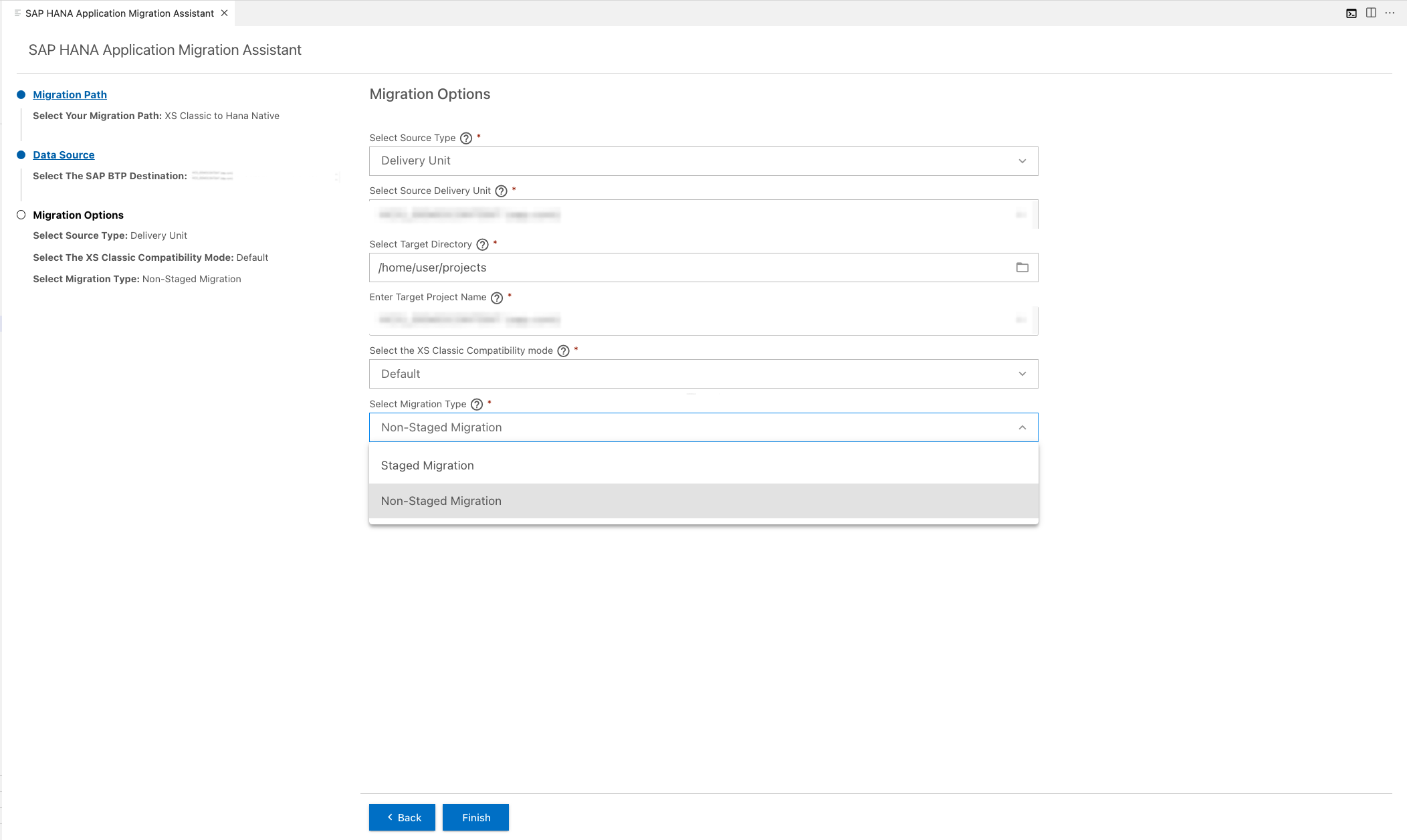
- Select the Migration Type (Default: non-staged) and click on Finish If your application depends on objects from external schemas or HDI containers, a non-staged migration generates single hdbsynonym, hdbsynonymconfig, and hdbgrants files to provide access. Staged migration, on the other hand, creates separate hdbsynonyms, hdbsynonymconfig and hdbgrants for each external HDI container and external schema, allowing you to isolate access as needed. For further information, please refer to the SAP HANA Staged Migration Documentation.
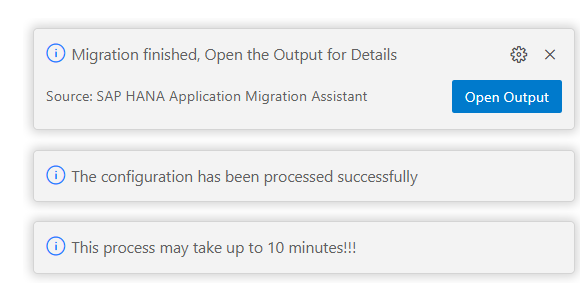
- When a notification appears in the bottom-right corner of your screen, it indicates that the migration process has started. This notification will provide real-time updates throughout the process.
At the end of the migration, a SAP HANA Native project will be generated, containing:
- Revised database artifacts
- A
report.htmlfile summarizing migration details and areas requiring manual review.
Step-5: Database post migration changes
Once the project is created, there are some adjustments we need to make manually as these are not currently handled by the SAP HANA Application Migration Extension. We have provided the changed files for HCO_DEMOCONTENT for reference.
Automated Post-Migration Changes
For HCO_DEMOCONTENT migrated from LT_NEO to HANA Native, most post-migration changes can now be automated using the provided script:
Script: Download postMigChanges-HanaNative.js and paste it onto the root of the target folder.
Download this file and paste it onto the root of the target folder.
Usage:
node postMigChanges-HanaNative.jsAfter running the script, only two manual steps remain:
-
Update Role Files: Replace
< Schema Name >with your actual bound schema name in the following three role files:db/src/roles/Admin.hdbroledb/src/roles/Admin.hdbroleconfigdb/src/roles/User.hdbrole
-
Grant Schema Access: Execute the SQL commands in Step 7 of the deployment section to grant the necessary permissions to
< Schema Name >.
Manual Post-Migration Changes (Alternative Approach)
Alternatively, if you prefer to make changes manually, the following adjustments are required as they are not currently automated by the SAP HANA Application Migration Extension:
-
If your project contains any files from a different schema, these need to be migrated before migrating the current Delivery Unit and included in this project. If this can't be done immediately, you can remove them for the time being. To utilize objects from other containers, please refer to the SAP HANA Cloud help documentation and configure accordingly.
For the HCO_DEMOCONTENT project, make the following changes:
- Delete the uis folder from db/cfg
- Delete
synonym-grantor-service.hdbgrantsandsynonym-grantor-service.hdbsynonymconfigfrom db/cfg - Delete the uis and ui folder in db/src
- Delete
synonym-grantor-service.hdbsynonymfrom db/src/models
-
In order to access objects from other public schemas, you will need to either create a new hdbsynonym file or modify an existing one. For the HCO_DEMOCONTENT project, edit the
db/src/synonym-grantor-service.hdbsynonymfile with the following configuration or create user provided services to connect the target object{ "sap.hana.democontent.epm::DUMMY": { "target": { "schema": "SYS", "object": "DUMMY" } }, "sap.hana.democontent.epm::M_TIME_DIMENSION": { "target": { "schema": "_SYS_BI", "object": "M_TIME_DIMENSION" } }, "M_TIME_DIMENSION":{ "target": { "schema": "_SYS_BI", "object": "M_TIME_DIMENSION" } } } -
In addition, please take the time to clear out unused role names from the
default_access_role.hdbrolefile located in the db/src/defaults folder. If there are specific roles required for your project, ensure to add them as needed. For the HCO_DEMOCONTENT project, Removesap.hana.democontent.epm::migration_all_analytic_privrole under names. -
Unused configurations should be removed from hdbrole files, or these files should be adjusted to add supported options. For the HCO_DEMOCONTENT project, make the following alterations:
- Alter
db/src/roles/Admin.hdbroleby replacing the existing schema privileges and adding schema analytic privileges:
Reason: The modifications in the hdbrole file are needed to access calculation views with analytic privileges."schema_privileges": [ { "reference": "< Schema Name >", "privileges": [ "SELECT METADATA", "SELECT CDS METADATA", "SELECT", "INSERT", "EXECUTE", "DELETE", "UPDATE", "CREATE TEMPORARY TABLE" ] } ], "schema_analytic_privileges": [ { "schema_reference": "< Schema Name >", "privileges": [ "sap.hana.democontent.epm.models::AP_SALES_ORDER_6", "sap.hana.democontent.epm.models::AP_SALES_ORDER", "sap.hana.democontent.epm.models::AP_SALES_ORDER_1", "sap.hana.democontent.epm.models::AP_SALES_ORDER_2", "sap.hana.democontent.epm.models::AP_SALES_ORDER_4", "sap.hana.democontent.epm.models::AP_SALES_ORDER_12", "sap.hana.democontent.epm.models::AP_SALES_ORDER_3", "sap.hana.democontent.epm.models::AP_SALES_ORDER_9", "sap.hana.democontent.epm.models::AP_PURCHASE_ORDER_2", "sap.hana.democontent.epm.models::AP_SALES_ORDER_10", "sap.hana.democontent.epm.models::AP_PURCHASE_ORDER_PROD_CAT_1", "sap.hana.democontent.epm.models::AP_PURCHASE_ORDER_3", "sap.hana.democontent.epm.models::AP_SALES_ORDER_5", "sap.hana.democontent.epm.models::AP_PURCHASE_ORDER_1", "sap.hana.democontent.epm.models::AP_SALES_ORDER_7", "sap.hana.democontent.epm.models::AP_PURCHASE_ORDER_PROD_CAT_2", "sap.hana.democontent.epm.models::AP_PURCHASE_ORDER", "sap.hana.democontent.epm.models::AP_PURCHASE_ORDER_PROD_CAT" ] } ],
- Alter
-
Assign the permission to users with the admin role for accessing the schema. For the HCO_DEMOCONTENT project, create an
Admin.hdbroleconfigfile in thedb/src/roles/directory. The file should contain the following configuration:{ "sap.hana.democontent.epm.roles::Admin": { "< Schema Name >": { "schema": "< Schema Name >" } } } -
In each of the .hdbtabledata files under db/src/data/loads remove the namespace
sap.hana.democontent.epm.data.loads::from the csv file namesfile_name. For example changesap.hana.democontent.epm.data.loads::constants.csvtoconstants.csv. -
Adjust SQL syntax in procedures. For instance, "TRUNCATE" statements should be replaced with "DELETE FROM" statements.
-
Currently, changes to Reptask, and Replication artifacts are not covered. You will need to modify these manually. Unsupported types and functions in the calculation view such as "CE_FUNCTION", "CACHE", etc., need to be noted. Please refer to the SAP HANA Cloud Documentation for more details on how to handle these.
-
Series entity is not supported in Hana Cloud so they will be removed by the extension. Please check Migration Documentation for more information.
Step-6: Deployment of the Migrated database artifacts
-
In your dev space, the database connection and artifacts of your project will be visible under the "SAP HANA Projects" section.
-
Next, log in to your Cloud Foundry account using the following steps:
- Open a new terminal in the SAP Business Application Studio
- Run the command
cf login -a < API_URL >and input your username and password
-
For the Database Connection of the project, click "Bind" and then select "Bind to an HDI Container" and finally select the HDI container created in your SAP BTP Space. Once successfully bound, you will see a .env file with the VCAP services created in the db folder of your project.
-
Replace < Schema Name > with this value in the
Admin.hdbroleconfigandAdmin.hdbrolefiles. -
Click the "Open HDI Container" button to open the database explorer.
-
Open an SQL console with your DBADMIN user or with admin privileges.
-
Run the following query in SAP HANA Cloud to grant access: should be replaced with your specific schema name. You can also create roles and grant file for granting access.
GRANT SELECT ON SCHEMA "_SYS_BI" TO "< Schema Name >#OO"; GRANT SELECT ON "_SYS_BI"."M_TIME_DIMENSION" TO "< Schema Name >#OO"; GRANT UPDATE ON "_SYS_BI"."M_TIME_DIMENSION" TO "< Schema Name >#OO" WITH GRANT OPTION; GRANT INSERT, SELECT, UPDATE ON "_SYS_BI"."M_TIME_DIMENSION" TO "< Schema Name >#OO" WITH GRANT OPTION; GRANT SELECT ON SCHEMA "_SYS_BI" TO "< Schema Name >#OO" WITH GRANT OPTION; -
To deploy your application, select the "Deploy" button located in the "SAP HANA Projects" section.
Known Issues in SAP HANA Application Migration
Database:
- Some artifacts which are currently not supported in the SAP HANA Application Migration Extension require manual remodeling before deployment. You can find detailed information on manually migrating these artifacts in the following link.
Supported Features
For a detailed list of the features supported by the SAP HANA Application Migration Extension for Database, please refer to this link.
Unsupported Features
If the source files have any errors, the migration of the Delivery Unit or Package by the SAP HANA Application Migration Extension will fail. For example: If the javascript files have unknown characters like NULL, the migration will fail with errors. Please check the output logs for the error messages.
Learning Resources
- Prepare XS Classic Artifacts for Migration.
- Prepare the Source System for the XS Application Migration.
- The Self-Service Migration Tool for SAP HANA Cloud.
- SAP HANA Cloud, SAP HANA Database Developer Guide for Cloud Foundry Multitarget Applications (SAP Business App Studio)
How to obtain support
Create an issue in this repository if you find a bug or have questions about the content.
For additional support, ask a question in SAP Community.
Contributing
If you wish to contribute code, offer fixes or improvements, please send a pull request. Due to legal reasons, contributors will be asked to accept a DCO when they create the first pull request to this project. This happens in an automated fashion during the submission process. SAP uses the standard DCO text of the Linux Foundation.
License
Copyright (c) 2024 SAP SE or an SAP affiliate company. All rights reserved. This project is licensed under the Apache Software License, version 2.0 except as noted otherwise in the LICENSE file.
Details
Sources
Sources are graph entities: the same page may back several entries, and an unreachable source flags every row that rests on it.
Compatibility and provenance
Contributors
History in the atlas
- First seen.
For your agent
- Ref
artifact:sap-samples-xsc-to-native-hana-cloud- JSON
- /artifacts/sap-samples-xsc-to-native-hana-cloud.json
- MCP
- Connecting an agent