SAP-samples/btp-resource-consumption-monitor
An application that monitors an SAP BTP global account's CPEA or BTPEA credit consumption, breaking costs down by directory, subaccount and space and alerting daily when costs, usage or forecasts change.
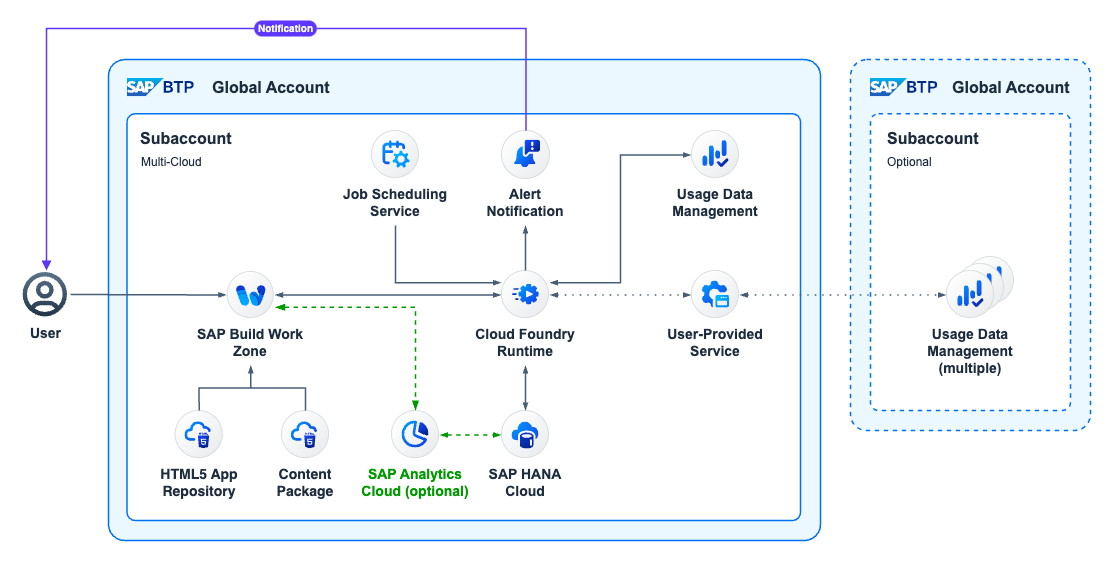
A global account on a consumption-based BTP contract spends credits every day and receives one statement a month. The application puts the figures in between: billing verification per service, a cost breakdown across directories, subaccounts and spaces, credit expenditure against the contract, cross-charging by tag, and alerts that fire daily when costs, usage or forecasts change. It installs as three components — a CAP TypeScript backend deployed to the SAP BTP, Cloud Foundry RuntimeSAP BTP, Cloud Foundry RuntimeThe Cloud Foundry runtime of SAP BTP: memory for applications in a Cloud Foundry org, run from SAP's Java, Node.js and Python buildpacks or community buildpacks and managed with the standard Cloud Foundry tools.sap official, btp or SAP BTP, Kyma runtimeSAP BTP, Kyma runtimeA fully managed Kubernetes runtime on SAP BTP, based on the open-source project Kyma, where extensions to SAP solutions run as containerised microservices and serverless Functions.sap official, btp, an optional SAP Analytics CloudSAP Analytics CloudSAP's SaaS front end for analytics: business intelligence, planning and predictive in one product, and the place a Datasphere analytic model is meant to end up being read.sap official, btp package, and a content package for SAP Build Work Zone, standard editionSAP Build Work Zone, standard editionA role-based business site on BTP that puts SAP, custom-built and third-party applications and extensions, cloud and on premise, behind one point of access.sap official, btp — and creates its own recurring jobs on first start, retrieving the day's consumption every three hours by default.
Facts
Where it sits
Who is behind it

In the atlas: maintains 222@SAP-samplesmaintainerChristoph SzymanskiContributes to this

In the atlas: contributes to 2@1084565Ajinkya PatilContributes to this

In the atlas: contributes to 112@ajinkyapatil8190chris-snopudContributes to this

In the atlas: contributes to 1@chris-snopudJohannes BrandenburgerContributes to this

In the atlas: contributes to 1@johannesbrandenburgerMauricio LaufferContributes to this

In the atlas: maintains 16, contributes to 41, wrote 4@mauriciolaufferWillem PardaensContributes to this

In the atlas: contributes to 3, wrote 1@willempardaens6 contributors
Before choosing this
Conditions
PracticalFunctional boundary
Never as the figure a billing decision rests on: the repository states that the tool is provided as-is, is not covered by SAP Support, is not a replacement of the official billing documents you receive from SAP, and that the information it provides is purely indicative. Its daily delta is also an approximation over a 24-hour period rather than a hard data point for the consumption on that day, because some services report usage only the day after it happened.
What it declares
Every artifact
- Type
- Sample
- Origin
- By SAP
- Use as
- A reference
As a sample
- Form
- does not say
Connections
Tracking what a cloud account consumes, with budget warnings
REST APIs for SAP BTP usage per metric and monthly cost
Publishing and subscribing to alerts about BTP resources and apps
OAuth server issuing JWTs and holding scopes for BTP apps
Role-based business site for SAP and third-party apps
Named, credentialed addresses of other systems resolved at runtime
Managed SAP HANA database service on BTP
Stores UI5 and HTML5 apps and serves them through the approuter
Calls an application endpoint on a schedule and logs each run
REST APIs for SAP BTP usage per metric and monthly cost
SaaS for business intelligence, planning and predictive analytics
Cloud Foundry runtime of SAP BTP for polyglot applications
Managed Kubernetes runtime on SAP BTP based on Kyma
Browser-based development environment with dev spaces
Download
README
quoted from SAP-samples/btp-resource-consumption-monitor under Apache-2.0, readBTP Resource Consumption Monitor
Description
Application to monitor and alert on commercial and technical consumption of BTP CPEA/BTPEA services.
See also:
- March 2024: SAP Blog: Prototype: Keep Track of those BTP Credits.
- June 2024: SAP Blog: BTP FinOps: Keeping Track of your Credits.
Disclaimer: This tool is provided as-is and is not covered by SAP Support. This is not a replacement of the official billing documents you receive from SAP. The information provided by this tool is purely indicative.
Capabilities
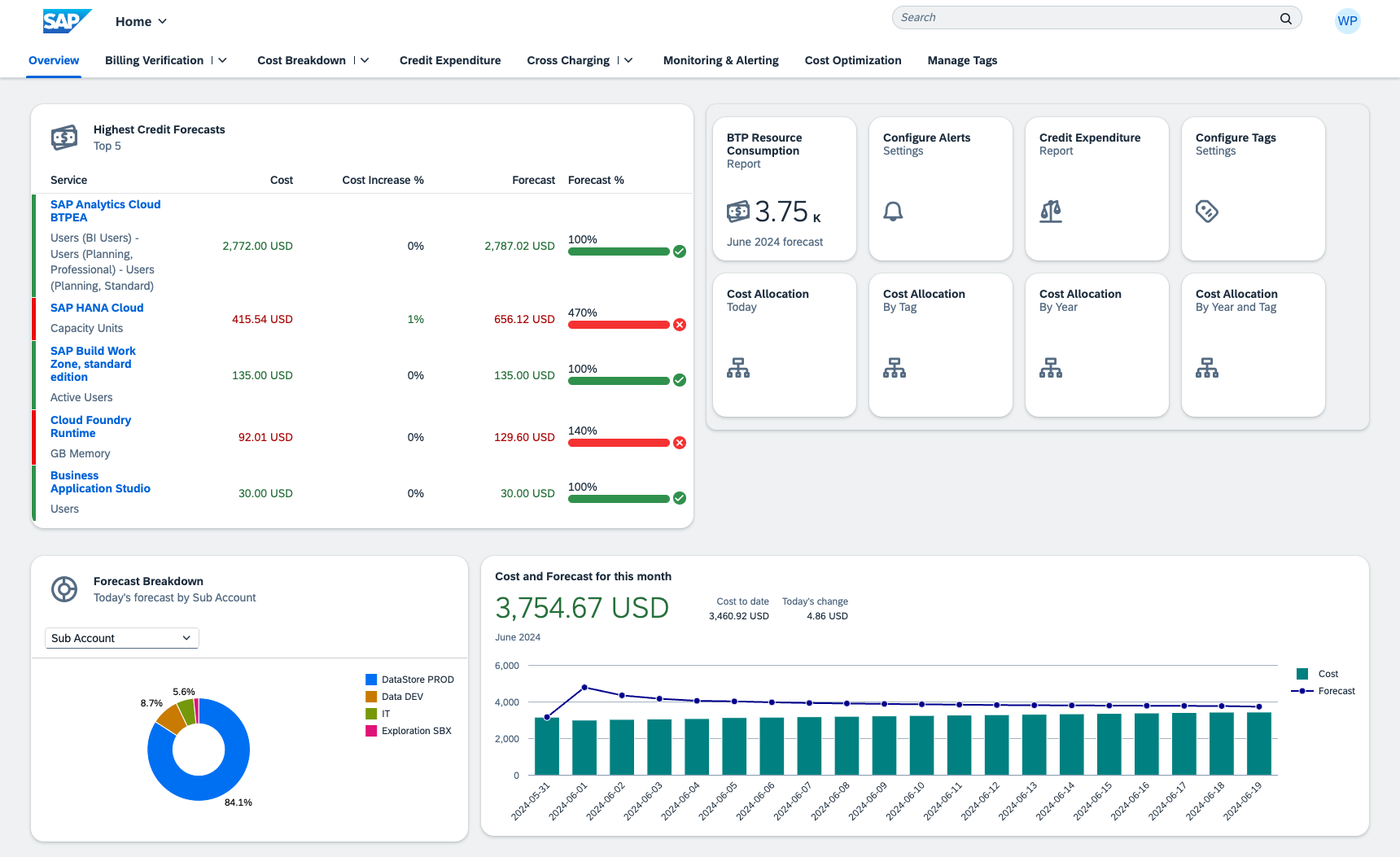
- Billing Verification: Provides insights in the different services active in your account, their forecasts, and distribution over the different directories, sub accounts and spaces.
- Cost Breakdown: Analyzes costs based on the account structures across the different connected accounts.
- Credit Expenditure: Displays your contract and the credit consumption, together with estimations and billing difference verification.
- Cross Charging: Analyzes costs based on configured tags on multiple levels.
- Monitoring & Alerting: Configures different alerts to be triggered when costs, usage and forecasts change on a daily basis.
- Cost Optimization: Provides food for thought on how to control your spend and get the most out of your BTP investment.
Installation Video
Watch our installation video on YouTube:
Requirements
For Cloud Foundry deployments:
You need to have access to a Sub Account, in which Cloud Foundry is enabled, and you have created a Space. Note: the name of this Space can not contain spaces (' ') or hypens ('-') but you can use underscores ('_').
For Kyma deployments:
You need to have access to a Kyma Namespace. The name of this namespace can not contain spaces (' ') or hypens ('-') but you can use underscores ('_').
The following Subscriptions are required to deploy and use this application:
- SAP HANA Cloud (you can re-use an existing instance. Note: this instance can sit in any subaccount within the same region)
- SAP Work Zone (Standard edition is sufficient. Note: this subscription should be in the same subaccount as where the CF application will be deployed)
- SAP Business Application Studio (Note: this subscription can sit in any subaccount)
The following Entitlements need to be available to use this application:
- Alert Notification: standard
- Authorization and Trust Management Service: application
- Destination service: lite
- HTML5 Application Repository Service: app-host
- Job Scheduling Service: standard
- SAP HANA Schemas & HDI Continers: hdi-shared
- Usage Data Management Service: reporting-ga-admin
Application Logging Service: standard (optional service)removed in v2.1.0
The following components are optional but recommended as an add-on:
- SAP Analytics Cloud version 2024.08+ (Note: this SAC tenant can reside anywhere, it doesn't have to sit in the same global account)
Upgrading to newer versions
From version 2.0 to 2.1
You can upgrade your 2.0.x version to 2.1.0 in Cloud Foundry. Upgrades do not apply to Kyma deployments as they are new from v2.1.0 onwards. To upgrade your existing installation, just follow the below installation steps again using your existing target.
From 2.0.2 to 2.1.0, only the Backend and Fiori applications have been changed, the SAC package has not been changed.
After the upgrade, make sure to refresh the HTLM5 Repo and (if needed) assign the backend role again to the end users.
From version 2.1 to 2.2
You can upgrade your 2.1.x version to 2.2.0 in Cloud Foundry and Kyma. To upgrade your existing installation, just follow the below installation steps again using your existing target.
From 2.1.x to 2.2.0, all elements have been changed: CAP backend, Fiori applications and SAC content.
After the upgrade, make sure to refresh the HTLM5 Repo and (if needed) assign the backend role again to the end users.
Important: The upgrade to 2.2 triggers a migration, which, depending on the amount of already existing data points, will take some time. The application will do the migration during startup, but a timeout will make it crash and restart, after which it will continue the migration from where it stopped earlier. You will see the following logs during the migration and the aim will be to see all numbers go down to zero. It should be able to process about 10.000 records per startup. This is a one-time migration and subsequent restarts will be normal again.
[server] - xxx account structure items affected
[server] - 0 custom tags needing update ...
[server] - 0 custom tags updated
[server] - 0 managed tags needing update ...
[server] - 0 managed tags updated
[server] - 0 commercial measures needing update ...
[server] - 0 commercial measures updated
[server] - 0 technical measures needing update ...
[server] - 0 technical measures updated
Download and Installation
This solution contains 3 installable components:
- A backend application (CAP Typescript) to be deployed to Cloud Foundry (CF) or Kyma
- (optional) An analytical package to be deployed to SAP Analytics Cloud (SAC)
- A frontend package (content package) to be deployed to SAP Work Zone (WZ)
1. Backend Application
In Business Application Studio, make sure to have a Development Space of kind Full Stack Cloud Application with the additional Development Tools for SAP Build Work Zone extension enabled. Alternatively, you can use Visual Studio Code or any other preferred IDE where NodeJs, ts-node, @sap/cds-dk and mbt is installed.
Clone this repository in your environment and open the project.
Note: You can use the application's default settings, or read through the rest of this document to identify the areas where you would like to use a different configuration. This relates to: default tags, available tags, multiple global accounts, currency conversions and using free tier.
For Cloud Foundry deployments:
Option A. Deploy with Alert Notification configuration (initial deployment; existing configuration will be overwritten):
Important - First change the following code lines before continuing:
- Configure your email address in the notifications configuration file mtaext_notifications.mtaext
# from the project root folder:
cd cf
npm install
mbt build
npm run cf:deploy-with-notif
Note: This deployment will trigger an initial activation email to your email address asking for your consent to receive further emails. Make sure to action this email to ensure you receive the notifications from this application!
Option B. Deploy without changing any Alert Notification configuration (incremental deployments):
# from the project root folder:
cd cf
npm install
mbt build
npm run cf:deploy
For Kyma deployments:
Make sure to have the pre-requisites for Kyma deployment installed. See here: CAP docs: Deploy to Kyma, most notably the helm, ctz and pack clis. You can test this by running echo "helm:" && helm version && echo "ctz:" && ctz -v && echo "pack:" && pack --version.
Set your Kyma namespace and generate a docker registry secret, e.g. docker-registry, and deploy it to Kyma:
kubectl config set-context --current --namespace=NAMESPACE
kubectl create secret docker-registry docker-registry --docker-server=DOCKER_REGISTRY_SERVER --docker-username=DOCKER_USER --docker-password=DOCKER_PASSWORD
Update the following files with your details/credentials:
- Chart values:
KYMA_HOSTandDOCKER_REGISTRY_SERVER. Also update the name of yourimagePullSecretif it is different. - Containerize values:
DOCKER_REGISTRY_SERVER
Build the project, create the docker containers and upload them to your docker registry:
# from the project root folder:
cd cf
npm install
npm run kyma:pack
Option A. Deploy with Alert Notification configuration (initial deployment; existing configuration will be overwritten):
Important - First change the following code lines before continuing:
- Configure your email address in the Kyma notifications configuration file kyma-notification-settings.json
Deploy the project to Kyma:
# from the cf folder:
npm run kyma:deploy-with-notif
Note: This deployment will trigger an initial activation email to your email address asking for your consent to receive further emails. Make sure to action this email to ensure you receive the notifications from this application!
Option B. Deploy without changing any Alert Notification configuration (incremental deployments):
Deploy the project to Kyma:
# from the cf folder:
npm run kyma:deploy
2. SAC Content
This component is optional but provides additional insights. It could act as the recommended interface for cost owners (after cross-charging) to consult their individual charges. In that case there is no need to provide them Work Zone access to the entire application but just to the focussed SAC Story.
The current content package requires at least SAC version 2024.08
For Kyma deployments: The credentials used for the SAC connectivity below are configured for rotation every 365 days, with a 10 day overlap. Take note that every year the SAC connection will need to be updated with the new credentials. To change this rotation configuration, have a look here.
Step 1. Define connection
In order for the SAC dashboards to connect to your data, it needs a connection to your HDI container. The name of this connection has to be BTPRCHDI.
- Navigate in the
BTP Cockpitto your subaccount and space where you just deployed the application (above step). Open theInstancesview. - Click on
btprc-dbto open the details of the HDI container module, and click onbtprc-db-keyto reveal its connection details. Take note of the following settings:hostuser(not hdi_user)password(not hdi_password)
- Now open your
SAC tenantand navigate toConnections. - Create a new connection to
Live DatafromSAP HANA, and provide the following:- Name:
BTPRCHDI - Connection Type:
SAP HANA Cloud - Authentication Method:
User Name and Password(default) - Host, User Name and Password
- Name:
Step 2. Upload content
- In your SAC tenant, navigate to
Transport,Import. - Click on the upload button to upload the latest SAC package file. (Note: you can ignore the warning 'Importing may not work for BTPRC FinOps Dashboard as it was created in an older version of SAP Analytics Cloud.')
- After uploading, refresh the list and open the uploaded package.
- Validate the proposed settings and finally click
Import.
Step 3. Allow App Integration
- In your SAC tenant, navigate to
System,Administration,App Integration. - In the section of
Trusted Origins, add an entry to your Work Zone site to allow your site to embed the SAC Story. You can use wildcards (e.g.https://*.launchpad.eu20.hana.ondemand.com)
Step 4. Validate imported artifacts
Due to the export/import process of SAC, there might be misalignments between our development environment where the content was exported from, and your environment where you import it in. A quick validation can help in making sure there are no issues in accessing the story from the application:
- Navigate to the
Modelerand try to open each of the 3 models. In case of a Schema error, remap the models to the correct Calculation View from your BTPRCHDI connection via theChange Data Sourcemenu option. A different error? See Known Issues below. - Navigate to the
Storiessection and try to open the story. In case of a user privilege error, refer to the 'Known Issues' section below.
Step 5. Get Story URL
- In your SAC tenant, navigate to
Files,Public/BTPRC_FinOps(or the folder name you chose in previous step). - Open the
BTP FinOpsstory (whose data might look empty for now), and clickFile,Share. - Take note of the URL shown as it contains your host, tenant and story id in the following format:
https://<YOUR_HOST>.sapanalytics.cloud/sap/fpa/ui/tenants/<YOUR_TENANT>/bo/story/<YOUR_STORY>. - Keep this screen open, as this information will be used to configure the Work Zone content (next module) correctly.
3. Work Zone Content
Important - First change the following code lines before continuing:
- Configure your subaccount id in business app configuration files of the multiple ui5 applications by searching for "<YOUR_SUBACCOUNT_GUID>" in each of the below files. Doing a search-and-replace should give you 8 matches:
- (Only if you are activating the SAC content) Configure your SAC Story url in SAC card configuration files of the multiple widgets by searching for "<YOUR_SAC_STORY_URL>" in each of the below files. Doing a search-and-replace should give you 4 matches. The resulting SAC URL deviates slightly from the URL shown in SAC, so be careful in composing it correctly. Your final URL (which is the same for all 4 files) should be:
https://<YOUR_HOST>.sapanalytics.cloud/sap/fpa/ui/tenants/<YOUR_TENANT>/app.html#/story2?shellMode=embed&/s2/<YOUR_STORY>/?url_api=true&pageBar=disable&view_id=story2. Files to be changed:
Step 1. Build
# from the project root folder:
cd workzone
npm install
npm run build
This will create a /workzone/package.zip file which you can download to your local machine to use in step 2 below.
Step 2. Deploy the package
In the Work Zone Site Manager, open the Channel Manager and:
- Synchronize your HTML5 Repository by clicking on the
refresh icon - Click on
+ New,Content Packageand upload the generated/workzone/package.zipfile, specifyingbtprc-srvas Runtime Destination. You can keep the other default values. - The import will take up to 30 seconds to complete
- For the newly created channel, click on
Map aliases, go toCard Aliases, selectbtprc-srvin both dropdowns and click on+to activate the entry.Saveand close this screen.
Step 3. Configure your site
In the Work Zone Site Manager, open the Site Directory and:
- Create a new site (or use the
defaultone) - (optionally) Configure an alias by clicking on the 3-dots icon and select
Manage Site Alias - Click on the gear icon to open the
Site Settings, and click onEdit - In the
Displaysection, change theView ModetoSpaces and Pages - New Experience - In the right-hand side
Assignmentspanel, make sure that the following 2 roles are enabled by clicking on their+ icon:- BTP Resource Consumption Role
- BTP Resource Consumption SAC add-on
- Save and close
For Kyma deployments: Note: the destination used in the Work Zone package (btprc-srv) is created when the backend application starts for the first time, and is populated with the credentials from the xsuaa instance at that point in time. In case of redeployments, the xsuaa credentials will be regenerated, but the destination will not be updated with these new credentials. In order to synchronize the credentials again, remove the destination via the BTP Cockpit and delete the btprc-srv pod in Kyma so it restarts and can recreate the destination during its startup.
Role Assignments
In the BTP Cockpit, go to the Security settings of your subaccount and assign the below 3 Role Collections to your user:
~btprc.cpkg_access_roleto access the Work Zone content (front-end)- (optional)
~btprc.cpkg_sac_roleto access the SAC add-on Work Zone content (front-end) BTPResourceConsumption Viewerto access the CF Application (back-end)
In case you activated the SAC content as well, make sure that each user that will be using the solution also has a SAC user.
User who would only use the SAC interface do not need any of the role assignments and can access the SAC story directly.
Access the application
In the Work Zone Site Manager, open the Site Directory and click on the Go To Site icon to open your site.
It is suggested to configure the application and modify the 'Forecasting Configuration' individually for each of the services to make sure the forecast is calculated correctly. Until this is set correctly, the forecasted costs might be unrealisticly high.
Run Locally
To run the application locally, you need to bind to the cloud service instances and run the application in hybrid mode.
For Cloud Foundry deployments:
# from the project root folder:
cd cf
npm install -g ts-node
cds-ts bind -2 btprc-uas,btprc-db,btprc-dest,btprc-notif,btprc-scheduler
cds-ts watch --profile hybrid
Open your browser to http://localhost:4004 where you will find the relevant Web Applications.
For Kyma deployments:
# from the project root folder:
cd cf
npm install -g ts-node
cds-ts bind -n k8s -2 btprc-srv-btprc-uas,btprc-srv-btprc-db,btprc-srv-btprc-destination,btprc-srv-btprc-notif,btprc-srv-btprc-scheduler
cds-ts watch --profile hybrid
Open your browser to http://localhost:4004 where you will find the relevant Web Applications.
Tip: This will connect to the HANA Cloud database. In case you want to use a local sqlite database for testing, run cds-ts deploy -2 sqlite, and remove the binding to btprc-db from the .cdsrc-private.json file.
CAS Managed Service
SAP Cloud Application Services (CAS) is offering a managed service which includes this FinOps application, together with IT Ops and Dev Ops, under the Clean Code umbrella. This is a perfect solution if you want SAP to manage this application for you.
You can find more information:
- on SAP Trust Center: SAP CAS for Business AI
- on the SAP Cloud Application Services website
Reach out to your CAS contact point or SAP account manager to get started.
Architecture
Initial Data and Recurring Jobs
When started for the first time, the application creates multiple jobs in the Job Scheduling Service:
Default_UpdateDailyUsage: a recurring job to retrieve the consumption information for that day. In its default configuration, this job will run every 3 hours (*/3 UTC). Typically, the Usage Data Management API provides new data points around 6am UTC but this can vary.Default_UpdateMonthlyUsage: a recurring job to retrieve the consumption information from the past month. In its default configuration, this job will run every 1st day of the month, at 1:00 AM and 3:00 AM UTC. It runs twice, in case the first run is not successful.Default_UpdateHistoricUsage: a one-time job which runs after creation of the job. It is used to retrieve the consumption information of that day + the past months (default: from October 2023, see settings.ts). This makes sure that after deploying the application you immediately have some information in the dashboards before the scheduled jobs run.
The initial data that this last job retrieves can be refreshed/extended from the UI: in the application open the Data Management menu and click on Load historic data. Here you can specify how far back you want to retrieve the consumption information.
The other menu option (Load consumption for current month) is exactly the same as what the first job runs every 3 hours, so it is not needed to be used and is mainly intented for testing purposes.
You can freely edit/change the created jobs, or create other jobs. When the application (re)starts it will re-create the jobs if they don't exist already, but it won't overwrite them if they do exist.
Note: Jobs have a default expected completion time of 15 seconds. Depending on the query, the application and/or API can take longer to process a request. In that case, the job monitor will classify the run as failed even though it ran successfully.
Daily Deltas
The daily delta consumption in the FinOps application is only an approximation of the consumption over a 24hr period. It is not meant to be a hard data point referring to the actual consumption on the given day. It is calculated as the difference between the last consumption retrieved on day x-1 and the last consumption retrieved on day x. As explained above, the FinOps tool retrieves the usage data multiple times throughout the day (by default every 3 hours). Doing so, it updates the data point for that day in its database with the newly received information. In case a given BTP Service reports on usage only the day after the consumption took place, it means that the newly received information relates to a previous day and not the current day. The FinOps tool can not differentiate between these, so for some services the daily delta might refer to the consumption of the previous day.
Forecasting Configuration
Each commercial metric of a service has a Forecasting Configuration. The following settings are available:
Excluded: the metric will not be forecasted/propagated. The current consumption for today is what is expected for the entire month. This should be used for 'stable services'.- examples: SAP Integration Suite tenants, SAP Business Application Studio users, ...
Time Linear: the metric will be forecasted with a linear trend, based on time. The consumption will be divided by the current day in the month and multiplied by 30 to come to a full month's consumption. This should be used for services that have a steady consumption throughout the month.- examples: SAP HANA Cloud capacity units, Cloud Foundry GB memory, ...
Time Degressive: the metric will be forecasted with a degressive/progressive trend, based on time. This is a variant of the linear approach, but you can give adegression factorto specify the decrease/increase in consumption through the month. This should be used for services that have a free allowance and charges only apply above this allowance (progressive), or for services that have a baseline consumption + some small uptake throughout the month (degressive)- Degression factor values:
- < 1: the usage of the remaining days will be lower than the usage of the past days (degressive)
- = 1: the usage of the remaining days will be similar to the usage of the past days (linear)
- > 1: the usage of the remaining days will be higher than the usage of the past days (progressive)
- examples: SAP Integration Suite transactions (has free allowance), Mobile Services users (most users' first access will be early in the month), ...
- Degression factor values:
The forecasting settings can be all reset to the default value (see settings.ts) from the UI: menu Forecast Management: Revert all forecast settings to default.
Technical Allocation
Each commercial metric of a service has a Technical Allocation configuration. This caters for cost distribution to space level.
The SAP Business Technology Platform keeps track of costs either on Sub Account level (for Subscriptions) or Service level (for Service Instances). Only usage information (e.g. GB memory) is reported on a lower level (Space level). In order to be able to assign (distribute) costs to this level as well, we need to use a Technical Metric counterpart whose usage information will be used as a distribution key.
Example: In a given Sub Account your Cloud Foundry Runtime reports a Commercial Metric of USD 100 costs for a 2 GB Memory usage. In this Sub Account, you have 3 Spaces, each using a part of this Cloud Foundry Runtime and as such generating Technical Metrics: Space A using 0.5 GB, Space B using 0.9 GB and Space C using 0.6 GB. If we configure the GB Memory Technical Metric to be our distribution key for the Commercial Metric, then Space A will receive an allocation of USD 25, Space B will receive USD 45 and Space C will receive USD 30. Each Space will receive this allocation, together with a Service (alloc.) entry to denote the service contributing to the Space cost.
The outcome is visualized in the Billing Verification > Technical Allocation Dashboard page (a SAC report), as well as in the Cost Breakdown pages. Note that this downward allocation does not replace or remove the costs on Sub Account or Service level. These will remain.
At this point in time it is only possible to use technical metric usage data of the same service as distribution key, but other methods could be explored via additional development.
If you do not wish to use this feature, you can switch it off in settings.ts.
Configuring Tags
The Tag Manager is used to assign tags. If a given level (Directory, Sub Account, Space, ...) is anotated with a tag, any costs that are generated on that level are reported for that tag. Managed Tags can have a percentage-wise distribution, whereas Custom Tags receive always 100% of the costs of the tagged item.
Important: Given that tags receive all costs of the level they are associated with, it is possible to mistakenly double-up costs when tagging sub-items as well as parent-items with the same tag. Make sure to only have a single level of tagging in each lineage to the root Customer element for each tag. Levels can be mixed however if they don't overlap in the hierarchy tree (e.g. Sub Account A tags on Service level, whereas Sub Account B tags on Sub Account level), or if the tag name itself is different (e.g. Sub Account A = 'Cost Center: 100', and Service X in Sub Account A = 'Line of Business: HR').
Up to 10 Managed Tags can be configured. 2 are configured by default: Line of Business and Cost Center. In order to add/change the available managed tags:
- Update the csv data for
ManagedTagNamesin db-CodeLists.csv. This will steer the available options in the dropdown selection in the Configure Tags application. - Update the mapping in settings.ts. This will filter the tags to show in columns 1-10 in the Configure Tags list view.
- Update the titles in schema.cds. This will steer the titles of the columns in the Configure Tags list view.
- In case you enable more than 2 managed tags, you will have to 'un-hide' additional columns by setting the
@UI.Hiddenvalue tofalsein the annotations file, for each of the tagTextManaged(x) columns you want to use.
Switching/Multiple Global Accounts
The application can be connected to a different/multiple Global Accounts to monitor their consumption instead of/in addition to the Global Account where the application is deployed in (default).
To do so:
- Manually create an instance of the
Usage Data Management Serviceservice of planreporting-ga-adminin the other Global Account. Create aService Keyon that service instance, and copy its contents. - In case of multiple Global Accounts the solution will display a
Breakdown by Global Account. To enable, activate the 'multi global account mode' in settings.ts.
Important: In case of using multiple Global Accounts, take note of the currencies of the accounts. The solution can only work correctly if the currencies are aligned. If different currencies are used in the different Global Accounts, enable currency conversions in settings.ts: set a final/unified currency as target and provide the exchange rates of the other currencies. Make sure to set the active flag to true to enable the conversion.
For Cloud Foundry deployments:
- In the Global Account where the application is deployed, create a new
User Provided Servicein which you paste the service key contents. The name of this user provided service has to containuas(use e.g.btprc-uas-ups-account2). - Adapt the
cf/mta.yaml:- To add an additional Global Account, uncomment/activate lines 40 and 276-277 and update their
names to match the name of yourUser Provided Service. If more than 1 additional Global Account is needed, duplicate these lines for each additional Global Account. - To remove the default Global Account in which the application is deployed, comment/de-activate lines 37 and 269-275.
- To add an additional Global Account, uncomment/activate lines 40 and 276-277 and update their
For Kyma deployments:
- In the Global Account where the application is deployed, create a new
Secretin which you paste the service key contents. The name of this user provided service has to containuas(use e.g.btprc-uas-ups-account2). You can use this template file to create the secret. - Adapt the
cf/chart/values.yamlon lines 21 and 27 to swap/add the bound standard service instance for the user-provided instance.
Using Free Tier
For demo and test purposes it is possible to implement this solution using Free Tier services. Be aware there are restrictions when using the Free Tier service plans.
-
Subscriptions:
- SAP HANA Cloud: free tier plan is available, but note your database will be stopped every night causing jobs to fail. Restart your database in the mornings. See restrictions.
- SAP Work Zone, standard edition: free tier plan is available and can be used. See restrictions.
- SAP Business Application Studio: free tier plan is available and can be used. See restrictions.
-
Resources:
- Cloud Foundry runtime: free tier plan is available and can be used. Create your CF Organisation with the 'free' option before deploying the application.
- Kyma runtime: free tier plan is available and can be used.
- SAP Alert Notification service: free tier plan is available and can be used. Switch your MTA to plan 'free' instead of 'standard' here for CF or here for Kyma.
- SAP Job Scheduling service: no free plan available. For an indicative pricing, see here.
Known Issues
- Dynamic Tile: In case the dynamic tile of the Report application does not show your forecasted CPEA credit for this month (but shows 3 dots instead), you will need to manually create a system mapping. In the
Work Zone Site Manager, navigate to theSettingsmenu and go toAlias Mapping. Add a new alias with the following settings: Aliases =sid(BTPRC.CPKG)and Runtime Destination =btprc-srv. If this mapping already exists and the error is still present,editandsavethis mapping without making changes to re-trigger it. - Cachebuster error 500: In case your applications do not open from the launchpad because of a failed call to
/cachebusterTokens.json, you can correct this from theWork Zone Channel Manager. Use theUpdate contentbutton of theHTML5 Appsentry 2 times (refresh the content twice consecutively), which will create the cache records in the background and then your apps should open correctly. - SAC "You have no authorization to the model" or "Insufficient Privileges": In case the SAC model or story can not load because of an error stating "You have no authorization to the model", and opening the SAC model directly gives "Insufficient privileges", you have 2 options. Either:
- update your HANA Cloud to 2024.14 (QRC 2/2024) which changes the PUBLIC profile to include the required analytical privileges (see SAP Note 2944642);
- or, without updating HANA Cloud: use the
HANA Cloud Cockpitto assign the missing Object Privileges to the user used to connect to the HDI. The missing privilege is the_SYS_BI::BIMC_PROPERTIEStablewhich needsSELECTprivileges.
- SAC "Can't read the view: BTPRC_MONITORING:...": It is possible that even after you remapped all 3 models to the correct connection, opening the story keeps on displaying this error while still showing the data at the same time. To get rid of this (un-needed) error, open your SAC story, click on
editandsave. This should remove the error the next time you open the story.
How to obtain support
Create an issue in this repository if you find a bug or have questions about the content.
For additional support, ask a question in SAP Community.
Contributing
If you wish to contribute code, offer fixes or improvements, please send a pull request. Due to legal reasons, contributors will be asked to accept a DCO when they create the first pull request to this project. This happens in an automated fashion during the submission process. SAP uses the standard DCO text of the Linux Foundation.
Code of Conduct
See Our Code of Conduct.
License
Copyright (c) 2024 SAP SE or an SAP affiliate company. All rights reserved. This project is licensed under the Apache Software License, version 2.0 except as noted otherwise in the LICENSE file.
History
Features, Changed 1, Fixes
Notes
Added
Fixed
Changed
- Support for CDS 9.7
Notes
Hot fix related to Work Zone package only: updated application definitions in CDM to match updated Work Zone requirements
Features, Changed 2, Fixes 1
Notes
Added
Fixed
- Improved migration script for upgrades from v2.1
Changed
- Support for CDS 9.3
- Kyma health checks
Features 6, Changed 6, Fixes 2
Notes
Added
- New 'Application' level in account structure (subaccount > service > instance > application)
- New detailed usage information for
ai-coreservice per used AI model - Tags are now inherited so child items of a tagged entity will display their costs as well (non-inherited view still available as well)
- 2 new calculation views with the inherited tags view, but without the 'datacenter', 'space' and 'service (alloc.)' levels
- 2 new SAC views to toggle between views that either include tag inheritance or not
- Added 'bulk edit' feature for Technical Allocation and Forecast Configuration from the Billing Verification table
Fixed
- Fixed empty dropdown in copy/paste of tags
- Renewed SAC package validity
Changed
- Improved performance of forecast calculations during data refresh
- Changed generated IDs for Service Instances to ensure uniqueness, with migration script
- Workzone cards now show KPIs of last available day instead of 'today'
- Support for CDS 9.2
- Moved ctz dependency to pre-requisite for Kyma deployments
- Added npm-ci before build step for automated deployment pipelines
Features 3, Changed 5, Fixes 1
Notes
Added
- Support for Kyma deployment
- Support for CDS 8.4
- Enabled lower level 'instances' breakdown for select services
Changed
- Removed dependency on Application Logging service to minimize footprint
- Increased UI timeout from 60s to 120s which could be required for multi-GlobalAccount setups
- Work Zone spaces are now explicitely sorted, leveraging a new Work Zone configuration feature
- Improved handling of account structure to allow for changes in sub account naming and hierarchies
- Extended the sync job of the previous month from 1st of the month till 5th of the month to ensure receiving its non-estimated/final data. This will create a new job. The old job can be removed manually via the BTP Cockpit.
Fixed
- Fixed faulty filter dropdown in configuring Alerts
Features 2, Changed 4, Fixes 3
Notes
Added
- New Data Management menu button to remove all account structure items and managed/custom tags
- New Help button in the Credit Expenditure application
Changed
- Improved error handling during data retrieval and calculations
- Increased default memory allocation for service application to 512MB
- Increased UI timeout to 60 seconds to allow correct multi-global account data retrieval
- Changed SAC content to be compatible with SAC version 2024.08
Fixed
- Corrected data model for multiple contract phase updates on the same day
- Corrected aggregation methods in SAC CV for multi global account configurations
- Allowed downloads (export to Excel) for embedded apps
Features 1, Changed 1, Fixes 4
Notes
Added
- Credit projection dashboard (SAC) in Credit Expenditure
Changed
- Disabled default managed tags in settings.ts
Fixed
- Corrected app embedding link for sites that do not use an alias
- Corrected Credit Expenditure chart where the contract end is more than 3 years in the future
- Corrected deployment order of the database before the application
- Corrected data inconsistency when identical services with different names are active at the same time
Features 1, Changed 1
Notes
Added
- Enabled previous-day delta calculations on measures and forecasts
Changed
- Delayed the initial load job to make sure the application is running steadily before the jobs run
Features 1, Fixes 2
Notes
Added
- 2 new cards for Work Zone
Fixed
- Corrected destination name used in Job Scheduling service to connect to the application
- Corrected ui5 configuration for loading the applications from the html5 repo host. Requires pre-deployment code change. See README.md
Notes
Initial
Details
Sources
Sources are graph entities: the same page may back several entries, and an unreachable source flags every row that rests on it.
Compatibility and provenance
Contributors
History in the atlas
- First seen.
For your agent
- Ref
artifact:sap-samples-btp-resource-consumption-monitor- JSON
- /artifacts/sap-samples-btp-resource-consumption-monitor.json
- MCP
- Connecting an agent