CAP plugin for SAP Document Management Service
The com.sap.cds:sdm dependency is a CAP Java plugin that provides an easy CAP-level integration with SAP Document Management Service. This package supports handling of attachments(documents) by using an aspect Attachments in SAP Document Management Service.
This plugin can be consumed by the CAP application deployed on BTP to store their documents in the form of attachments in Document Management Repository.
Key features
- Create attachment : Provides the capability to upload new attachments.
- Read attachment : Provides the capability to preview attachments.
- Delete attachment : Provides the capability to remove attachments.
- Rename attachment : Provides the capability to rename attachments.
- Virus scanning : Provides the capability to support malware scan and Trend Micro scan for virus scan enabled repositories.
- Draft functionality : Provides the capability of working with draft attachments.
- Display attachments specific to repository: Lists attachments contained in the repository that is configured with the CAP application.
- Custom properties : Provides the capability to define custom properties for attachments.
- Maximum allowed uploads: Provides the capability to define the maximum number of uploads allowed for the user. Automatically disables the upload button in the UI when the limit is reached.
- Maximum file size: Provides the capability to specify the maximum file size for attachments.
- Multiple attachment facets: Provides the capability to define multiple attachment facets/sections in the CAP Entity.
- Technical user support: Provides the capability to consume the plugin using technical user.
- Copy attachments: Provides the capability to copy attachments from one entity to another entity.
- Link as attachments: Provides the capability to support link or URL as attachments.
- Edit Link-type attachments: Provides the capability to update URL of link-type attachments.
- Move attachments: Provides the capability to move attachments from one entity to another entity.
- Attachment changelog: Provides the capability to view complete audit trail of attachments.
- Localization of error messages and UI fields: Provides the capability to have the UI fields and error messages translated to the local language of the leading application.
- Attachment Upload Status: Upload Status is the new field which displays the upload status of attachment when being uploaded.
- Active entity attachment creation: Provides the capability to create attachments directly on active (non-draft) entities.
- Download attachments: Provides the capability to download multiple selected file attachments at once with smart button enablement.
Table of Contents
Pre-Requisites
- Java 17 or higher
- MTAR builder (
npm install -g mbt)
- Cloud Foundry CLI, Install cf-cli and run command
cf install-plugin multiapps
- UI5 version 1.131.0 or higher
cds-services
The behaviour of clicking attachment and previewing it varies based on the version of cds-services used by the CAP application.
- For cds-services version >= 3.4.0, clicking on attachment will
> - open the file in new browser tab, if browser supports the file type.
- download the file to the computer, if browser does not support the file type.
- For cds-services version < 3.4.0, clicking on attachment will download the file to the computer
A reference to adding this can be found here
Setup
In this guide, we use the Bookshop sample app in the local_deploy branch of this repository, to integrate SDM CAP plugin. Follow the steps in this section for a quick way to deploy and test the plugin without needing to create your own custom CAP application.
Using the released version
If you want to use the version of SDM CAP plugin released on the central maven repository follow the below steps:
-
Remove the sdm and sdm-root folders from your local .m2 repository. This ensures that the CAP application uses the plugin version from the central Maven repository, as the local .m2 repository is prioritized during the build process.
-
Clone the sdm repository:
git clone https://github.com/cap-java/sdm
- Checkout to the branch local_deploy:
git checkout local_deploy
- Navigate to the demoapp folder:
cd cap-notebook/demoapp
-
Configure the REPOSITORY_ID with the repository you want to use for deploying the application. Set the SDM instance name to match the SAP Document Management integration option instance you created in BTP and update this in the mta.yaml file under the srv module and the resources section values in the mta.yaml.
-
Build the application:
mbt build
Now the application will pick the released version of the plugin from the central maven repository as the dependency is added in the pom.xml
- Log in to Cloud Foundry space:
cf login -a <CF-API> -o <ORG-NAME> -s <SPACE-NAME>
- Deploy the application:
cf deploy mta_archives/*.mtar
Using the development version
To use a development version of the SDM CAP plugin, follow these steps. This is useful if you want to test changes made in a separate branch of this github repository or use a version not yet released on the central Maven repository.
- Clone the sdm repository:
git clone https://github.com/cap-java/sdm
- Install the plugin in the root folder after switiching to the branch you want to use:
mvn clean install
The plugin is now added to your local .m2 repository, giving it priority over the version available in the central Maven repository during the application build.
- Checkout to the branch local_deploy:
git checkout local_deploy
- Navigate to the demoapp folder:
cd cap-notebook/demoapp
-
Configure the REPOSITORY_ID with the repository you want to use for deploying the application. Set the SDM instance name to match the SAP Document Management integration option instance you created in BTP and update this in the mta.yaml file under the srv module and the resources section values in the mta.yaml.
-
Build the application:
mbt build
- Log in to Cloud Foundry space:
cf login -a <CF-API> -o <ORG-NAME> -s <SPACE-NAME>
- Deploy the application:
cf deploy mta_archives/*.mtar
Use com.sap.cds:sdm dependency
Follow these steps if you want to integrate the SDM CAP Plugin with your own CAP application.
-
Add the following dependency in pom.xml in the srv folder
<dependency>
   <groupId>com.sap.cds</groupId>
   <artifactId>sdm</artifactId>
   <version>{version}</version>
</dependency>
To be able to also use the cds models defined in this plugin the cds-maven-plugin needs to be used with the
resolve goal to make the cds models available in the project:
<plugin>
   <groupId>com.sap.cds</groupId>
   <artifactId>cds-maven-plugin</artifactId>
   <version>${cds.services.version}</version>
   <executions>
      <execution>
         <id>cds.resolve</id>
         <goals>
            <goal>resolve</goal>
         </goals>
      </execution>
   </executions>
</plugin>
If the cds models needs to be used in the db folder the cds-maven-plugin needs to be included also in the
db folder of the project.
This means the db folder needs to have a pom.xml with the cds-maven-plugin included and the cds-maven-plugin
needs to be run.
If the cds-maven-plugin is used correctly and executed the following lines should be visible in the build log:
[INFO] --- cds:3.4.1:resolve (cds.resolve) @ your-project ---
[INFO] CdsResolveMojo: Extracting models from com.sap.cds:sdm:jar:<latest-version>:compile (<project-folder>)
[INFO] CdsResolveMojo: Extracting models from com.sap.cds:cds-feature-attachments:jar:1.0.5:compile (<project-folder>)
After that the models can be used.
-
To use sdm plugin in your CAP application, create an element with an Attachments type. Following the best practice of separation of concerns, create a separate file srv/attachment-extension.cds and extend your entity with attachments. Refer the following example from a sample Bookshop app:
using {my.bookshop.Books } from '../db/books';
using {sap.attachments.Attachments} from`com.sap.cds/sdm`;

extend entity Books with {
   attachments : Composition of many Attachments;
}
-
Create a SAP Document Management Integration Option Service instance and key. Bind your CAP application to this SDM instance. Add the details of this instance to the resources section in the mta.yaml of your CAP application. Refer the following example from a sample Bookshop app.
modules:
   - name: bookshop-srv
   type: java
   path: srv
   requires:
      - name: sdm-di-instance

resources:
   - name: sdm-di-instance
   type: org.cloudfoundry.managed-service
   parameters:
      service: sdm
      service-plan: standard
-
Using the created SDM instance's credentials from key onboard a repository. In mta.yaml, under properties of the srv module add the repository id. Refer the following example from a sample Bookshop app. Currently only non versioned repositories are supported.
modules:
  - name: bookshop-srv
  type: java
  path: srv
  properties:
        REPOSITORY_ID: <REPO ID>
  requires:
     - name: sdm-di-instance
-
To allow the application to upload large files, add the connection and request timeouts in mta.yaml under properties of srv and app module. Refer the following example from a sample Bookshop app.
modules:
   - name: bookshop-srv
   type: java
   path: srv
   properties:
         REPOSITORY_ID: <REPO ID>
         INCOMING_CONNECTION_TIMEOUT: 3600000
         INCOMING_REQUEST_TIMEOUT: 3600000
         INCOMING_SESSION_TIMEOUT: 3600000
         timeout: 3600000

   - name: demoappjava-app
     type: approuter.nodejs
     path: app
     properties:
         INCOMING_REQUEST_TIMEOUT: 3600000
         INCOMING_SESSION_TIMEOUT: 3600000
         INCOMING_CONNECTION_TIMEOUT: 3600000
     requires:
     - name: srv-api
      group: destinations
      properties:
         timeout: 3600000
Note: approuter version should be >= 16.8.2
-
Add the following facet in fiori-service.cds in the app folder. Refer the following example from a sample Bookshop app.
   {
      $Type : 'UI.ReferenceFacet',
      ID     : 'AttachmentsFacet',
      Label : '{i18n>attachments}',
      Target: 'attachments/@UI.LineItem'
   }
Deploying and testing the application
-
Log in to Cloud Foundry space:
cf login -a <CF-API> -o <ORG-NAME> -s <SPACE-NAME>
-
Build the project by running following command from root folder of your CAP application
mbt build
Above step will generate .mtar file inside mta_archives folder.
-
Deploy the application
cf deploy mta_archives/*.mtar
-
Go to your BTP subaccount and launch your application.
-
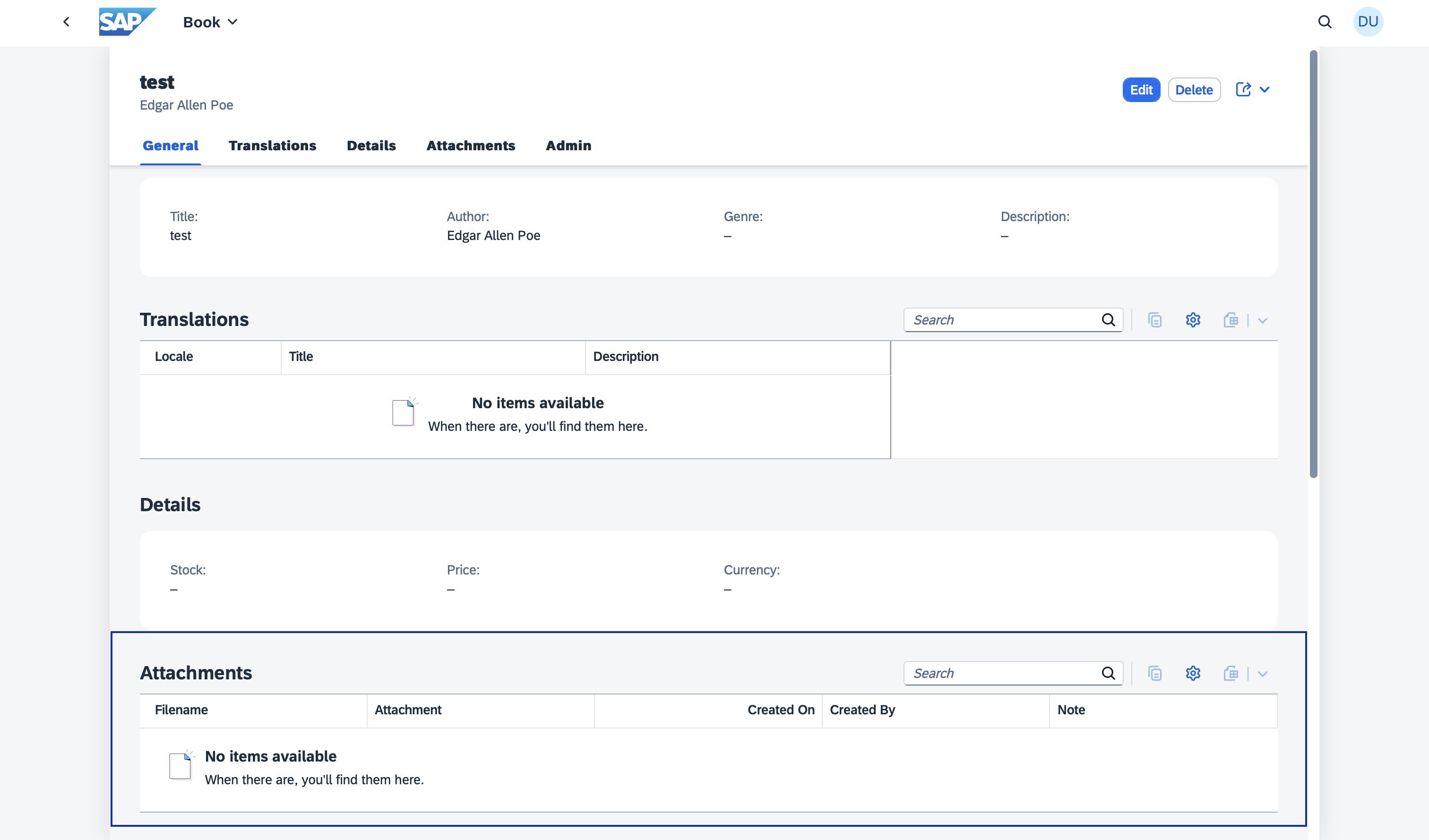
The Attachments type has generated an out-of-the-box Attachments table (see highlighted box) at the bottom of the Object page:
-
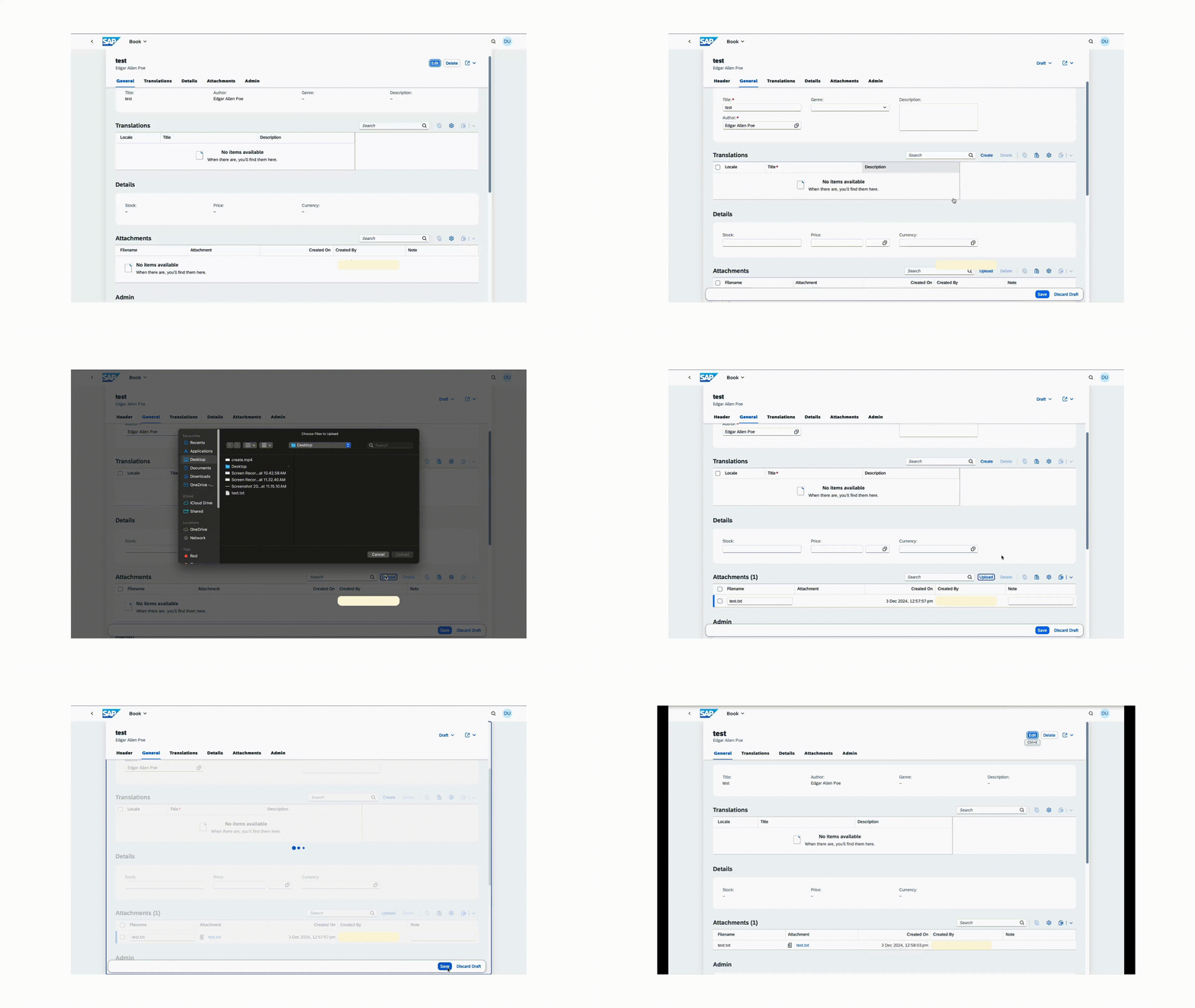
Upload a file by going into Edit mode by using the Upload button on the Attachments table. The file is then stored in SAP Document Management Integration Option. We demonstrate this by uploading a TXT file:
-
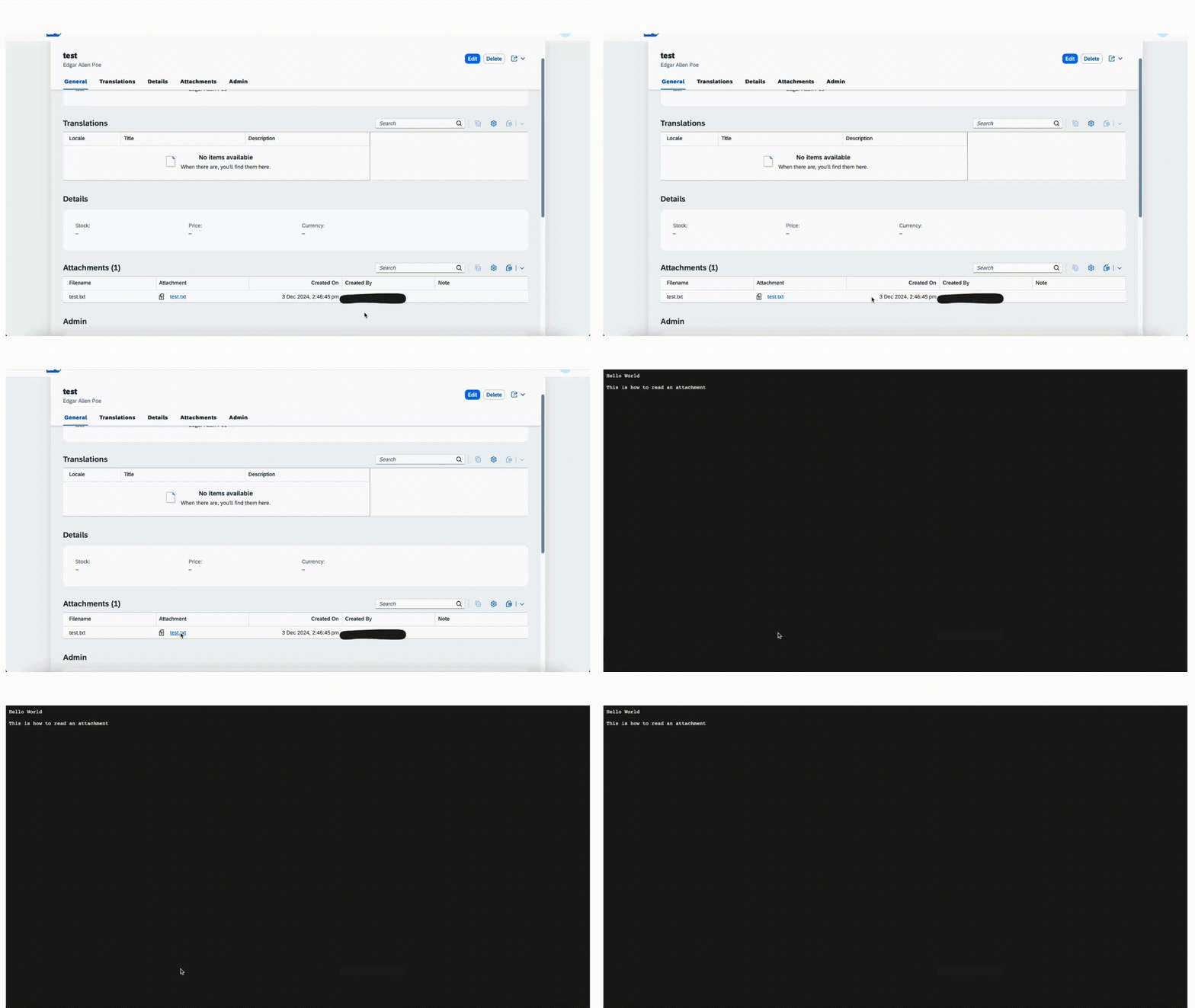
Open a file by clicking on the attachment. We demonstrate this by opening the previously uploaded TXT file:
-
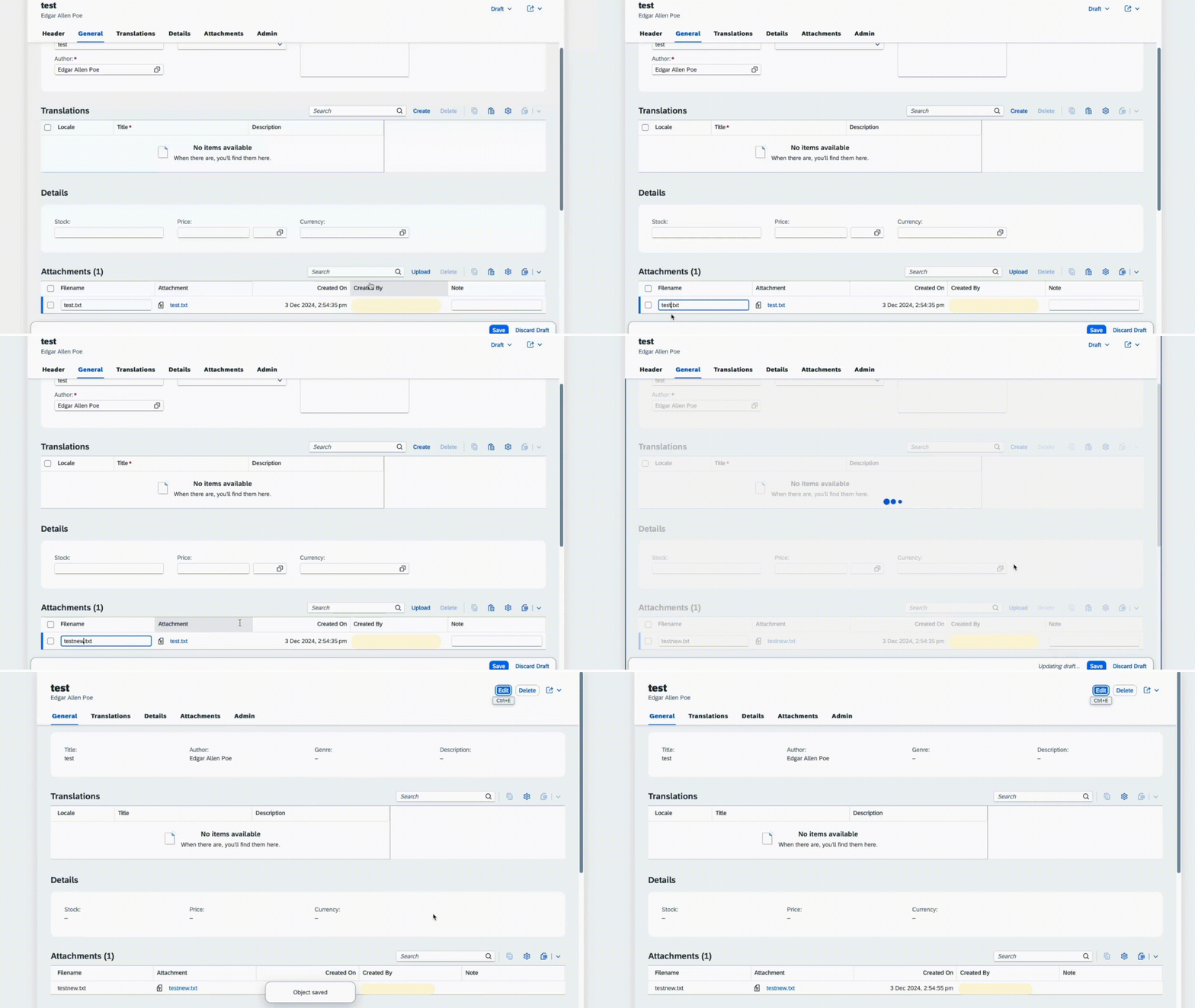
Rename a file by going into Edit mode and setting a new name for the file in the filename field. Then click the Save button to have that file renamed in SAP Document Management Integration Option. We demonstrate this by renaming the previously uploaded TXT file:
-
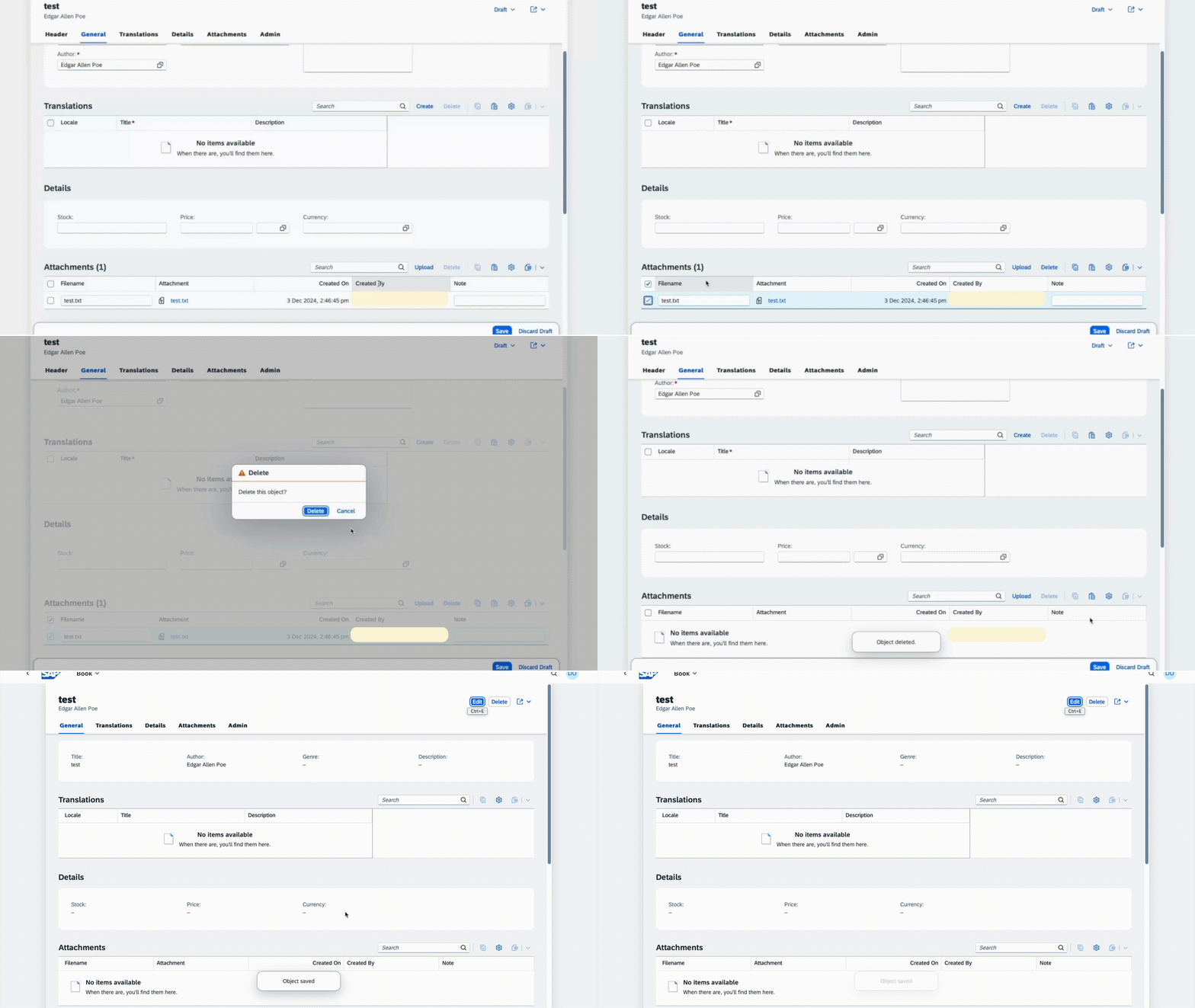
Delete a file by going into Edit mode and selecting the file(s) and by using the Delete button on the Attachments table. Then click the Save button to have that file deleted from the resource (SAP Document Management Integration Option). We demonstrate this by deleting the previously uploaded TXT file:
Support for Multitenancy
This plugin provides APIs for onboarding and offboarding of repositories for multitenant CAP SaaS applications.
GetDependencies, subscribe and unsubscribe are the mandatory steps to be performed to support multitenancy.
Refer the below example to pass the SDM Service dependencies to SaaSRegistry so that SDM credentials are passed to subscribing tenant.
//Set the SDM xsappname to SaaS Registry Dependency.
@On(event = DeploymentService.EVENT_DEPENDENCIES)
    public void onGetDependencies(DependenciesEventContext context) {

        List<SaasRegistryDependency> dependencies = new ArrayList<>();
        Map<String, Object> uaa = (Map<String, Object>) getSDMCredentials().get("uaa");
        dependencies.add(SaasRegistryDependency.create(uaa.get("xsappname").toString()));
        context.setResult(dependencies);
    }
    //Fetch the SDM service credentials
 private Map<String, Object> getSDMCredentials() {
    List<ServiceBinding> allServiceBindings =
    DefaultServiceBindingAccessor.getInstance().getServiceBindings();
ServiceBinding sdmBinding =
    allServiceBindings.stream()
        .filter(binding -> "sdm".equalsIgnoreCase(binding.getServiceName().orElse(null)))
        .findFirst()
        .get();
return  sdmBinding.getCredentials();

    }
Refer the below example where onboarding and offboarding APIs are used on tenant subscription and tenant unsubscription events of SaaS application.
@After(event = DeploymentService.EVENT_SUBSCRIBE)
public void onSubscribe(SubscribeEventContext context) {
   final SaasRegistrySubscriptionOptions options = Struct
      .access(context.getOptions())
      .as(SaasRegistrySubscriptionOptions.class);
   final String subdomain = options.getSubscribedSubdomain();

   // Create repository instance and initialise params
   Repository repository = new Repository();
   repository.setDescription("Onboarding Repo Demo");
   repository.setDisplayName(" Test Onboarding repo");
   repository.setSubdomain(subdomain);
   repository.setHashAlgorithms("SHA-256");
   // To enable malware scan, uncomment the following line
   repository.setIsVirusScanEnabled(true);
   // To enable Trend Micro scan, uncomment the following line
   repository.setIsAsyncVirusScanEnabled(true);

   // Using SDMAdminServiceImpl onboardRepository() to onboard repository
   SDMAdminService sdmAdminService =  new SDMAdminServiceImpl();
   String response = sdmAdminService.onboardRepository(repository);
}
@After(event = DeploymentService.EVENT_UNSUBSCRIBE)
public void afterUnsubscribe(UnsubscribeEventContext context) {
    //delete onboarded repository
        final SaasRegistrySubscriptionOptions options = Struct
       .access(context.getOptions())
       .as(SaasRegistrySubscriptionOptions.class);
// Access the specific property
final String subdomain = options.getSubscribedSubdomain();

SDMAdminService sdmAdminService =  new SDMAdminServiceImpl();
String res = sdmAdminService.offboardRepository(subdomain);
}
Note
Unsubscription will fail if an error occurs while deleting the repository, except when the error indicates that the repository was not found — in that case, the unsubscription will succeed.
When the application is deployed as a SaaS application with above code, a repository is onboarded automatically when a tenant subscribes the SaaS application. The same repository is deleted when the tenant unsubscribes from the SaaS application.
The necessary params for the Repository onboarding can be found in the documentation.
Support for Custom Properties
Custom properties are supported via the usage of CMIS secondary type properties. Follow the below steps to add and use custom properties.
-
If the repository does not contain secondary types and properties, create CMIS secondary types and properties using the Create Secondary Type API. The property definition must contain the following section for the CAP plugin to process the property.
"mcm:miscellaneous": {
   "isPartOfTable": "true"
}
With this, the secondary type and properties definition will be as per the sample given below
{
   "id": "Working:DocumentInfo",
   "displayName": "Document Info",
   "baseId": "cmis:secondary",
   "parentId": "cmis:secondary",
   ...
   },
   "propertyDefinitions": {
      "Working:DocumentInfoRecord": {
            "id": "Working:DocumentInfoRecord",
            "displayName": "Document Info Record",
            ...
            "mcm:miscellaneous": {     <-- Required section in the property definition
               "isPartOfTable": "true"
            }
      }
   }
}
-
Using secondary properties in CAP Application.
- Extend the
Attachments aspect with the secondary properties in the previously created attachment-extension.cds file.
- Annotate the secondary properties with
@SDM.Attachments.AdditionalProperty.name.
- In this field set the name of the secondary property in SDM.
Refer the following example from a sample Bookshop app:
extend Attachments with {
   customProperty : String
      @SDM.Attachments.AdditionalProperty: {
         name: 'Working:DocumentInfoRecordString'
      }
      @(title: 'DocumentInfoRecordString');
}
Note
SDM supports secondary properties with data types String, Boolean, Decimal, Integer and DateTime.
Support for Maximum allowed uploads
This plugin allows you to customize the maximum number of uploads a user can perform. Once a user exceeds the defined limit, any further upload attempts will trigger an error. The error message shown to the user is also fully customizable. The annotation @SDM.Attachments should be used for defining the maximum upload limit.
Refer the following example from a sample Bookshop app:
- maxCount: Specifies the maximum number of documents a user is allowed to upload.
  extend entity Books with {
    attachments : Composition of many Attachments @SDM.Attachments:{maxCount: 4};
    }
Customizing the Maximum Count Error Message
To customize the error message displayed when the upload limit is exceeded, add the following key to your messages_[languagecode].properties file under srv/src/main/resources:
SDM.maxCountErrorMessage = Maximum number of attachments reached
Example for German language in messages_de.properties:
SDM.maxCountErrorMessage = Maximale Anzahl von Anhängen erreicht
Upload Button Auto-Disable in the UI
When maxCount is configured, the plugin automatically computes a virtual boolean field (e.g. isAttachmentsUploadable) on the parent entity at read time and sets it to false when the limit is reached. To wire this up in your Fiori UI so the Upload button is automatically disabled, follow the steps below.
1. Declare the virtual field on the parent entity
Add a virtual boolean field for each maxCount annotated composition directly on the parent entity in your CDS schema. The field name must follow the pattern is + capitalised composition name + Uploadable:
entity Books : managed, cuid {
  // ... other fields ...
  virtual isAttachmentsUploadable : Boolean;
  virtual isReferencesUploadable  : Boolean;

  attachments : Composition of many Attachments @SDM.Attachments:{maxCount: 4};
  references  : Composition of many Attachments @SDM.Attachments:{maxCount: 2};
}
- For a composition named
attachments declare virtual isAttachmentsUploadable : Boolean.
- For
references declare virtual isReferencesUploadable : Boolean, and so on.
- Virtual fields are never stored in the database; the plugin populates them at read time.
2. Disable the Upload button via InsertRestrictions
Annotate each attachment entity in your service to bind its insertability to the virtual field on the parent:
annotate MyService.Books.attachments with @(
  Capabilities: {InsertRestrictions: {Insertable: up_.isAttachmentsUploadable}}
);
- Replace
MyService.Books.attachments with your service and entity path.
- Repeat for every composition facet that has a
maxCount.
3. Refresh the parent after attachment changes via SideEffects
After an upload or deletion, Fiori must re-read the parent entity to pick up the updated virtual field and reflect the new button state. Add a named Common.SideEffects annotation on the parent entity:
annotate MyService.Books with @(
  Common.SideEffects #attachmentsUploadable: {
    SourceEntities: ['attachments'],
    TargetProperties: ['']
  }
);
SourceEntities: ['attachments'] — triggers the refresh when the attachments list changes.TargetEntities: [''] — re-fetches the parent entity (Books) so the updated isAttachmentsUploadable value is returned to the UI.- The qualifier (e.g.
#attachmentsUploadable) can be any unique name; it is only needed to distinguish multiple SideEffects annotations on the same entity.
Example with multiple facets
If an entity has several maxCount-annotated compositions, add one virtual field declaration, one InsertRestrictions, and one SideEffects per facet:
annotate MyService.Books.attachments with @(
  Capabilities: {InsertRestrictions: {Insertable: up_.isAttachmentsUploadable}}
);

annotate MyService.Books.references with @(
  Capabilities: {InsertRestrictions: {Insertable: up_.isReferencesUploadable}}
);

annotate MyService.Books with @(
  Common.SideEffects #attachmentsUploadable: {
    SourceEntities: ['attachments'],
    TargetProperties: ['isAttachmentsUploadable']
  },
  Common.SideEffects #referencesUploadable: {
    SourceEntities: ['references'],
    TargetProperties: ['isAttachmentsUploadable']
  }
);
See this example of virtual field declaration from a sample Bookshop app.
See this example of InsertRestriction annotation from a sample Bookshop app.
See this example of SideEffects annotation from a sample Bookshop app.
Support for Maximum File Size
This plugin allows you to customize the maximum file size for attachments that a user can upload. Once the defined file size limit is exceeded, the upload is rejected and an error is triggered. The error message displayed to the user is fully customizable. The @Validation.Maximum annotation is used to define the maximum allowed file size.
Refer the following example from a sample Bookshop app:
entity Books {
  ...
  attachments: Composition of many Attachments;
}

annotate Books.attachments with {
  content @Validation.Maximum : '30MB';
}
Customizing the Maximum File Size Error Message
To customize the error message displayed when the file upload size limit is exceeded, add the following key to your messages.properties file under srv/src/main/resources:
AttachmentSizeExceeded = File size exceeds the limit of {0}.
Supports both decimal (KB, MB, GB, TB) and binary (KiB, MiB, GiB, TiB) units with comprehensive validation and error handling.
Support for Multiple attachment facets
The plugin supports creating multiple attachment facets or sections, each allowing various documents to be uploaded. The names of these facets are fully customizable. All existing operations available for the default attachment facet are also supported for any additional facets you create.
Refer the following example from a sample Bookshop app,
- attachments: Will create a section named attachments on UI.
- references: Will create a section named references on UI.
- footnotes: Will create a section named footnotes on UI.
   extend entity Books with {
    attachments : Composition of many Attachments;
    references : Composition of many Attachments;
    footnotes : Composition of many Attachments;
}
Add the following facet in fiori-service.cds in the app folder. Refer the following example from a sample Bookshop app.
{
      $Type : 'UI.ReferenceFacet',
      ID    : 'AttachmentsFacet',
      Label : '{i18n>attachments}',
      Target: 'attachments/@UI.LineItem'
    },
    {
      $Type : 'UI.ReferenceFacet',
      ID    : 'ReferencesFacet',
      Label : 'References',
      Target: 'references/@UI.LineItem'
    },
    {
      $Type : 'UI.ReferenceFacet',
      ID    : 'FootnotesFacet',
      Label : 'Footnotes',
      Target: 'footnotes/@UI.LineItem'
    }
Note
Once a facet or section name is defined in the CDS file, it is strongly recommended not to modify it. For instance, in the example provided, section names such as attachments, references, and footnotes should remain unchanged after initial configuration. Renaming these sections will result in the creation of new tables, causing any data associated with the original sections to become inaccessible in the UI.
Support for technical user
The CAP OData operations can be performed on attachments using a technical user. This flow can be used for machine-to-machine (M2M) interactions, where user involvement is not necessary.
A leading CAP application's service should add the requires with annotation "system-user". For more detailed information on "system-user" within the SAP CAP framework, refer to the Capire documentation. Here is an example from a sample Bookshop app demonstrating the implementation.
service AdminService @(requires: ['admin', 'system-user'])
The plugin supports technical users using oAuth 2.0 client credentials flow. Refer the following example of an OData call.
request =
   new Request.Builder()
      .url(authUrl + "/oauth/token?grant_type=client_credentials")
      .method("POST", body)
      .addHeader("Authorization", basicAuth)
      .build();
Support for copy attachments
This plugin provides capability to copy attachments from one entity to another. This capability will copy attachments metadata on CAP as well as actual content on the SAP Document Management service repository. This feature can be used in following two ways.
-
A helper method to copy attachments from one entity to another
The AttachmentService instance can be used to call copyAttachments method. This method expects an object of CopyAttachmentInput which requires new entity's Id (up__Id), the attachments facet name and the list of objectIds corresponding to attachments that are to be copied.
Example usage:
   String up__ID = "123";
   List<String> objectIds = ["abc", "xyz"];
   String facet = "AdminService.Books.attachments" // Target facet. This can be usually obtained from context.getTarget().getQualifiedName()
   boolean isSystemUser = false;
   var copyEventInput =
      new CopyAttachmentInput(up__ID, facet, objectIds);
   attachmentService.copyAttachments(copyEventInput, isSystemUser);
-
OData API to copy attachments from one entity to another
You can also use an OData API call to trigger the copy operation.
AttachmentsService endpoint URL can be used with suffix /<Service_name>.copyAttachments . This request expects the following request body:
{
   "up__ID" : "<up__ID>",  // ID of the new entity
   "objectIds" : "abc","xyz" // objectIds corresponding to attachments that are to be copied
}
Example usage:
HTTP Method: POST
Request URL:
<app_url>/odata/v4/<Service_Name>/<Entity_Name>(ID=<up__ID>,IsActiveEntity=false)/attachments/<Service_name>.copyAttachments
Request Body:
{
   "up__ID": "<up__ID>",
   "objectIds": "abc","xyz"
}
Support for move attachments
This plugin provides capability to move attachments from one entity to another entity. This capability will move attachments metadata on CAP as well as actual content on the SAP Document Management service repository. The move operation is performed in parallel for optimal performance and includes comprehensive error handling and rollback mechanisms.
Key Features
- Parallel Processing: Move operations are executed in parallel using a thread pool for improved performance.
- Custom Properties Support: Preserves and validates custom properties during the move.
- Automatic Rollback: If database updates fail after a successful SDM move, the operation is automatically rolled back.
- Comprehensive Error Handling: Returns detailed failure information for each attachment that fails to move.
- Folder Management: Automatically creates target folders if they don't exist.
Usage Methods
-
A helper method to move attachments from one entity to another
The AttachmentService instance can be used to call moveAttachments method. This method expects an object of MoveAttachmentInput which requires the source folder ID, target entity's ID (up__Id), the attachments facet name and the list of objectIds corresponding to attachments that are to be moved.
Example usage:
   String sourceFolderId = "source-folder-id";
   String up__ID = "123";
   List<String> objectIds = ["abc", "xyz"];
   String facet = "AdminService.Books.attachments"
   boolean isSystemUser = false;

   var moveEventInput = new MoveAttachmentInput(
      sourceFolderId,
      up__ID,
      facet,
      objectIds
   );

   List<Map<String, String>> failedAttachments =
      attachmentService.moveAttachments(moveEventInput, isSystemUser);

   // Check for failures
   if (!failedAttachments.isEmpty()) {
      for (Map<String, String> failure : failedAttachments) {
         String objectId = failure.get("objectId");
         String reason = failure.get("failureReason");
         // Handle failure
      }
   }
-
OData API to move attachments from one entity to another
You can also use an OData API call to trigger the move operation.
AttachmentsService endpoint URL can be used with suffix /<Service_name>.moveAttachments. This request expects the following request body:
{
   "sourceFolderId": "<source-folder-id>",
   "up__ID": "<target-up-id>",
   "facet": "<Service_Name>.<Entity_Name>.attachments",
   "objectIds": ["abc", "xyz"]
}
Example usage:
HTTP Method: POST
Request URL:
<app_url>/odata/v4/<Service_Name>/<Entity_Name>(ID=<up__ID>,IsActiveEntity=false)/attachments/<Service_name>.moveAttachments
Request Body:
{
   "sourceFolderId": "<source-folder-id>",
   "up__ID": "<target-up-id>",
   "facet": "AdminService.Books.attachments",
   "objectIds": ["abc", "xyz"]
}
Note: The facet parameter should be the fully qualified name of the target attachment composition (e.g., AdminService.Books.attachments).
Optional Parameters
When moving attachments, you can provide optional source facet information for proper cleanup:
var moveEventInput = new MoveAttachmentInput(
   sourceFolderId,
   up__ID,
   facet,
   objectIds,
   sourceFacet    // Optional: Full facet path, e.g., "AdminService.Authors.attachments"
);
If sourceFacet is provided, the source entity metadata will be properly cleaned up after the move. If omitted, attachments are moved but source metadata cleanup is skipped.
For OData API calls, you can include the optional sourceFacet parameter in the request body:
{
   "sourceFolderId": "<source-folder-id>",
   "up__ID": "<target-up-id>",
   "facet": "AdminService.Books.attachments",
   "objectIds": ["abc", "xyz"],
   "sourceFacet": "AdminService.Authors.attachments"
}
Response Format
The move operation returns a list of failed attachments with detailed failure reasons:
[
   {
      "objectId": "abc",
      "failureReason": "Attachment abc already exists in Target entity"
   },
   {
      "objectId": "xyz",
      "failureReason": "Invalid custom properties: customProp1, customProp2. These properties are not supported in the target entity."
   }
]
Common Failure Scenarios
- MaxCount Exceeded: Target entity has reached its maximum allowed attachments.
- Invalid Custom Properties: Attachment has custom properties not supported by the target entity.
- Permission Denied: User lacks authorization to move the attachment.
- Duplicate File: File with the same name already exists in the target folder.
- Database Update Failed: Move succeeded in SDM but database update failed (automatic rollback occurs).
- Source Not Found: Source attachment doesn't exist in SDM.
Best Practices
- Always check the returned list of failed attachments to inform users about partial failures.
- Validate maxCount constraints before initiating large move operations.
- Ensure custom properties compatibility between source and target entities.
- Handle rollback scenarios gracefully - rolled back attachments remain in the source folder.
CRITICAL: To preserve custom properties attached with attachments on UI, ensure these properties are defined in the target entity. If custom properties are not present in the target entity definition, they will be lost after the move and will not be visible on the UI.
Support for attachment changelog
The changelog feature provides a complete audit trail of operations performed on an attachment throughout its lifecycle. It tracks creation, modifications with detailed metadata including who made the change, when it occurred.
Overview
The changelog functionality retrieves the complete history of an attachment from SAP Document Management Service, including:
- Creation events: Initial upload information
- Modification events: Updates to file properties
- Property changes: Changes to metadata, description, or custom properties
- User information: Who performed each action
- Timestamps: When each change occurred
Integration with UI
To enable changelog viewing in your CAP application:
-
Add a custom controller extension
In webapp/controller/custom.controller.js, copy and paste below content.
See this example from a sample Bookshop app.
sap.ui.define(
 [
 "sap/ui/core/mvc/ControllerExtension",
 "sap/ui/core/format/DateFormat"
 ],
function (ControllerExtension, DateFormat) {
   "use strict";
   const ChangeCategoryEnum = {
         created: "Created",
         updated: "Changed"
         // Add more mappings as needed
   };

   return ControllerExtension.extend("books.controller.custom", {
      onChangelogPress: function(oContext, aSelectedContexts) {
            var that =this;
            this.base.editFlow
            .invokeAction("AdminService.changelog", {
               contexts: aSelectedContexts
            })
            .then(function (res) {
               console.log("Result",res[0].value.getObject().value);
               that.updateChangeLogInPropertiesModel(res[0].value.getObject().value);
            });
      },
      updateChangeLogInPropertiesModel: function (oChangeLogsForObjectResponse) {
            const aChangeLogs = [];
            const fileName = JSON.parse(oChangeLogsForObjectResponse).filename;
            const aChangeLogsObject = JSON.parse(oChangeLogsForObjectResponse)["changeLogs"];
            // Take latest changes at the top
            for (let idx = aChangeLogsObject.length - 1; idx >= 0; idx--) {
               const oChangeLogEntry = aChangeLogsObject[idx];
               const sLastModifiedBy = oChangeLogEntry["user"];
               const sChangeType = oChangeLogEntry["operation"];
               const sChangeTime = oChangeLogEntry["time"];
               let dateTimeFormat = DateFormat.getDateTimeInstance(sap.ui.getCore().getConfiguration().getLocale());
               let changedDate = new Date(sChangeTime);
               let changedTime = changedDate?dateTimeFormat.format(new Date(changedDate)) : "" ;
               const oChangeLog = {
                  changedOn: changedTime,
                  changedBy: sLastModifiedBy,
                  changeType: ChangeCategoryEnum[sChangeType]
               };
               aChangeLogs.push(oChangeLog);
            }

            this.logFragment= this.base.getExtensionAPI().loadFragment({
               name: "books.fragments.changelog",
               controller: this
            });
            var that = this;
            this.logFragment.then(function (dialog) {
               if(dialog){
                  dialog.attachEventOnce("afterClose", function () {
                        dialog.destroy();
                  });
                  var oModel = new sap.ui.model.json.JSONModel();
                  oModel.setSizeLimit(100000);
                  oModel.setData(aChangeLogs);
                  that.getView().setModel(oModel, "changelog");
                  dialog.setTitle(fileName);
                  dialog.open()
               }
            });
      },
      close: function (closeBtn) {
            closeBtn.getSource().getParent().close();
      }
   });
});
- Replace
books in ControllerExtension.extend with the SAPUI5.Component name from your app/appconfig/fioriSandboxConfig.json file. See this example.
- Replace
AdminService in invokeAction("AdminService.changelog") with the name of your service.
-
Add changelog.fragment.xml
In webapp/fragments/changelog.fragment.xml, copy and paste below content.
See this example from a sample Bookshop app.
<core:FragmentDefinition
   xmlns:core="sap.ui.core"
   xmlns:uxap="sap.uxap"
   xmlns="sap.m">
   <Dialog title="Change Log" id = "changelogDialog" resizable="true" contentWidth="50%"
      contentHeight="50%" draggable="true" class="sapUiSizeCompact" verticalScrolling="true">
      <content>

         <IconTabBar
            id="idIconTabBarNoIcons"
               class="mcmPropertiesSections" isChildPage="true" enableLazyLoading="true" upperCaseAnchorBar="false" stretchContentHeight= "true">
            <items>
                  <IconTabFilter text="Change Log" key="info">
                     <Table id="idChangeLogTable" items="{path:'changelog>/', templateShareable:false}"
                        noDataText="{i18n>LoadingData}">
                     <columns>
                           <Column demandPopin="true" popinDisplay="Inline" minScreenWidth="Large">
                              <Text text="Category"/>
                           </Column>
                           <Column demandPopin="true" popinDisplay="Inline" minScreenWidth="Large">
                              <Text text="Changed By"/>
                           </Column>
                           <Column demandPopin="true" popinDisplay="Inline" minScreenWidth="Large">
                              <Text text="Changed On"/>
                           </Column>
                     </columns>
                     <items>
                           <ColumnListItem>
                              <cells>
                                 <Text text="{changelog>changeType}"/>
                                 <Text text="{changelog>changedBy}"/>
                                 <Text text="{changelog>changedOn}"/>
                              </cells>
                           </ColumnListItem>
                     </items>
                  </Table>
                  </IconTabFilter>
            </items>
         </IconTabBar>

         </content>

         <endButton>
            <Button text="Close" press=".close" />
         </endButton>
      </Dialog>
      </core:FragmentDefinition>
-
Add the changelog action to your application's service definition
See this example from a sample Bookshop app.
action changelog() returns String;
-
Custom Action Button Configuration
To add a custom action button (e.g., "Change Log") to your table that is enabled only when a single row is selected, add the following configuration to your manifest.json.
See this example from a sample Bookshop app.
"controlConfiguration": {
   "attachments/@com.sap.vocabularies.UI.v1.LineItem": {
      "tableSettings": {
         "type": "ResponsiveTable",
         "selectionMode": "Auto"
      },
      "actions": {
         "changelog": {
         "enableOnSelect": "single",
         "text": "Change Log",
         "requiresSelection": true,
         "press": ".extension.books.controller.custom.onChangelogPress",
         "command": "COMMON",
         "position": {
            "anchor": "StandardAction::Create",
            "placement": "After"
         }
         }
      }
   }
}
- Replace
attachments with your entity’s facet name as needed.
- Repeat for other facets's if required.
- Replace
books in "press": ".extension.books.controller.custom.onChangelogPress" with the SAPUI5.Component name from your
app/appconfig/fioriSandboxConfig.json file. Refer this example from a sample Bookshop app.
Configuration Properties
| Property | Value | Description |
|---|
enableOnSelect | "single" | Button is enabled only when exactly one row is selected |
requiresSelection | true | Button is disabled when no rows are selected |
press | ".extension.books.controller.custom.onChangelogPress" | Reference to the controller method that handles the button click |
command | "COMMON" | Makes the button available in the table toolbar |
position | { "anchor": "StandardAction::Create", "placement": "After" } | Controls where the button appears relative to standard actions (e.g., after the Create button) |
Behavior
The button will automatically be:
| Status | Condition |
|---|
| ✅ Enabled | When exactly one item is selected |
| ❌ Disabled | When no items are selected |
| ❌ Disabled | When multiple items are selected |
Support for link type attachments
Note: Row-press is the new recommended approach for handling actions on attachment rows. With row-press enabled, the Attachments column will no longer appear as a separate action button. Instead, clicking on a row will automatically perform the appropriate action — opening a link or downloading a file, based on the attachment type.
This plugin provides the capability to create, open, rename and delete attachments of link type.
Steps to Enable Row-Press for Open Link
-
Add the openAttachment action to application's service definition
See this example from a sample Bookshop app.
action openAttachment() returns String;
-
Add a custom controller extension
In webapp/controller/custom.controller.js, copy and paste below content.
See this example from a sample Bookshop app.
sap.ui.define(
   [
   "sap/ui/core/mvc/ControllerExtension",
   "sap/m/library"
   ],
   function (ControllerExtension,library) {
      "use strict";

      return ControllerExtension.extend("books.controller.custom", {
            onRowPress: function(oContext) {
               this.base.editFlow
               .invokeAction("AdminService.openAttachment", {
                  contexts: oContext.getParameter("bindingContext")
               })
               .then(function (res) {
                  let odataurl = "";
                  if(res.getObject().value == "None") {
                        const lastSlashIndex = res.oModel.getServiceUrl().lastIndexOf('/');
                        let str = res.oModel.getServiceUrl();
                        if (lastSlashIndex !== -1) {
                           str = str.substring(0, lastSlashIndex)  + str.substring(lastSlashIndex + 1);
                        }
                        odataurl = str+res.oBinding.oContext.sPath+"/content";
                  } else {
                        odataurl = res.getObject().value;
                  }
                  library.URLHelper.redirect(odataurl, true);

               });
            }
      });
   }
);
- Replace
books in ControllerExtension.extend with the SAPUI5.Component name from your app/appconfig/fioriSandboxConfig.json file. See this example.
- Replace
AdminService in invokeAction("AdminService.openAttachment") with the name of your service.
-
Add controlConfiguration for Row Press
In your sap.ui5.routing.targets section, under the relevant Object Page (e.g., BooksDetails), add or extend the controlConfiguration for the facet you want to enhance by copy and pasting below content. See this example
"controlConfiguration": {
   "attachments/@com.sap.vocabularies.UI.v1.LineItem": {
      "tableSettings": {
         "type": "ResponsiveTable",
         "selectionMode": "Auto",
         "rowPress": ".extension.books.controller.custom.onRowPress"
      }
   }
}
- Replace
attachments with your entity’s facet name as needed.
- Repeat for other facets's if required.
- Replace
books in "rowPress": ".extension.books.controller.custom.onRowPress" with the SAPUI5.Component name from your
app/appconfig/fioriSandboxConfig.json file. Refer this example from a sample Bookshop app.
-
Register the Custom Controller Extension
In the root of your sap.ui5 section, add or extend the extends property to register your custom controller by copy and pasting below content. See this example
"extends": {
   "extensions": {
      "sap.ui.controllerExtensions": {
         "sap.fe.templates.ObjectPage.ObjectPageController#books::BooksDetailsList": {
         "controllerName": "books.controller.custom"
         }
      }
   }
}
- Replace
books in "sap.fe.templates.ObjectPage.ObjectPageController#books::BooksDetailsList" with the SAPUI5.Component name from your
app/appconfig/fioriSandboxConfig.json file. Refer this example from a sample Bookshop app.
- Replace
BooksDetailsList in "sap.fe.templates.ObjectPage.ObjectPageController#books::BooksDetailsList" with id of the relevant Object Page (e.g., BooksDetails). Refer this example from a sample Bookshop app.
- Replace
books in "controllerName": "books.controller.custom" with the SAPUI5.Component name from your
app/appconfig/fioriSandboxConfig.json file. Refer this example from a sample Bookshop app.
Steps to Enable Create Link Feature in CAP Application
Note: Enabling row-press for open link (see steps above) is a prerequisite for link support.
-
Add the createLink action to application's service definition
See this example from a sample Bookshop app:
action createLink(
      in:many $self,
      @mandatory @Common.Label:'Name' name: String @UI.Placeholder: 'Enter a name for the link',
      @mandatory @assert.format:'^(https?:\/\/)(([a-zA-Z0-9\-]+\.)+[a-zA-Z]{2,}|localhost)(:\d{2,5})?(\/[^\s]*)?$'
      @Common.Label:'URL' url: String @UI.Placeholder: 'Example: https://www.example.com'
   );
- Purpose: Enables users to create links with name and URL.
- Validation: Ensures only valid HTTP(S) URLs are accepted.
- UI Support: Provides labels and placeholders for better user experience.
UI Annotation Setup
To enable the creation of links, you need to add a new button to the attachments table toolbar. This button will appear as a menu button labeled "Create" on the toolbar of the attachments table. When clicked, it will display a menu with the "Link" option, allowing users to create a new link-type attachment.
Add the following annotation block to your app/common.cds file. See this example
annotate my.Books.attachments with @UI: {
  HeaderInfo: {
    $Type         : 'UI.HeaderInfoType',
    TypeName      : '{i18n>Attachment}',
    TypeNamePlural: '{i18n>Attachments}',
  },
  LineItem  : [
    {Value: type, @HTML5.CssDefaults: {width: '10%'}},
    {Value: fileName, @HTML5.CssDefaults: {width: '25%'}},
    {Value: content, @HTML5.CssDefaults: {width: '0%'}},
    {Value: createdAt, @HTML5.CssDefaults: {width: '20%'}},
    {Value: createdBy, @HTML5.CssDefaults: {width: '20%'}},
    {Value: note, @HTML5.CssDefaults: {width: '25%'}},
    {
      $Type  : 'UI.DataFieldForActionGroup',
      ID     : 'TableActionGroup',
      Label  : 'Create',
      ![@UI.Hidden]: {$edmJson: {$Eq: [ {$Path: 'IsActiveEntity'}, true ]}},
      Actions: [
        {
          $Type : 'UI.DataFieldForAction',
          Label : 'Link',
          Action: 'AdminService.createLink',
        }
      ]
    },
  ],
}
{
  note       @(title: '{i18n>Note}');
  type       @(title: '{i18n>Type}');
  linkUrl       @UI.Hidden;
  fileName  @(title: '{i18n>Filename}');
  modifiedAt @(odata.etag: null);
  content
    @Core.ContentDisposition: { Filename: fileName }
    @(title: '{i18n>Attachment}');
  folderId @UI.Hidden;
  repositoryId  @UI.Hidden ;
  objectId  @UI.Hidden ;
  mimeType @UI.Hidden;
  status @UI.Hidden;
}
annotate Attachments with @Common: {SideEffects #ContentChanged: {
  SourceProperties: [content],
  TargetProperties: ['status'],
  TargetEntities : [Books.attachments]
}}{};
- Replace
my.Books.attachments with the correct path for your entity and element (for example, my.YourEntity.yourElement) where you have defined composition of many Attachments.
- Replace
AdminService in Action: 'AdminService.createLink' with the name of your service.
- Repeat for other entities and elements if you have defined multiple
composition of many Attachments.
Updating Tenant Databases for Link Feature
To support the Link feature, additional database columns are introduced.
Upon re-deployment of your multitenant application, you may encounter "invalid column" errors if tenant database containers are not updated.
To resolve this, ensure the following hook command is added to the mta.yaml for the sidecar application.
hooks:
- name: upgrade-all
type: task
phases:
- blue-green.application.before-start.idle
- deploy.application.before-start
parameters:
name: upgrade
memory: 512M
disk-quota: 768M
command: npx -p @sap/cds-mtx cds-mtx upgrade "*"
This will automatically update tenant databases during deployment. See this example.
Support for edit of link type attachments
This plugin provides the capability to update/edit the URL of attachments of link type.
Steps to Enable Edit Link Feature in CAP Application
-
Add the editLink action to application's service definition
See this example from a sample Bookshop app:
action editLink(
      @mandatory @assert.format:'^(https?:\/\/)(([a-zA-Z0-9\-]+\.)+[a-zA-Z]{2,}|localhost)(:\d{2,5})?(\/[^\s]*)?$'
      @Common.Label:'URL' url: String @UI.Placeholder: 'Example: https://www.example.com'
   );
- Purpose: Enables users to edit URL of previously created links.
- Validation: Ensures only valid HTTP(S) URLs are accepted.
- UI Support: Provides labels and placeholders for better user experience.
UI Annotation Setup
To enable the editing of links, you need to add a new button to the attachments table toolbar. This button will appear as an inline button labeled "Edit Link" on the attachment row of the attachments table for only link type attachments. When clicked, it will display a menu with the "Edit Link" option, allowing users to edit the URL of an existing link-type attachment.
Add the following annotation block to your app/common.cds file. See this example
annotate my.Books.attachments with @UI: {
  HeaderInfo: {
    $Type         : 'UI.HeaderInfoType',
    TypeName      : '{i18n>Attachment}',
    TypeNamePlural: '{i18n>Attachments}',
  },
  LineItem  : [
    {Value: type, @HTML5.CssDefaults: {width: '10%'}},
    {Value: fileName, @HTML5.CssDefaults: {width: '20%'}},
    {Value: content, @HTML5.CssDefaults: {width: '0%'}},
    {Value: createdAt, @HTML5.CssDefaults: {width: '20%'}},
    {Value: createdBy, @HTML5.CssDefaults: {width: '20%'}},
    {Value: note, @HTML5.CssDefaults: {width: '20%'}},
    {
        Value             : uploadStatus,
        Criticality: uploadStatusNav.criticality,
        @Common.FieldControl: #ReadOnly,
        @HTML5.CssDefaults: {width: '10%'}
      },
    {
      $Type  : 'UI.DataFieldForActionGroup',
      ID     : 'TableActionGroup',
      Label  : 'Create',
      ![@UI.Hidden]: {$edmJson: {$Eq: [ {$Path: 'IsActiveEntity'}, true ]}},
      Actions: [
        {
          $Type : 'UI.DataFieldForAction',
          Label : 'Link',
          Action: 'AdminService.createLink',
        }
      ]
    },
    {
      @UI.Hidden: {$edmJson:{$If:[{$Eq:[{$Path: 'IsActiveEntity' },true]},true,{$If:[{$Ne:[{$Path:'mimeType'},'application/internet-shortcut']},true,false]}]}},
      $Type : 'UI.DataFieldForAction',
      Label : 'Edit Link',
      Action: 'AdminService.editLink',
      Inline: true,
      IconUrl: 'sap-icon://edit',
      @HTML5.CssDefaults: {width: '4%'}
    }
  ],
}
{
  note       @(title: '{i18n>Note}');
  type       @(title: '{i18n>Type}');
  linkUrl       @UI.Hidden;
  fileName  @(title: '{i18n>Filename}');
  modifiedAt @(odata.etag: null);
  content
    @Core.ContentDisposition: { Filename: fileName }
    @(title: '{i18n>Attachment}');
  folderId @UI.Hidden;
  repositoryId  @UI.Hidden ;
  objectId  @UI.Hidden ;
  mimeType @UI.Hidden;
  status @UI.Hidden;
}
annotate Attachments with @Common: {SideEffects #ContentChanged: {
  SourceProperties: [content],
  TargetProperties: ['status'],
  TargetEntities : [Books.attachments]
}}{};
- Replace
my.Books.attachments with the correct path for your entity and element (for example, my.YourEntity.yourElement) where you have defined composition of many Attachments.
- Replace
AdminService in Action: 'AdminService.editLink' with the name of your service.
- Repeat for other entities and elements if you have defined multiple
composition of many Attachments.
Support for Localization
This plugin supports internationalization (i18n) for both UI fields and error messages, allowing you to provide translations in the local language of your leading application.
UI Fields Localization
To translate UI fields, add the following keys to your i18n_[languagecode].properties file located under app/_i18n folder.
Default language translations are present in i18n.properties files. If the leading application does not provide translations in their language-specific properties files, default English language messages are shown to the user.
Example i18n_de.properties for German language:
Attachment=Attachment
Attachments=Attachments
Note=Attachment Note
Filename=File Name
linkUrl=Link Url
type=Type
Note: For localizing the CAP managed fields use the below keys
CreatedAt,CreatedBy,ChangedAt,ChangedBy and attachmentID for ID.
Error Messages Localization
The plugin provides two classes for error keys:
SDMUIErrorKeys - UI-facing messages that should be translatedSDMErrorKeys - Backend/internal messages (no translation needed)
To translate UI messages, add entries to messages_[languagecode].properties in srv/src/main/resources/. If the leading application does not provide translations in their language-specific properties files, these default English language messages are shown to the user.
Example messages_de.properties for German language:
SDM.virusRepoErrorMoreThan400MB=Sie können keine Dateien hochladen, die größer als 400 MB sind
SDM.userNotAuthorisedError=Sie verfügen nicht über die erforderlichen Berechtigungen zum Hochladen von Anhängen
SDM.mimetypeInvalidError=Der Dateityp ist nicht zulässig
SDM.maxCountErrorMessage=Maximale Anzahl von Anhängen erreicht
Support for Attachment Upload Status
The attachment upload process displays a status indicator for each file being uploaded.
For repositories without malware scanning:
The upload status transitions from "Uploading" to "Success".
For repositories with malware scanning:
The upload status transitions from "Uploading" to "Success" if no virus is detected. If a virus is detected, the attachment is automatically deleted.
To display color-coded status indicators in the UI, create a sap.attachments-UploadScanStates.csv file in the db/data folder with the following content:
code;name;criticality
uploading;Uploading;5
Success;Success;3
Failed;Scan Failed;2
Support for Attachment Creation in Active Entities
By default, the SDM CAP plugin handles attachment creation through the draft flow — attachments are first created on a draft entity and later activated. This feature adds support for creating attachments directly on active entities, which is useful in scenarios where the parent entity bypasses the draft lifecycle (e.g., programmatic entity creation, background jobs, or APIs that operate on active records).
How It Works
When an attachment is created, the plugin automatically determines whether the parent entity is in a draft or active context:
- Draft detection: The plugin queries the parent entity's draft table to check if the parent record exists there. If it does, the standard draft flow is used.
- Active entity flow: If the parent record is not found in the draft table, the plugin treats it as an active entity context. In this case:
- The attachment content is uploaded to the SAP Document Management repository.
- The SDM metadata (
objectId, folderId, repositoryId, etc.) is temporarily stored in-memory.
- After the framework completes the database INSERT, an
@After handler updates the active entity record with the SDM metadata.
- Backwards compatibility: If the context cannot be determined (e.g., the model has no draft table), the plugin defaults to the draft flow to ensure existing applications continue to work without changes.
Key Behavior
- Automatic detection: No configuration is required. The plugin automatically detects whether to use the draft or active entity flow based on the parent entity's presence in the draft table.
- Duplicate handling: If an attachment with the same filename already exists on the active entity, the plugin gracefully handles the duplicate by reusing the existing attachment record.
Usage in Leading Applications
To create attachments on active entities, the leading application needs to trigger an INSERT on the attachment entity through the ApplicationService (or DraftService, which extends it). The plugin intercepts the content automatically and routes it through the active entity flow.
Steps
-
Build the attachment data with the required fields:
| Field | Type | Description |
|---|
ID | String | Unique identifier (e.g., UUID.randomUUID()) |
up__ID | String | The parent entity's ID |
fileName | String | The attachment filename |
mimeType | String | The MIME type of the content |
content | InputStream | An InputStream containing the file content |
-
Execute the INSERT using the ApplicationService. See this example
import com.sap.cds.ql.Insert;
import java.io.InputStream;
import java.util.HashMap;
import java.util.Map;
import java.util.UUID;

// Build attachment data
Map<String, Object> attachmentData = new HashMap<>();
attachmentData.put("ID", UUID.randomUUID().toString());
attachmentData.put("up__ID", parentEntityId);
attachmentData.put("fileName", "report.pdf");
attachmentData.put("mimeType", "application/pdf");
attachmentData.put("content", inputStream);

// Insert into the attachment entity via ApplicationService
applicationService.run(
    Insert.into("MyService.MyEntity.attachments").entry(attachmentData)
);
Support for Download Attachments
This plugin provides the capability to download multiple selected file attachments at once. The Download button is automatically disabled when any link-type attachment is selected, since links are meant to be opened in the browser and not downloaded as files.
Steps to Enable Download Attachments Feature
-
Add the downloadSelectedAttachments action to application's service definition
See this example from a sample Bookshop app.
Add this action inside the actions { } block of each attachment entity:
action downloadSelectedAttachments(ids: String) returns String;
-
Add a custom controller extension
In webapp/controller/custom.controller.js, add the isDownloadEnabled and onDownloadPress functions.
See this example from a sample Bookshop app.
isDownloadEnabled: function(oBindingContext, aSelectedContexts) {
    if (!aSelectedContexts || aSelectedContexts.length === 0) {
        return false;
    }
    return !aSelectedContexts.some(function(oContext) {
        return oContext.getProperty("mimeType") === "application/internet-shortcut";
    });
},
onDownloadPress: function(oContext, aSelectedContexts) {
    var sIds = aSelectedContexts.map(function(oCtx) {
        return oCtx.getObject().ID;
    }).join(",");
    this.base.editFlow
    .invokeAction("AdminService.downloadSelectedAttachments", {
        contexts: aSelectedContexts[0],
        parameterValues: [{ name: "ids", value: sIds }],
        skipParameterDialog: true
    })
    .then(function(res) {
        var sJsonResponse = res.getObject().value;
        var aEntries = JSON.parse(sJsonResponse);
        aEntries.forEach(function(oEntry) {
            if (oEntry.status === "success" && oEntry.content) {
                var byteString = atob(oEntry.content);
                var aBytes = new Uint8Array(byteString.length);
                for (var i = 0; i < byteString.length; i++) {
                    aBytes[i] = byteString.charCodeAt(i);
                }
                var oBlob = new Blob([aBytes], { type: oEntry.mimeType || "application/octet-stream" });
                var sUrl = URL.createObjectURL(oBlob);
                var oLink = document.createElement("a");
                oLink.href = sUrl;
                oLink.download = oEntry.fileName || "download";
                document.body.appendChild(oLink);
                oLink.click();
                document.body.removeChild(oLink);
                URL.revokeObjectURL(sUrl);
            }
        });
    });
}
- Replace
AdminService in invokeAction("AdminService.downloadSelectedAttachments") with the name of your service.
-
Add controlConfiguration for Download Button
In your sap.ui5.routing.targets section, under the relevant Object Page, update the controlConfiguration for each facet by changing the selectionMode to "Multi" and adding the download action.
See this example from a sample Bookshop app.
"controlConfiguration": {
    "attachments/@com.sap.vocabularies.UI.v1.LineItem": {
        "tableSettings": {
            "type": "ResponsiveTable",
            "selectionMode": "Multi",
            "rowPress": ".extension.books.controller.custom.onRowPress"
        },
        "actions": {
            "download": {
                "text": "Download",
                "requiresSelection": true,
                "enabled": ".extension.books.controller.custom.isDownloadEnabled",
                "press": ".extension.books.controller.custom.onDownloadPress",
                "position": {
                    "anchor": "StandardAction::Create",
                    "placement": "After"
                }
            }
        }
    }
}
- Replace
attachments with your entity's facet name as needed.
Known Restrictions
- UI5 Version 1.135.0: This version causes error in upload of attachments.
- Repository : This plugin does not support the use of versioned repositories.
- File size : If the repository is onboarded with virus scanning, only attachments upto 400 MB will be scanned for virus.
- Datatypes for custom properties : Custom properties are supported for the following data types
String, Boolean, Decimal, Integer and DateTime.
Support, Feedback, Contributing
This project is open to feature requests/suggestions, bug reports etc. via GitHub issues. Contribution and feedback are encouraged and always welcome. For more information about how to contribute, the project structure, as well as additional contribution information, see our Contribution Guidelines.
Code of Conduct
We as members, contributors, and leaders pledge to make participation in our community a harassment-free experience for everyone. By participating in this project, you agree to abide by its Code of Conduct at all times.
Licensing
Copyright 2024 SAP SE or an SAP affiliate company and contributors. Please see our LICENSE for copyright and license information. Detailed information including third-party components and their licensing/copyright information is available via the REUSE tool.