abap-file-uploader
Sample code that uploads a JSON file whose attributes match a table's column names into that ABAP table on an SAP BTP ABAP Environment instance, through a handler class on an HTTP service.
The sample lets an ABAP developer upload data from a file directly into a target database table on an SAP Business Technology Platform ABAP Environment instance, expecting a JSON file whose attributes match the table's column names. It runs through a handler class you attach to an HTTP service created after import, and needs the XCO library, which the README notes is available automatically only in trial systems and elsewhere requires a feature toggle SAP enables on request.
Facts
Where it sits
Who is behind it

In the atlas: maintains 222@SAP-samplesmaintainerAjinkya PatilContributes to this

In the atlas: contributes to 112@ajinkyapatil8190Brian BernardContributes to this

In the atlas: contributes to 64@btbernardThomas JungContributes to this

Developer Advocate
In the atlas: contributes to 15, wrote 6@jung-thomasRich HeilmanContributes to this

Developer Advocate
In the atlas: contributes to 5@rich-heilman4 contributors
What it declares
Every artifact
- Type
- Sample
- Origin
- By SAP
As a sample
- Form
- does not say
Connections
Getting files into tables and table content back out as files
Download
README
quoted from SAP-samples/abap-file-uploader under Apache-2.0, readABAP File Uploader
Description
The ABAP File Uploader is designed to allow an ABAP developer to upload data from a file directly into a target database table in SAP Business Technology Platform ABAP Environment instance. This utility expects a json file for the uploaded data with attributes that match the column names in the database table.
Video Introduction here: https://youtu.be/PpXNP3ciGOc
Requirements
Make sure to fulfill the following requirements:
- You have access to an SAP Business Technology Platform ABAP Environment instance (see here for additional information).
- Note: The XCO APIs are available automatically in trial systems and require no further steps. In productive accounts: "The XCO library is currently only available via feature toggle. If you are interested in using this new feature, please contact SAP." https://help.sap.com/doc/43b304f99a8145809c78f292bfc0bc58/Cloud/en-US/98bf747111574187a7c76f8ced51cfeb.html For more general information on XCO: https://blogs.sap.com/2020/05/17/the-rap-generator
- You have downloaded and installed ABAP Development Tools (ADT). Make sure to use the most recent version as indicated on the installation page.
- You have created an ABAP Cloud Project in ADT that allows you to access your SAP Business Technology Platform ABAP Environment instance (see here for additional information). Your log-on language is English.
- You have installed the abapGit plug-in for ADT from the update site
http://eclipse.abapgit.org/updatesite/.
Download and Installation
Use the abapGit plug-in to install the ABAP File Uploader Examples by executing the following steps:
- In your ABAP cloud project, create an ABAP package for the demo content to be downloaded (leave the suggested values unchanged when following the steps in the package creation wizard).
- To add the abapGit Repositories view to the ABAP perspective, click
Window>Show View>Other...from the menu bar and chooseabapGit Repositories. - In the abapGit Repositories view, click the
+icon to clone an abapGit repository. - Enter the following URL of this repository:
https://github.com/SAP-samples/abap-file-uploaderand choose Next. - Create a new transport request that you only use for this demo content installation (recommendation) and choose Finish to link the Git repository to your ABAP cloud project. The repository appears in the abapGit Repositories View with status Linked.
- Right-click on the new ABAP repository and choose
pullto start the cloning of the repository contents. Note that this procedure may take a few minutes. - Once the cloning has finished, the status is set to
Pulled Successfully. Then refresh your project tree.
As a result of the installation procedure above, the ABAP system creates an inactive version of all artifacts from the demo content
To activate all development objects from this sample:
- Click the mass-activation icon (Activate Inactive ABAP Development Objects) in the toolbar.
- In the dialog that appears, select all development objects in the transport request (that you created for the demo content installation) and choose Activate.
- Once the imported handler class is activated, you must then manually create an HTTP Service and attach this handler class to the service. Again, make sure the handler class is activated first!! Then in ADT, right-click on your package and choose
New>Other ABAP Repository Object.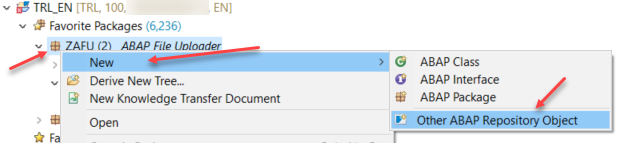
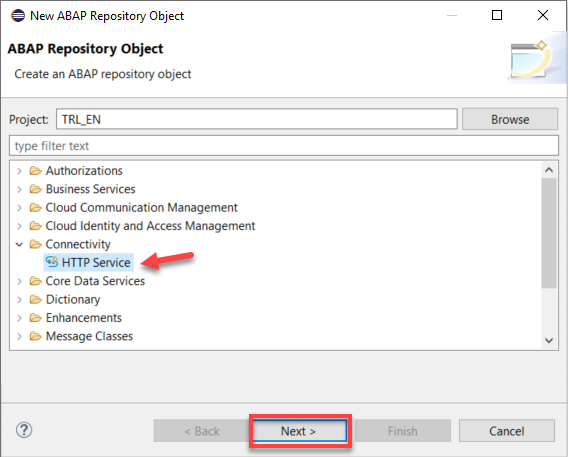
- In the dialog, click Connectivity, then choose HTTP Service. Click Next.
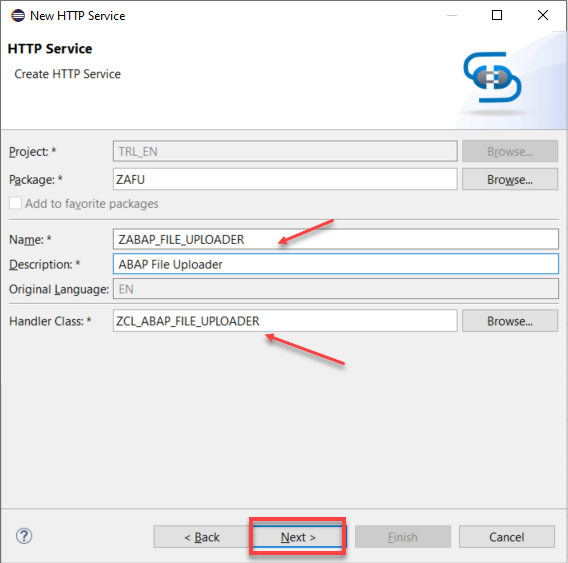
- Give the name of the HTTP Service as ZABAP_FILE_UPLOADER, the Handler Class should prepopulate with the correct name. Click Next, then Finish.
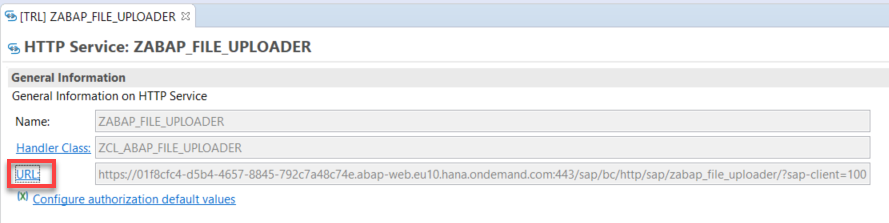
- After a couple minutes, the HTTP Service should be ready(Until all underlying objects are generated you could possiblly get a 403 error when launching the application). Click on the URL link in the service to launch the tool.
Known Issues
How to obtain support
This project is provided "as-is": there is no guarantee that raised issues will be answered or addressed in future releases.
License
Copyright (c) 2024 SAP SE or an SAP affiliate company. All rights reserved. This project is licensed under the Apache Software License, version 2.0 except as noted otherwise in the LICENSE file.
Details
Sources
Sources are graph entities: the same page may back several entries, and an unreachable source flags every row that rests on it.
Compatibility and provenance
abaplint
History in the atlas
- First seen.
For your agent
- Ref
artifact:sap-samples-abap-file-uploader- JSON
- /artifacts/sap-samples-abap-file-uploader.json
- MCP
- Connecting an agent